


To safeguard your funds and support the compliant development of the digital asset industry—while reducing risks such as fraud, money laundering, and ransomware—Gate requires all users to complete KYC (Know Your Customer) identity verification. After completing identity verification, users will be able to deposit and withdraw cryptocurrencies, conduct fiat transactions, and access other platform features.
KYC Verification Process
Step 1: Access the Identity Verification Page
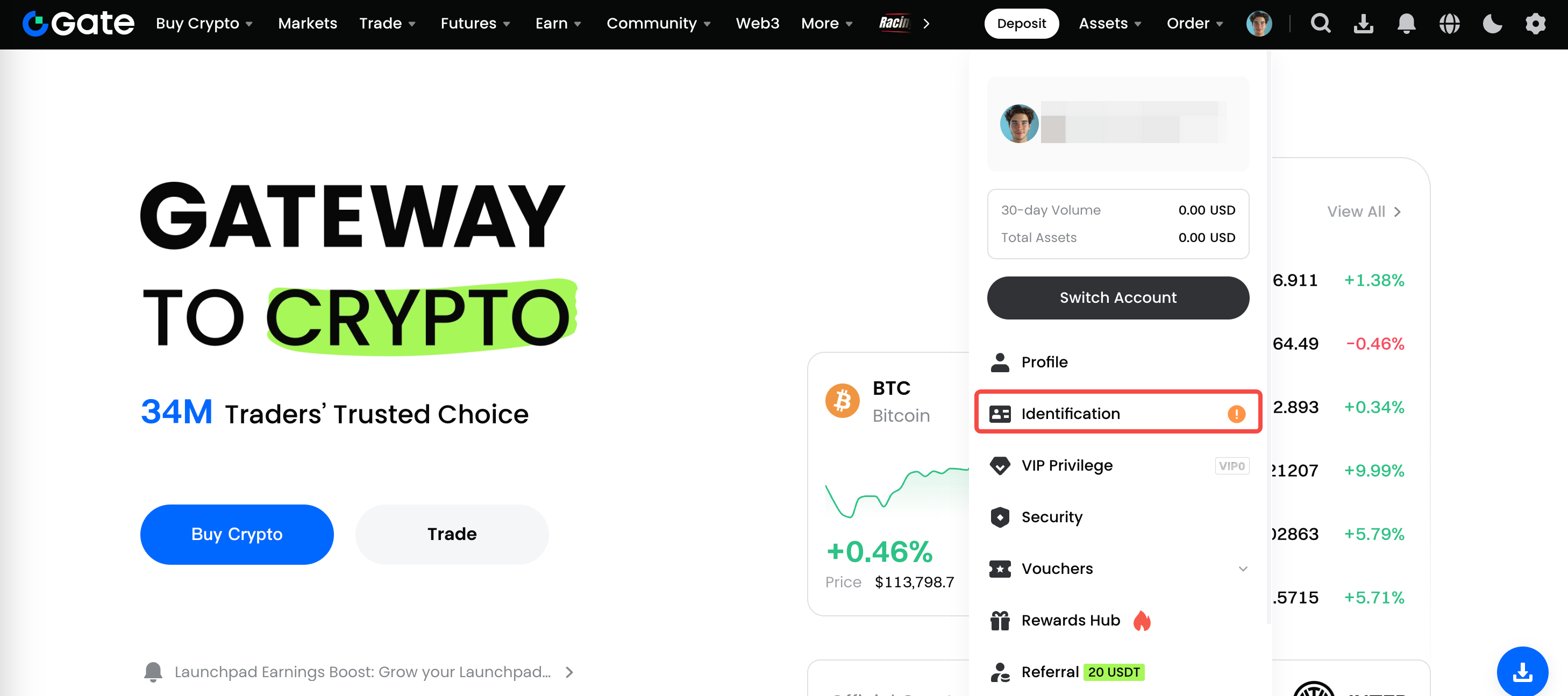
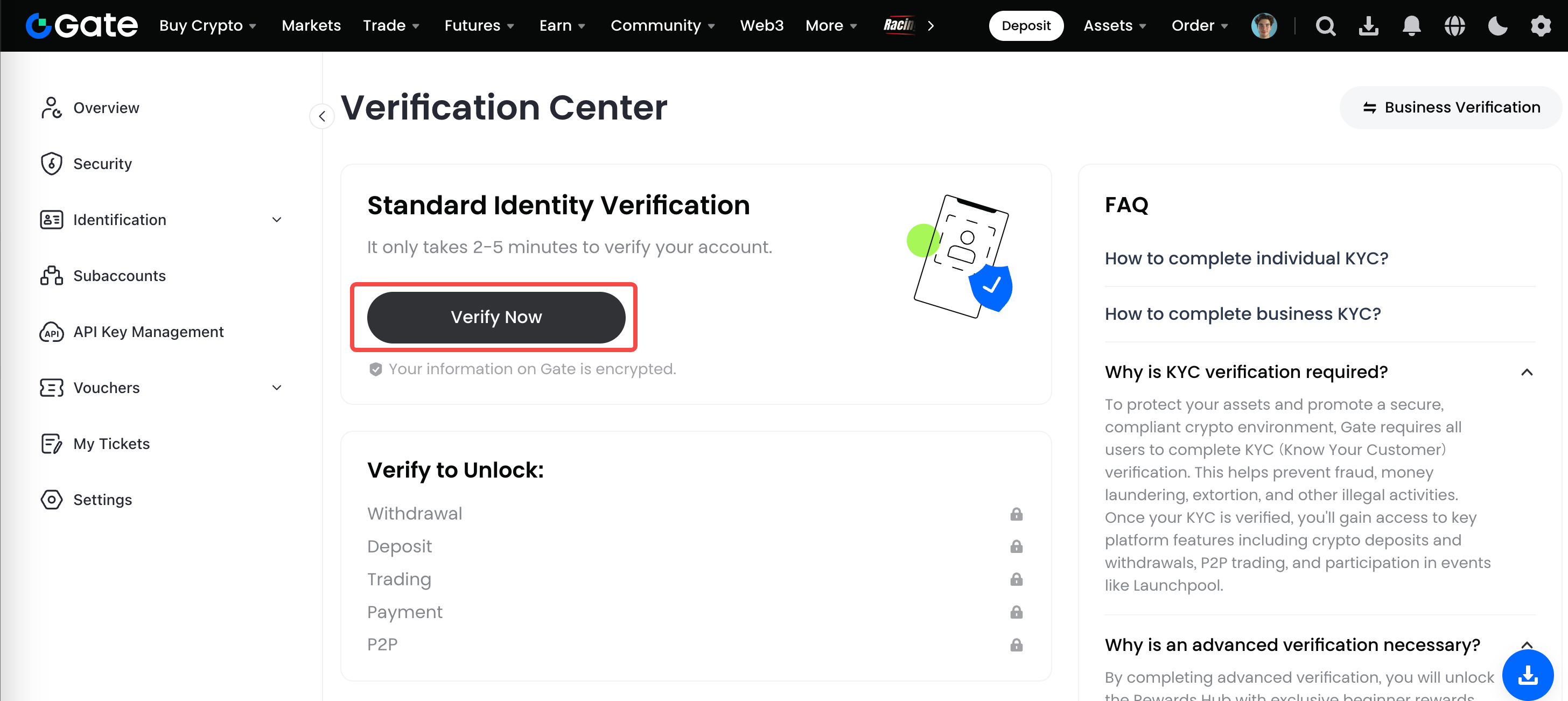
Log in to your Gate account and navigate to [Avatar] – [Identification] – [Personal/Corporate Verification] – [Verify Now] to begin the verification process.
Step 2: Complete Identity Verification
① Basic Information
Follow the on-screen instructions and fill in the required details, including: nationality, country of residence, full name, ID type, and ID number. After confirming that all information is correct, click [Next].
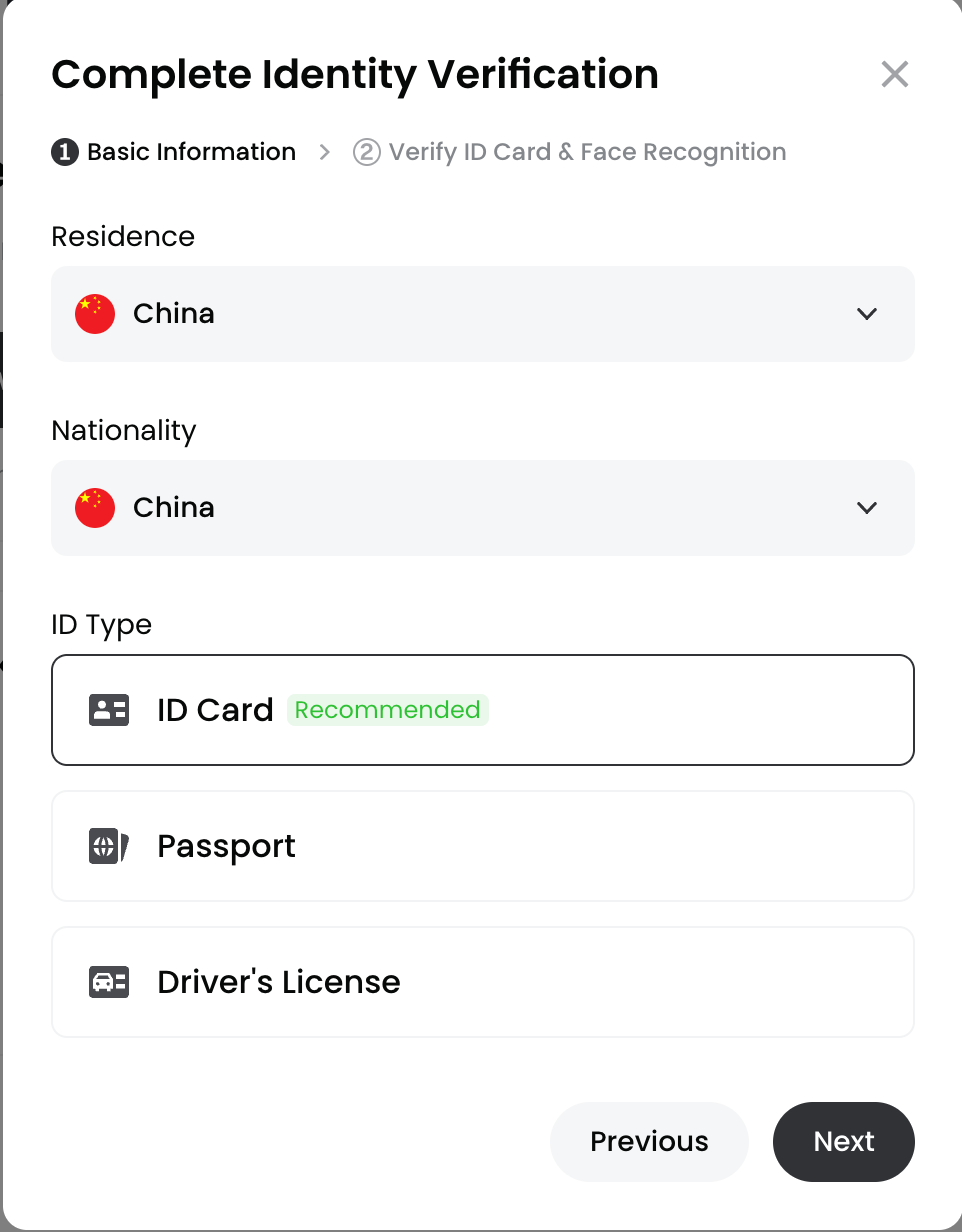
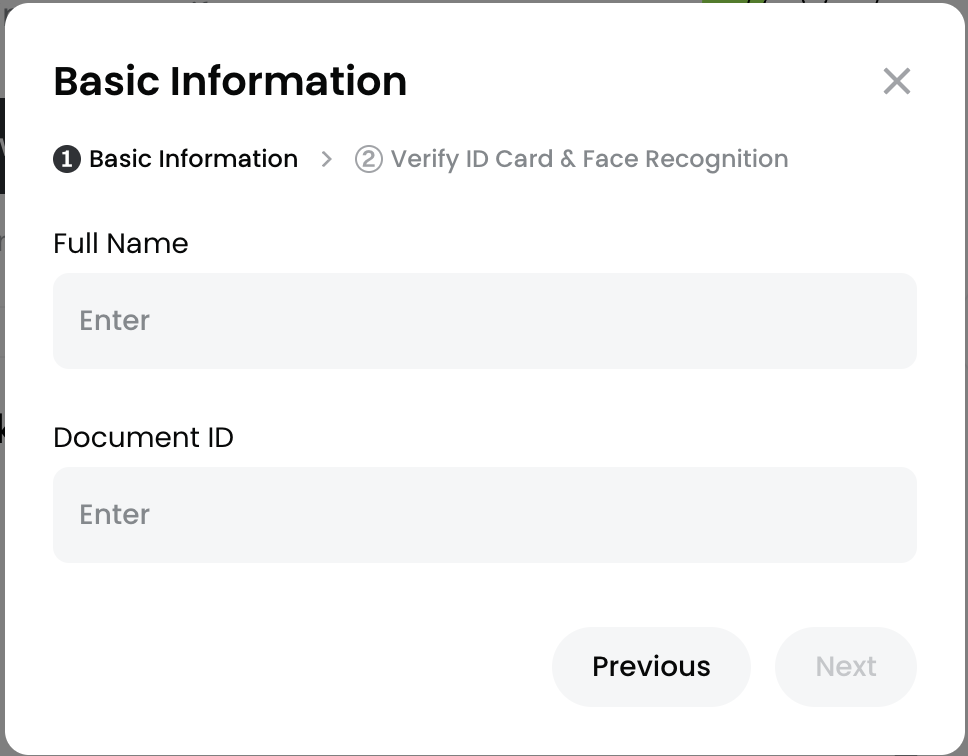
If any information is incorrect, click [Previous] to make changes.
(Note: Your ID information must exactly match the basic information provided.)
You will then be redirected to the identity verification page, where verification can be completed via: [App QR Code] Verification, or [Web Facial Recognition Verification].
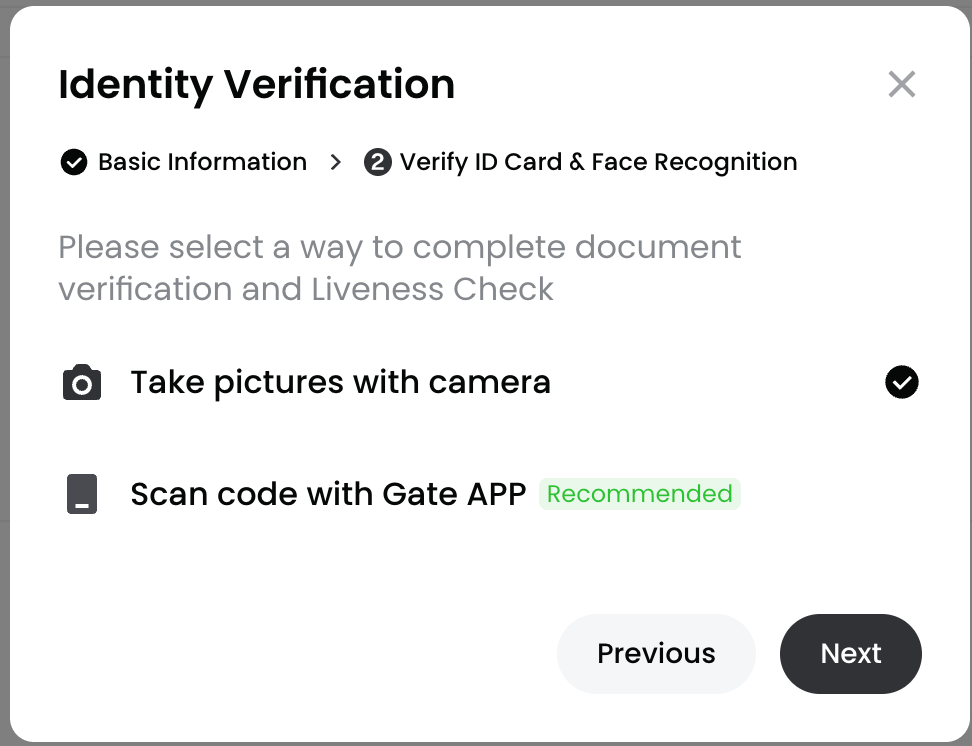
The following image shows the App QR code verification interface.
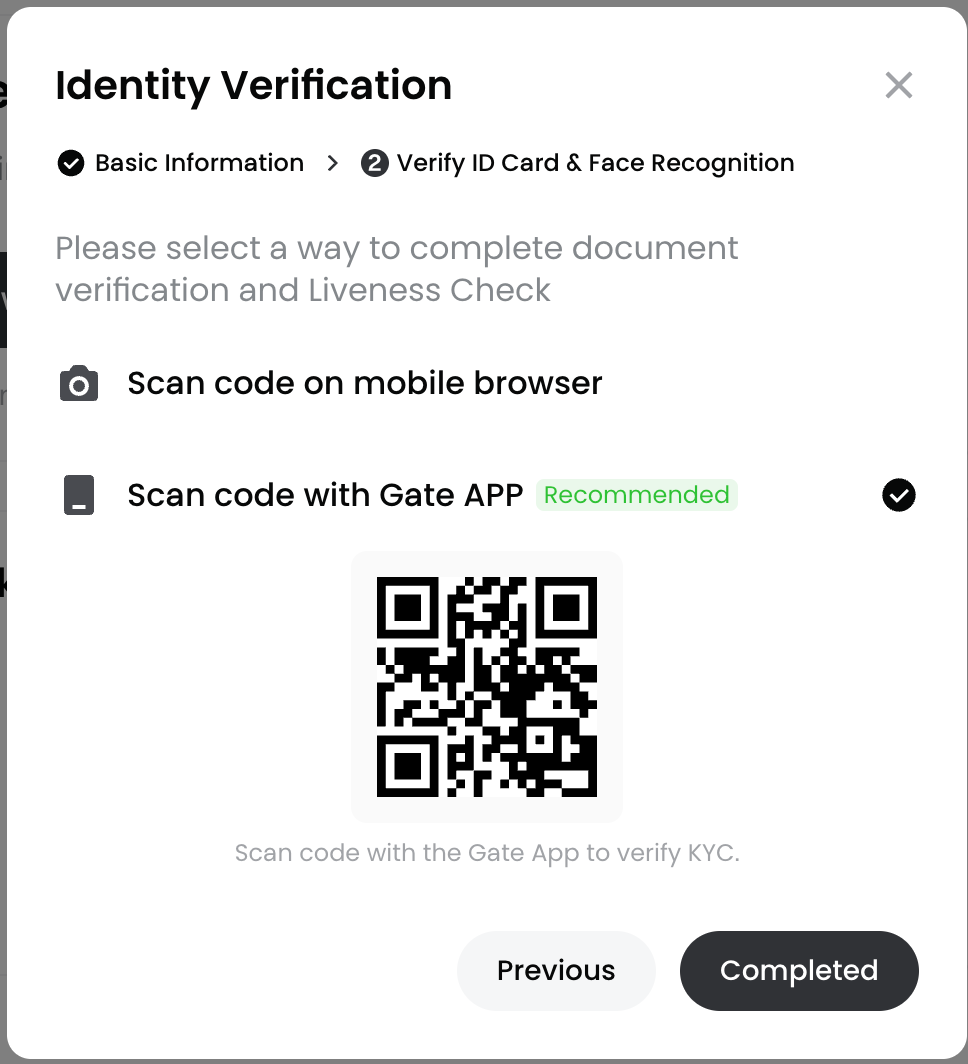
The following image shows the Web facial recognition verification interface.
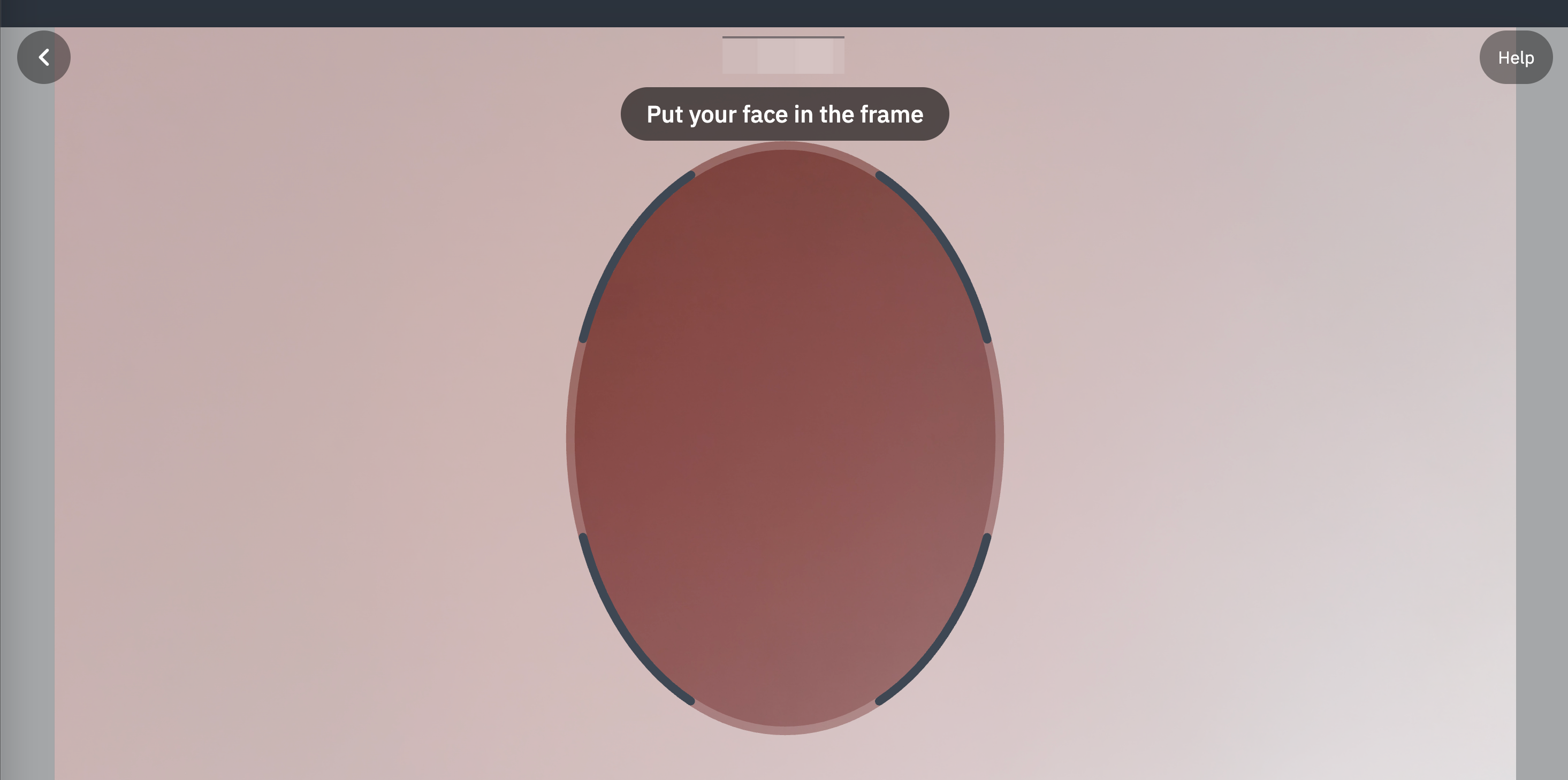
Note:
- If the page becomes unresponsive after uploading verification information, refresh the page and try again, or switch to another browser and re-upload.
- If you see "KYC FAILED: Please try again in 5 minutes" or "Please verify in person," please submit a support ticket and provide your identity documents. Our support team will assist you. This usually occurs when the ID document is older or cannot be automatically verified as belonging to the applicant.
If facial recognition is not possible, you may choose [Gesture Recognition].
Note: International users may upload photos on the web without video verification.; Domestic users are required to complete video verification.
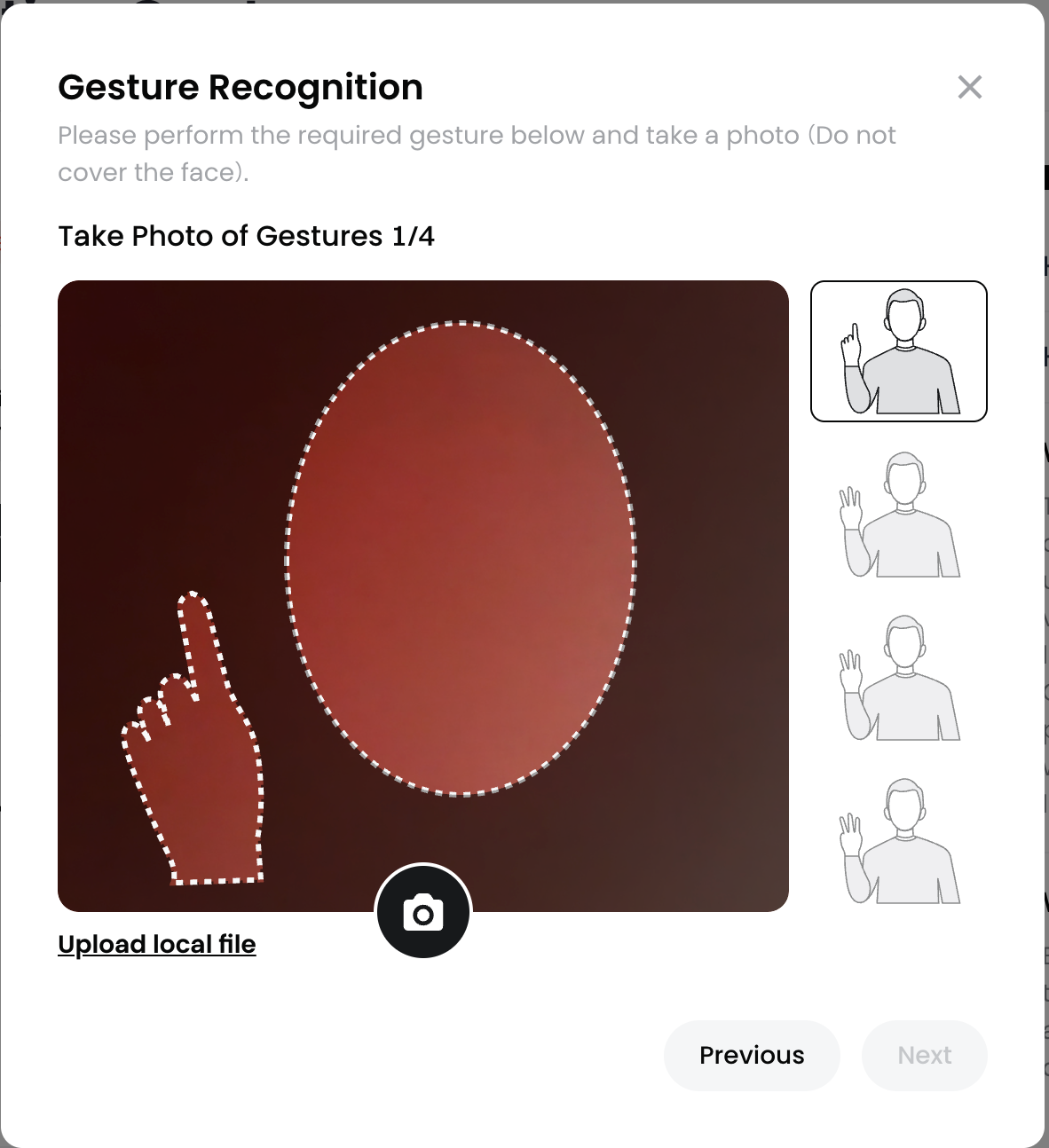
You may proceed with gesture verification, or click [Local Upload] to upload a gesture photo showing the last four digits of your Gate UID. After confirming the image is correct, click [Submit].
Note:
- File size must be between 10 KB and 4 MB. Supported formats: JPG or PNG.
- The photo must be clear, free of watermarks or stains. The gesture must be clearly visible, and the upper body must be fully shown.
② Address Verification
Once your identity verification is approved, click [Verify Now] to proceed with address verification.
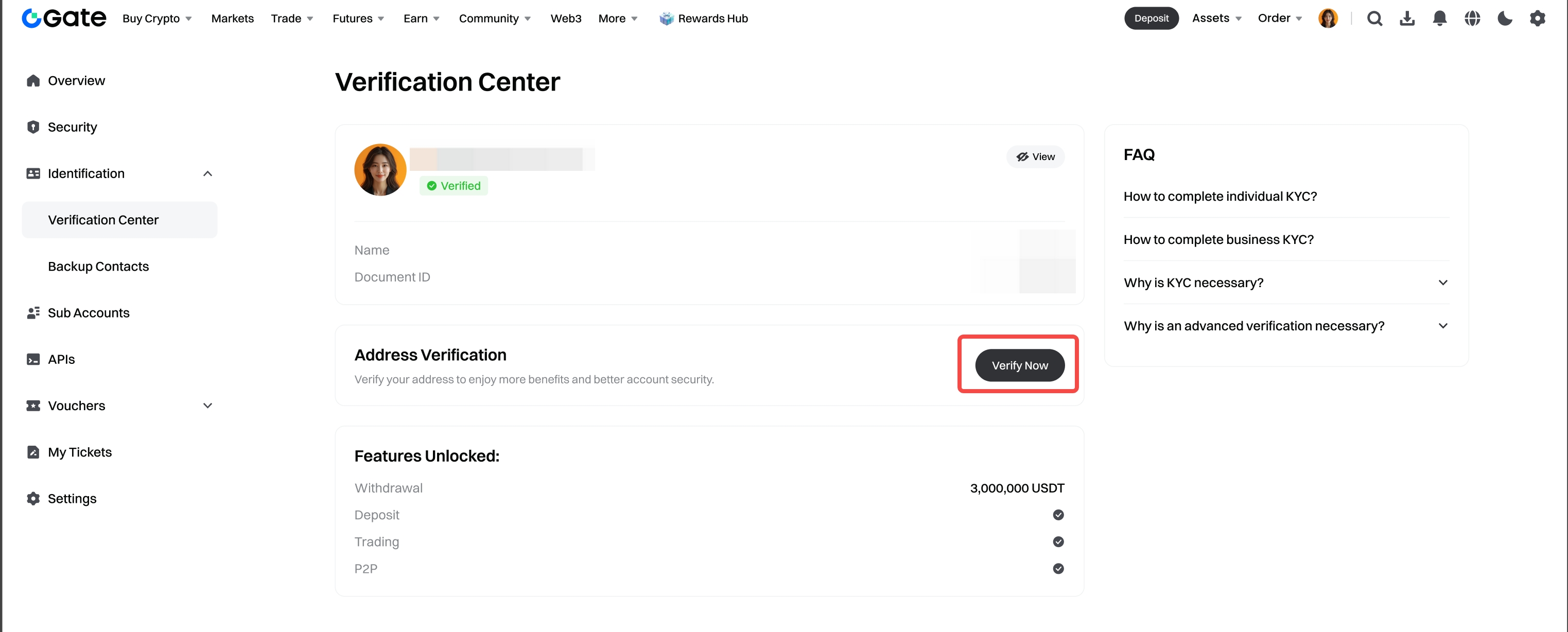
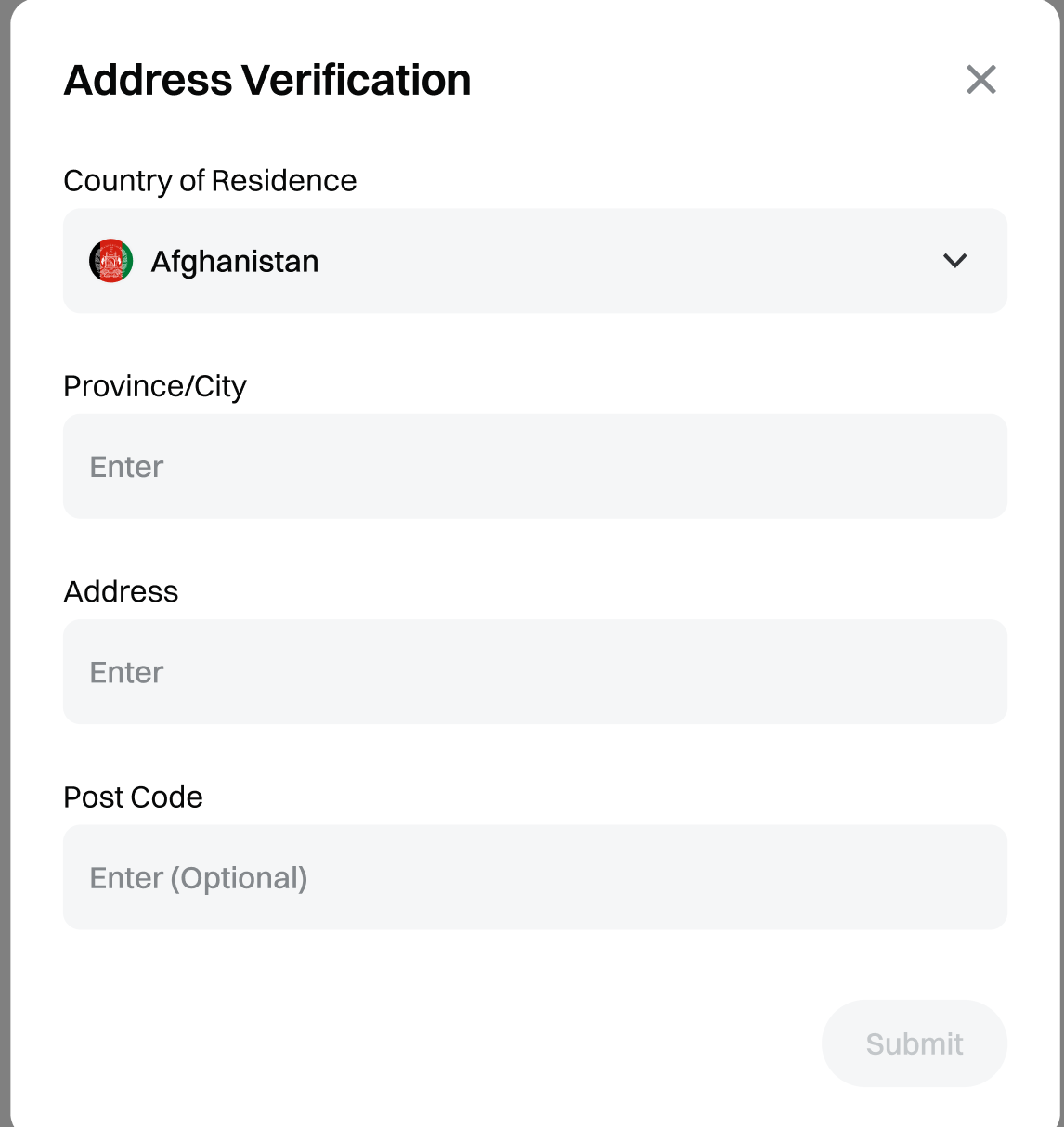
Follow the on-screen instructions, complete the required information, confirm its accuracy, and click [Submit]. Please wait for the review to be completed.
Disclaimer
The content provided herein is for reference and educational purposes only and does not constitute any financial, investment, trading, or legal advice, nor does it constitute an offer or solicitation to buy or sell any digital assets. Gate makes no express or implied representations or warranties regarding the accuracy, completeness, or timeliness of the information contained herein. Product features, interfaces, rules, and fee structures may be updated or adjusted at any time. Please refer to the latest announcements and the actual information displayed on the Gate platform for the most accurate details.
Digital asset investments involve significant risk, and prices may fluctuate substantially. You may lose the entire amount of your investment. Please make decisions cautiously based on your own financial situation and risk tolerance after fully understanding the associated risks. If necessary, you are advised to consult an independent professional financial or legal advisor.
For more information about potential risks, please refer to Gate's Risk Disclosure and User Agreement.
