


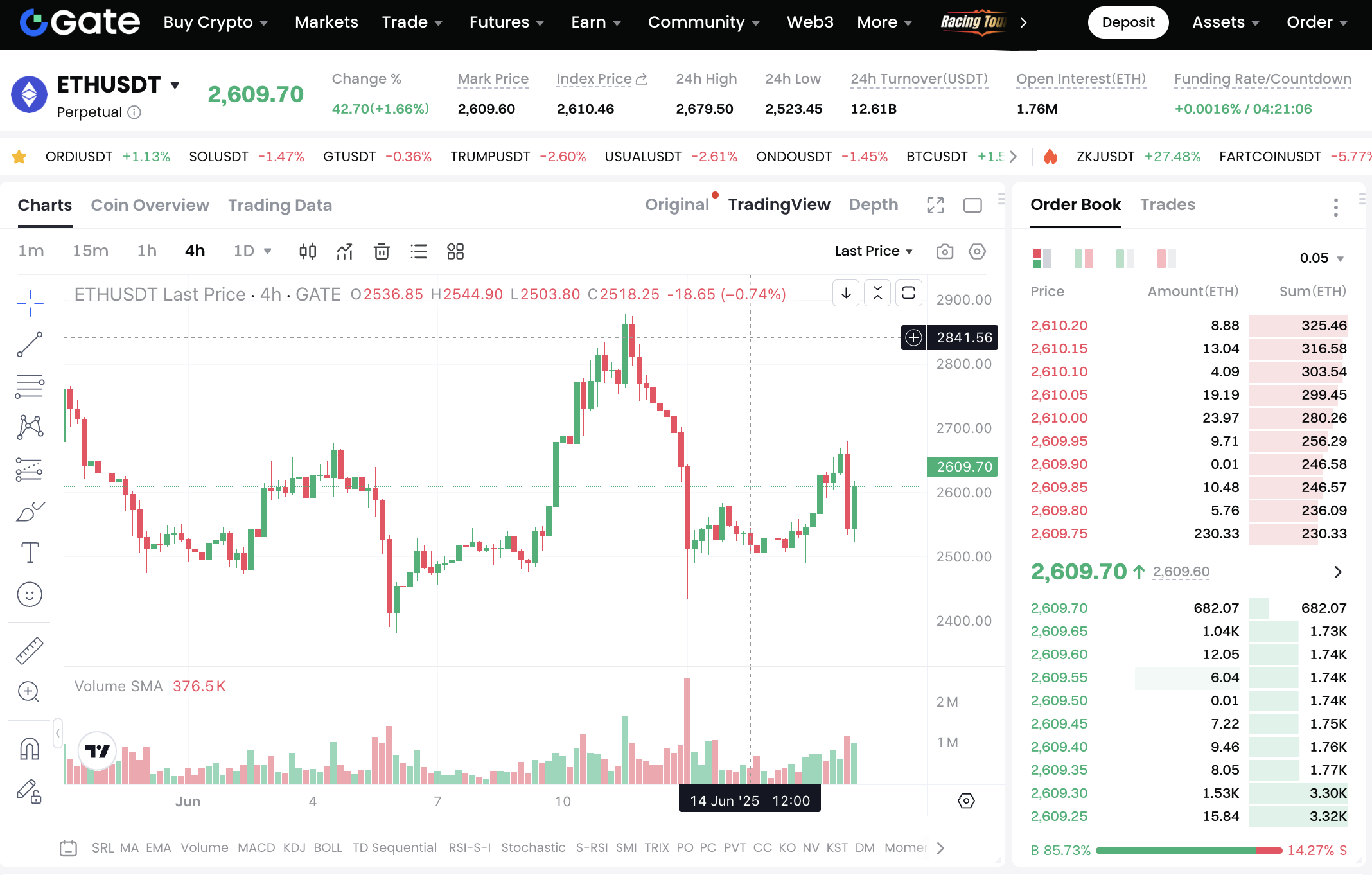
This article uses the ETH/USDT perpetual futures page as an example to show you how to enable or disable the Order History markers on your chart. This helps you view or hide the indicators for your filled orders more intuitively.
1. How to Enable "Order History" on the Candlestick Chart
1.Go to the Trade page and click the "Layer Display" button above the candlestick chart.
2.In the dropdown options, check the box for "Order History".
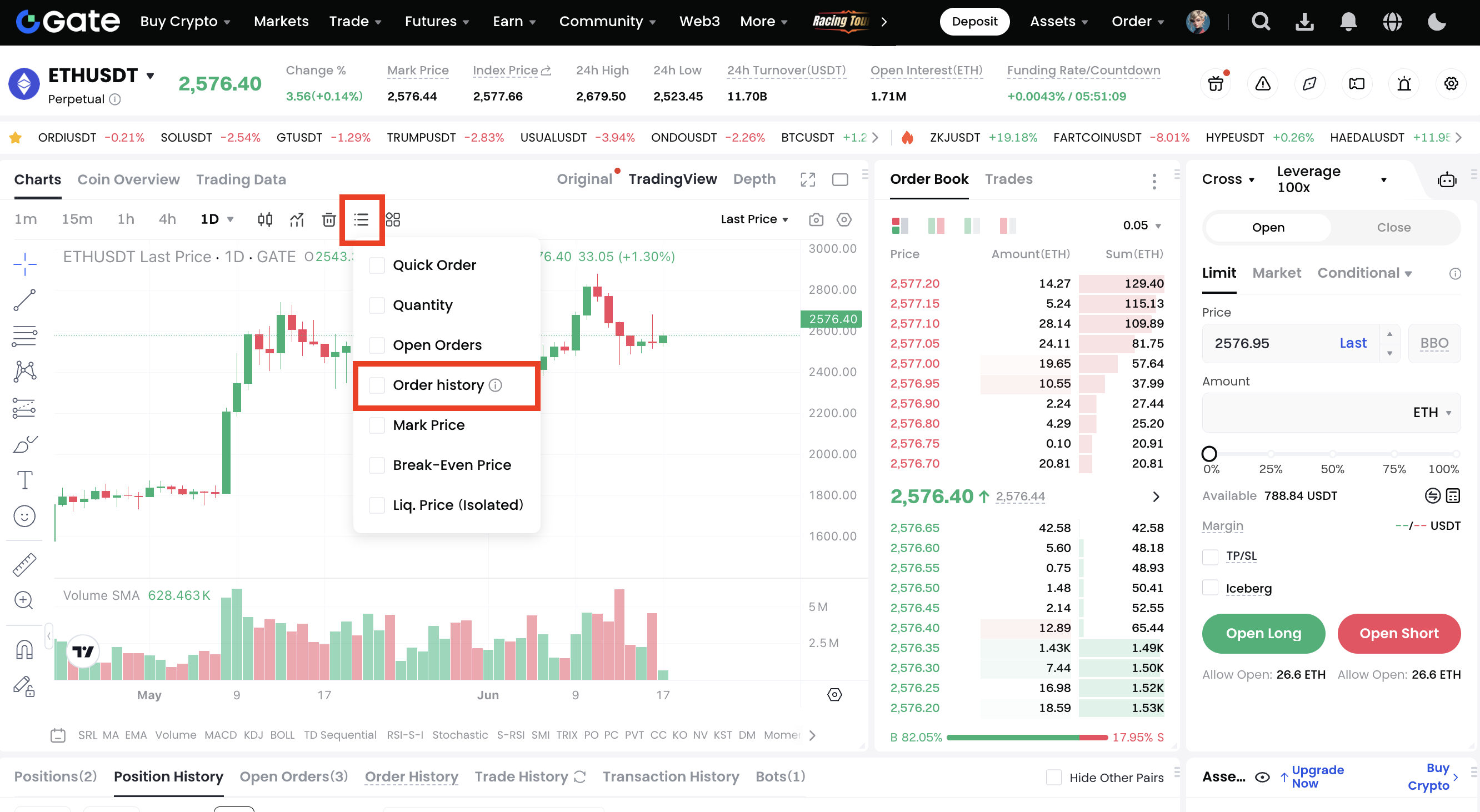
Once enabled, the system will display the most recent 1,000 filled orders on the chart (example using red for rise, green for fall):
- Buy (B) markers appear below the candlestick chart;
- Sell (S) markers appear above the candlestick chart.
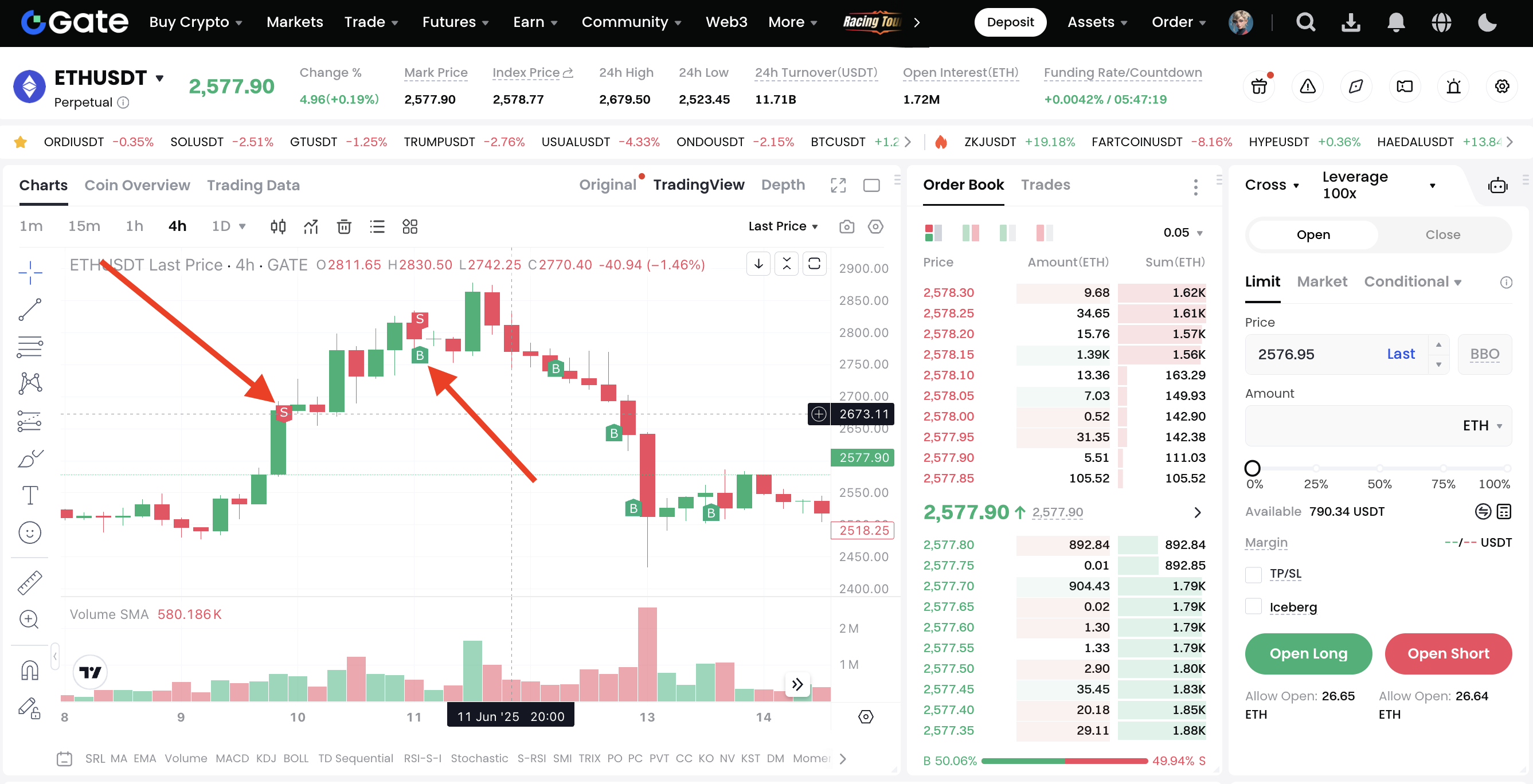
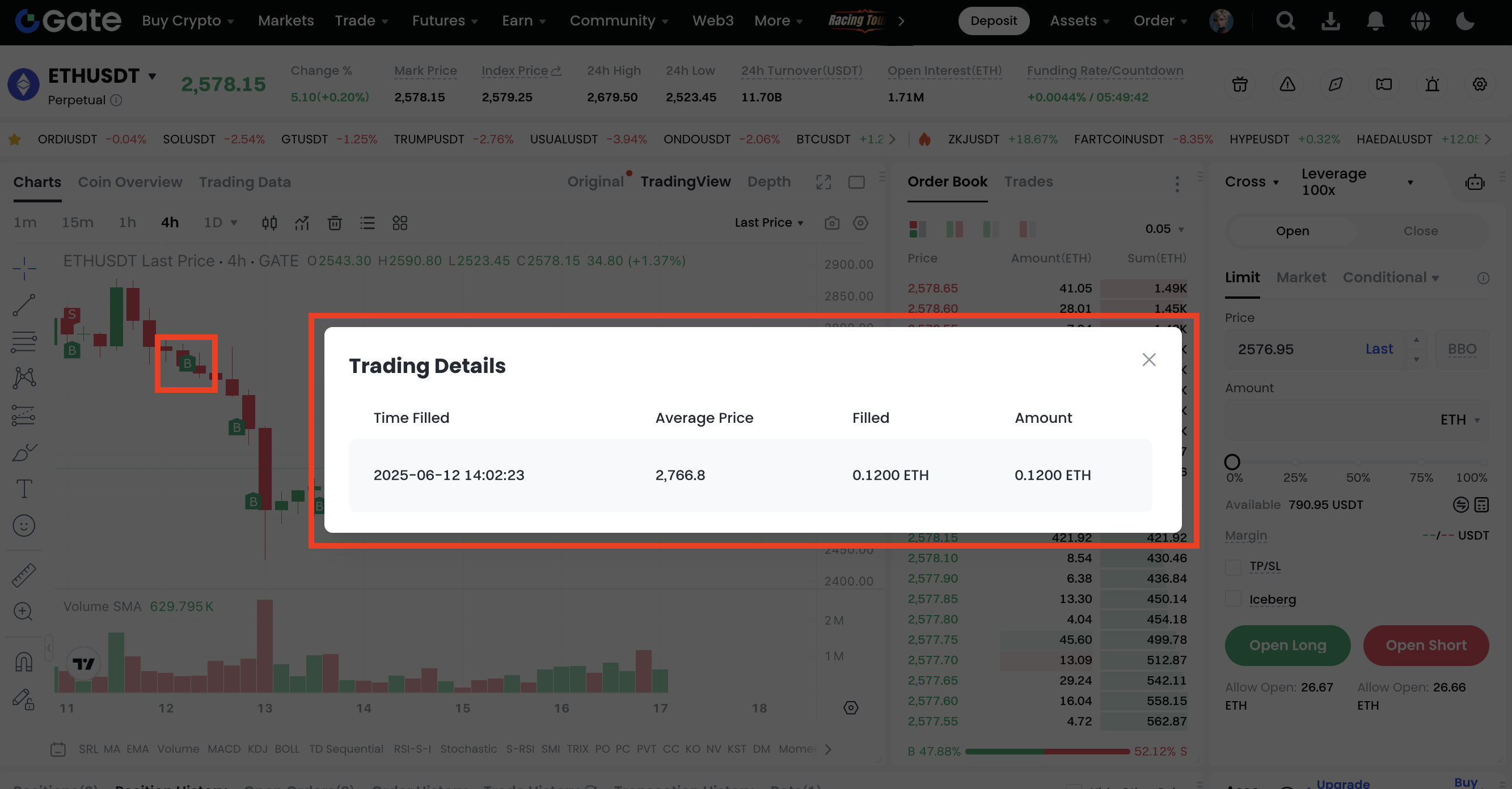
3.On the chart, click any arrow marker to view detailed order information , including: fill time, average fill price, order quantity, filled quantity.
2. How to Disable "Order History" on the Candlestick Chart
1.If you wish to hide "Order History" , simply click the Layer Display button again on the trading page and uncheck Order History.
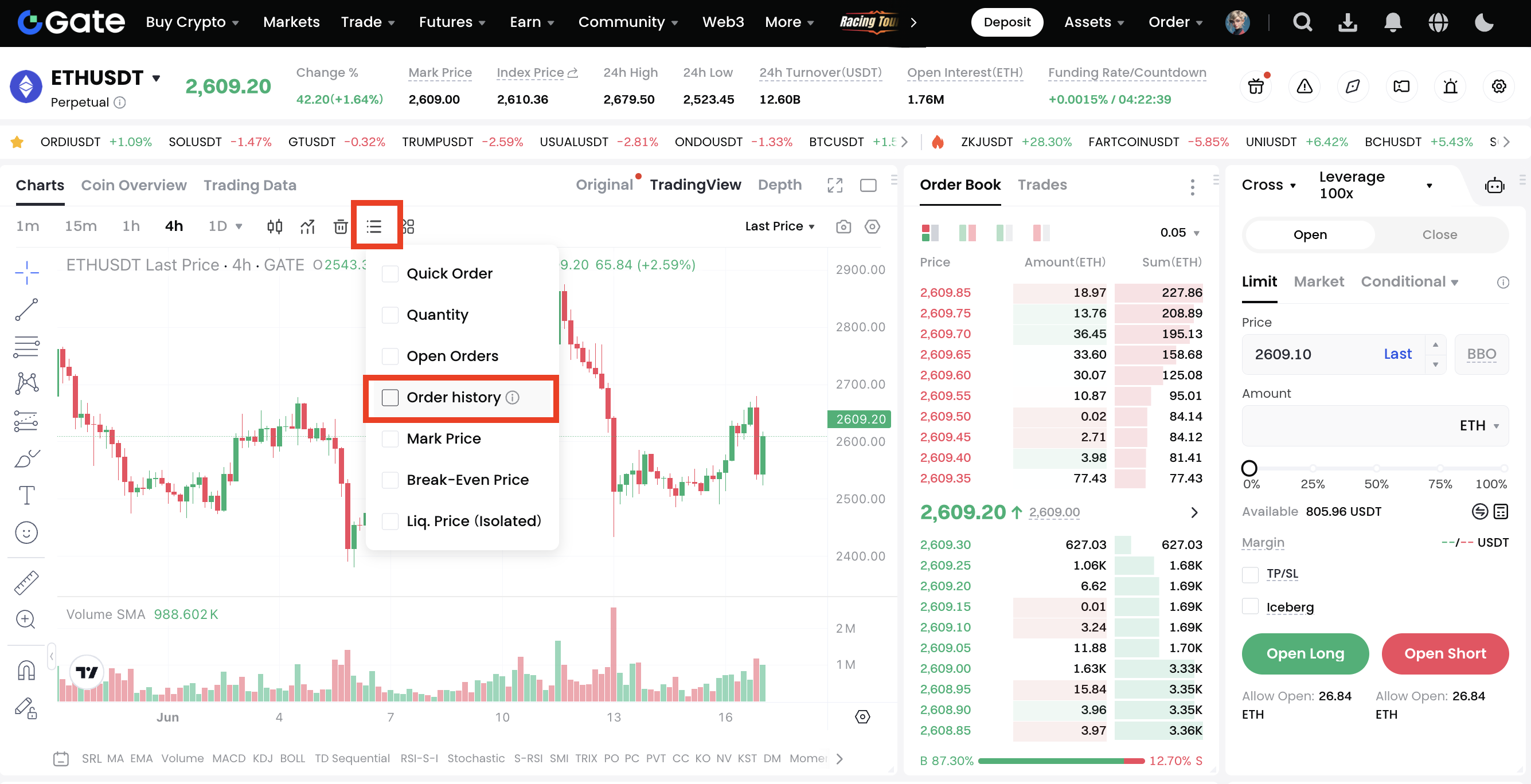
2.Once disabled, the chart will no longer display filled order markers.
If you encounter any issues, feel free to contact our Customer Support team.
Disclaimer
The content provided herein is for reference and educational purposes only and does not constitute any financial, investment, trading, or legal advice, nor does it constitute an offer or solicitation to buy or sell any digital assets. Gate makes no express or implied representations or warranties regarding the accuracy, completeness, or timeliness of the information contained herein. Product features, interfaces, rules, and fee structures may be updated or adjusted at any time. Please refer to the latest announcements and the actual information displayed on the Gate platform for the most accurate details.
Digital asset investments involve significant risk, and prices may fluctuate substantially. You may lose the entire amount of your investment. Please make decisions cautiously based on your own financial situation and risk tolerance after fully understanding the associated risks. If necessary, you are advised to consult an independent professional financial or legal advisor.
For more information about potential risks, please refer to Gate's Risk Disclosure and User Agreement.
