


I. What is the Passkey Function?
Gate has introduced the online passkey function for quick identity authentication, enhancing secondary verification. This feature allows users to enjoy a seamless login experience without needing passwords or verification codes, while providing top-tier protection for account security. It aims to safeguard your funds effectively.
II. How to Create a Passkey on the App?
1. Before creating a Passkey, please make sure you meet the following requirements:
- Your mobile device must run on iOS 16.0 or above, or Android 9.0 or above.
- Alternatively, you can use a FIDO2-compatible USB security key as an additional security measure with your iOS or Android device.
- Gate App version 4.67 or above.
2. Set up security verification (skip if done)
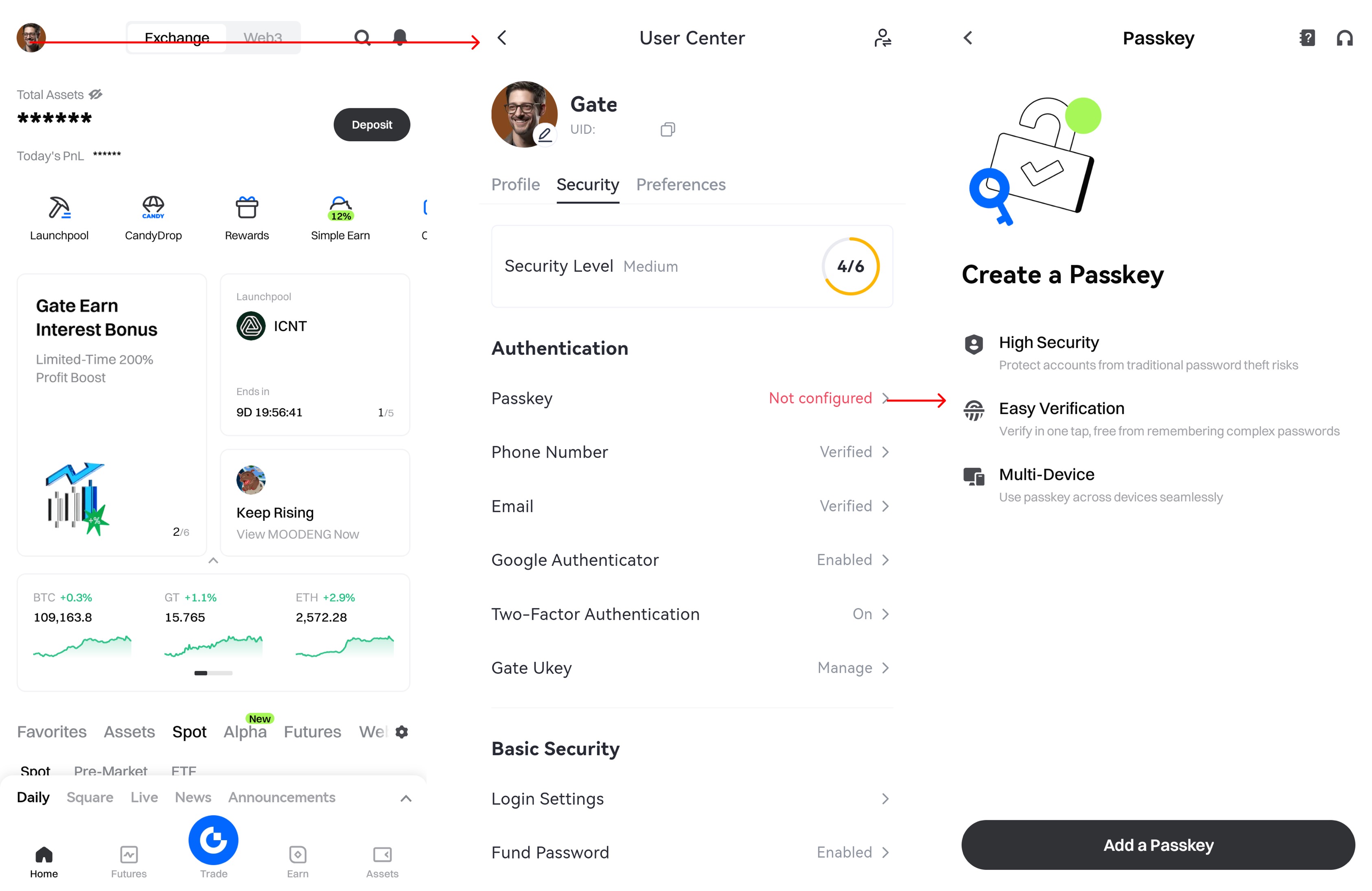
2.1 Open the app and tap on your profile icon in the top left corner.
2.2 Navigate to [Profile and Settings] - [Security] - [Authentication]. To create a passkey, ensure you've enabled at least two security verification methods.
3. Create a Passkey
3.1 Verification
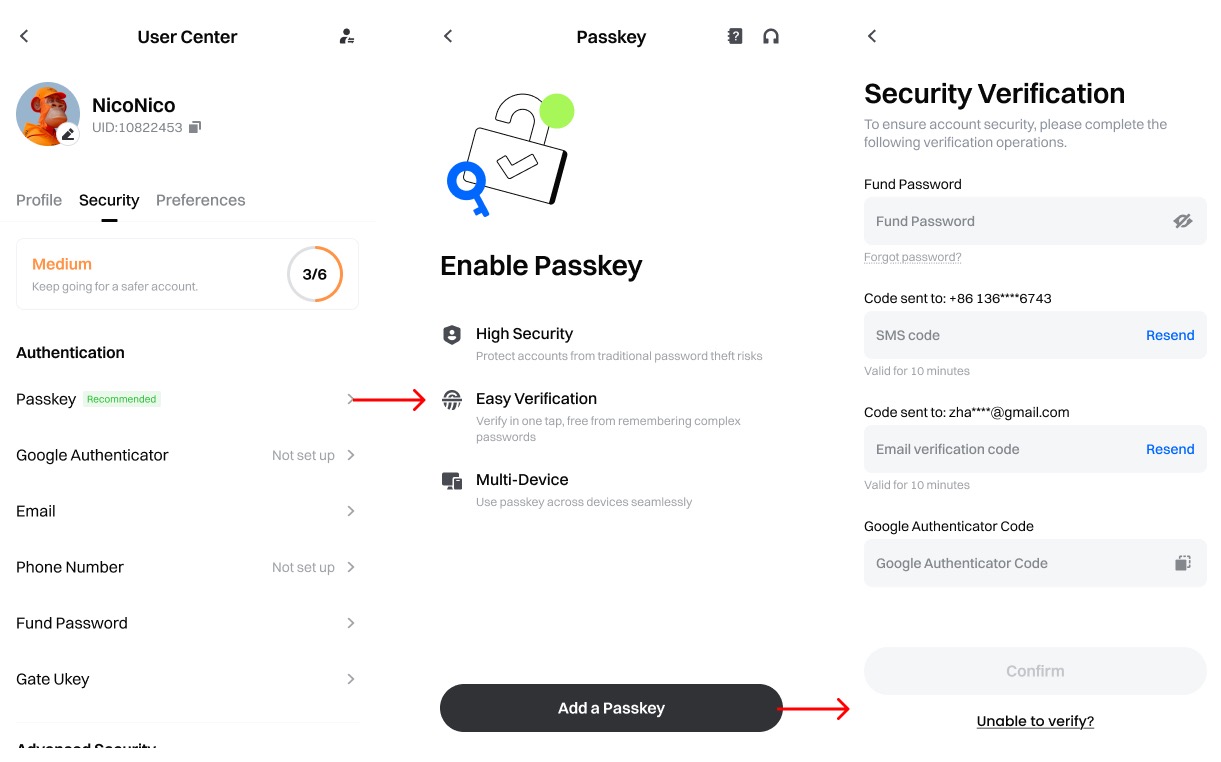
Navigate to [Passkey] - [Add a Passkey]. You will need to verify your identity using the security measures linked to your account or an existing passkey to proceed.
3.2. Create a passkey
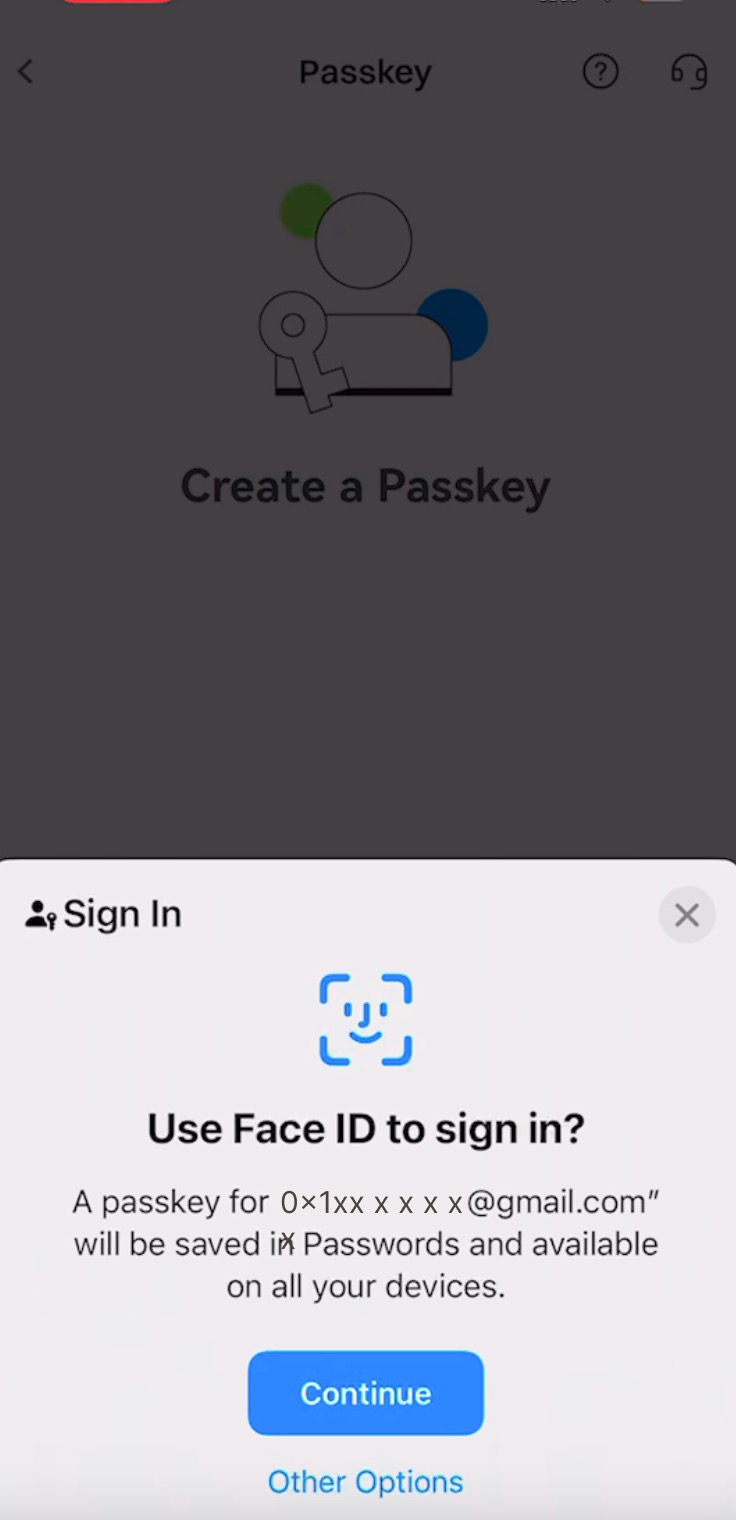
Verify your email address linked to your Gate account, tap [Continue], and choose your preferred verification method to create a passkey.
3.2.1 iCloud Keychain (iOS only)
- If iCloud Keychain is enabled, tap [Continue], and complete the creation using Face ID or your password.
3.2.2 Create a passkey on another mobile device/tablet
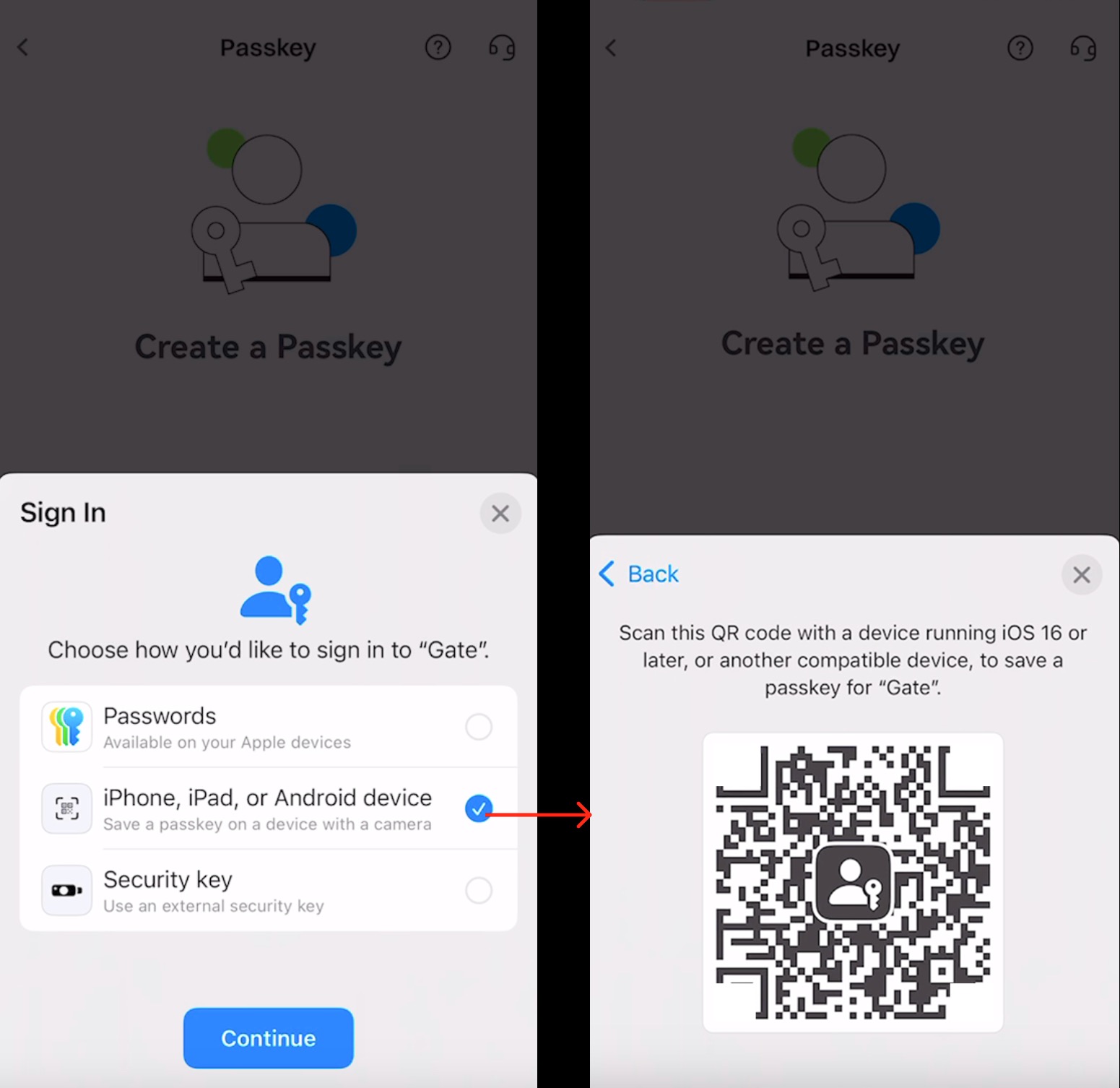
Tap [Other Options] and choose [iPhone, iPad, or Android Device]. A QR code will appear on the screen. Use another device (iPhone, iPad, or Android) to scan it and complete the authorization on this device.
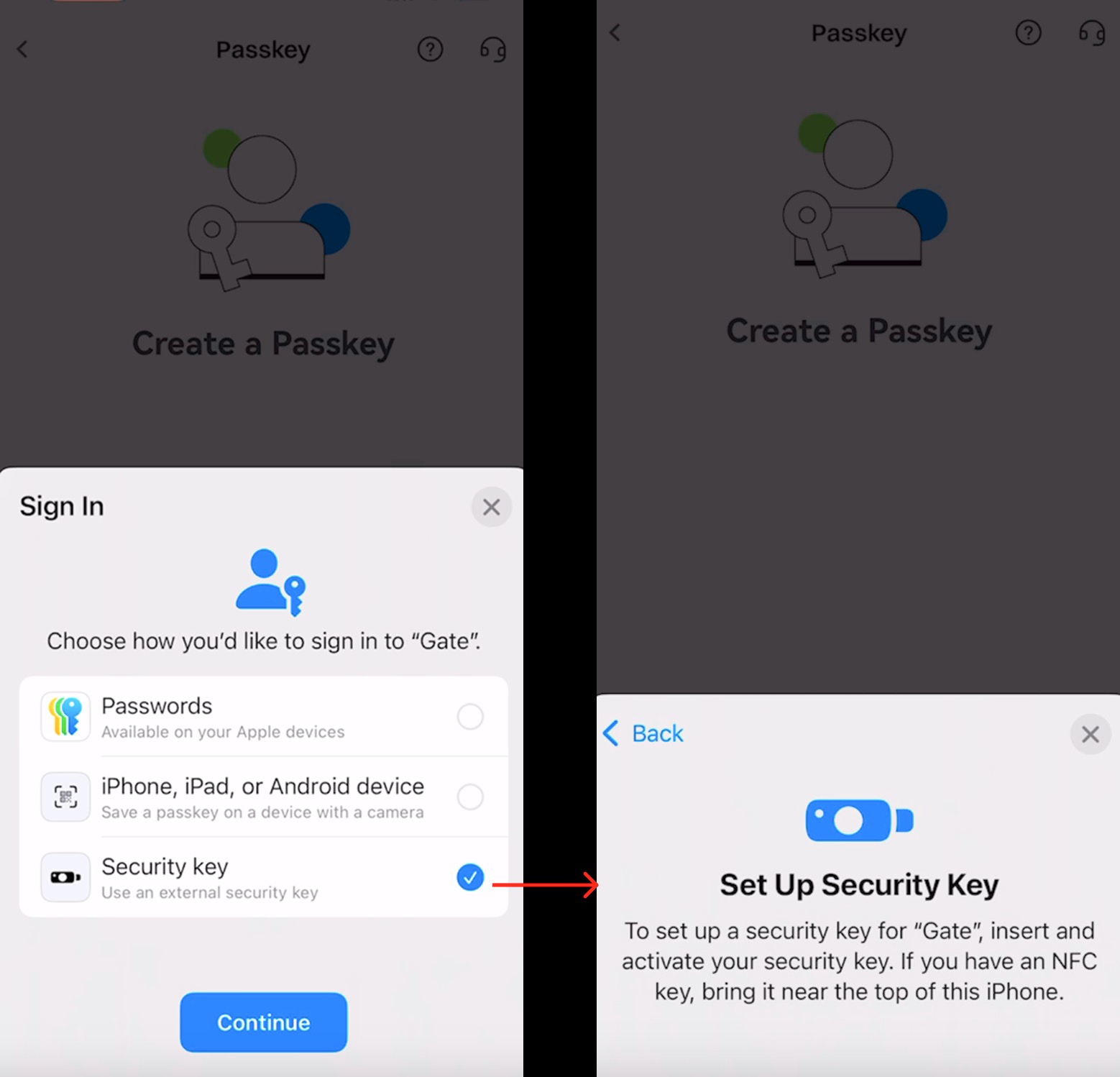
3.2.3 USB/NFC security key (iOS only)
Tap [Other Options] - [Security Key]. Insert your USB security key or place the NFC key near the top of your device and follow the on-screen instructions to complete the creation.
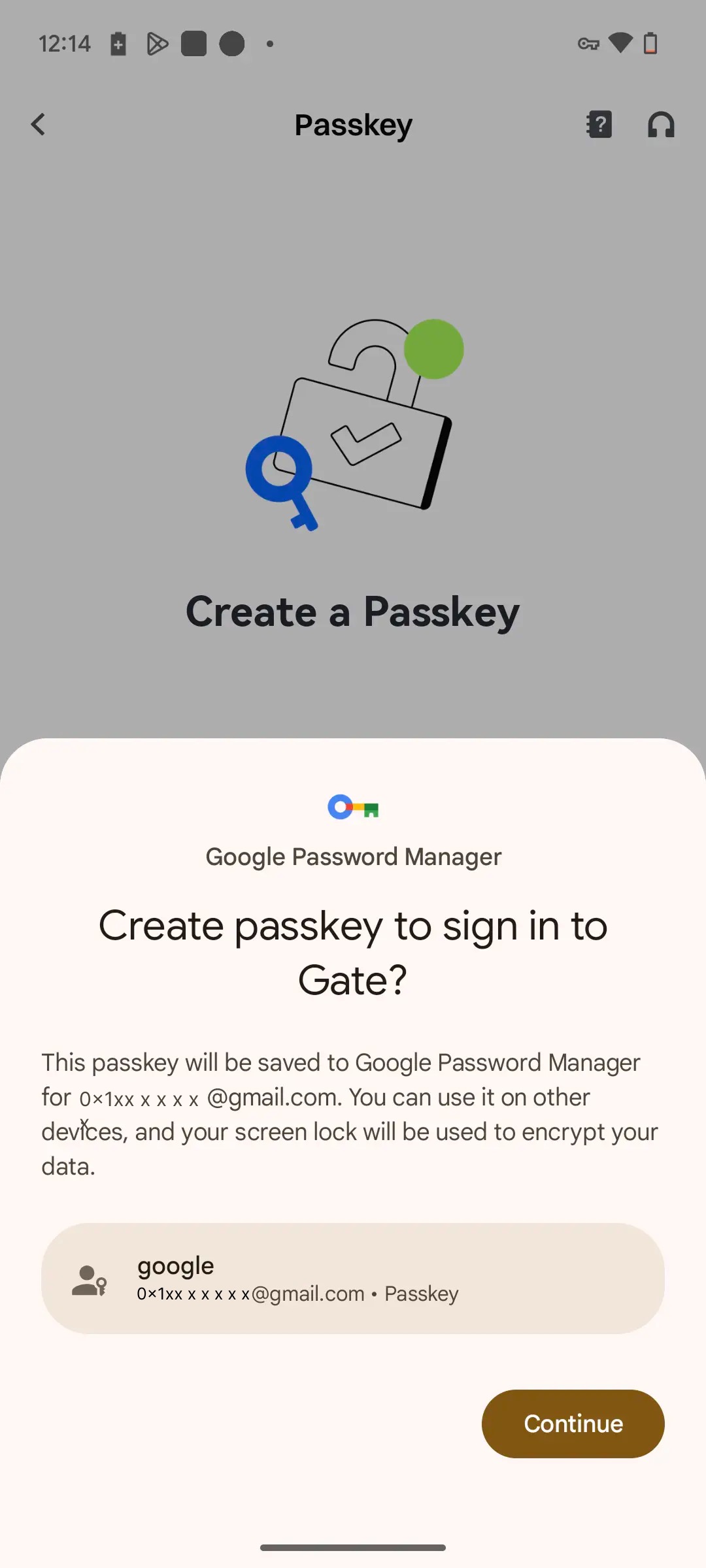
3.2.4 Google Password Manager (Android only)
For Android devices with Google Password Manager, you will see a pop-up window. Tap [Continue] and complete the setup using Touch ID, PIN, or password.
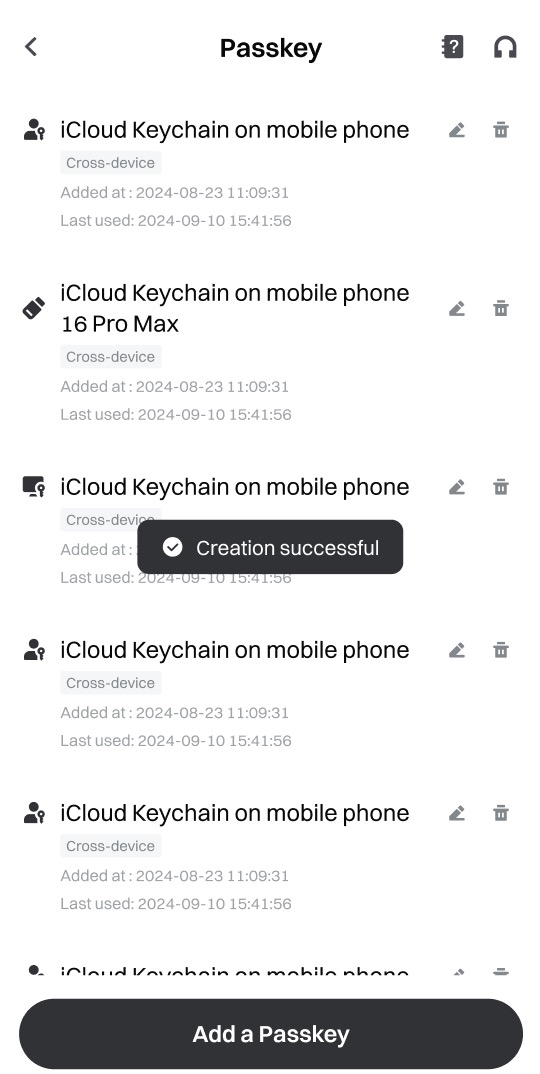
3.3 Creation successful
Once the passkey is successfully added to your Gate account, you can view the details on the passkey page.
Ⅲ. How to Create a Passkey on the Web?
1. Before creating a passkey, please make sure that your devices meet the following requirements:
- Computer with Windows 10 / macOS Ventura or later
- A USB security key that supports the FIDO2 protocol (USB-based security keys, also known as U2F keys, can be plugged directly into any USB port, just like a regular USB drive.)
- A browser that supports FIDO, like:
- Chrome 109 or higher
- Safari 16 or higher
- Edge 109 or later
2. Set security methods
2.1 Log in to your Gate account, hover over your avatar, and then click [Security].

2.2 On the [Security] page, click [Turn on] next to [Passkey].
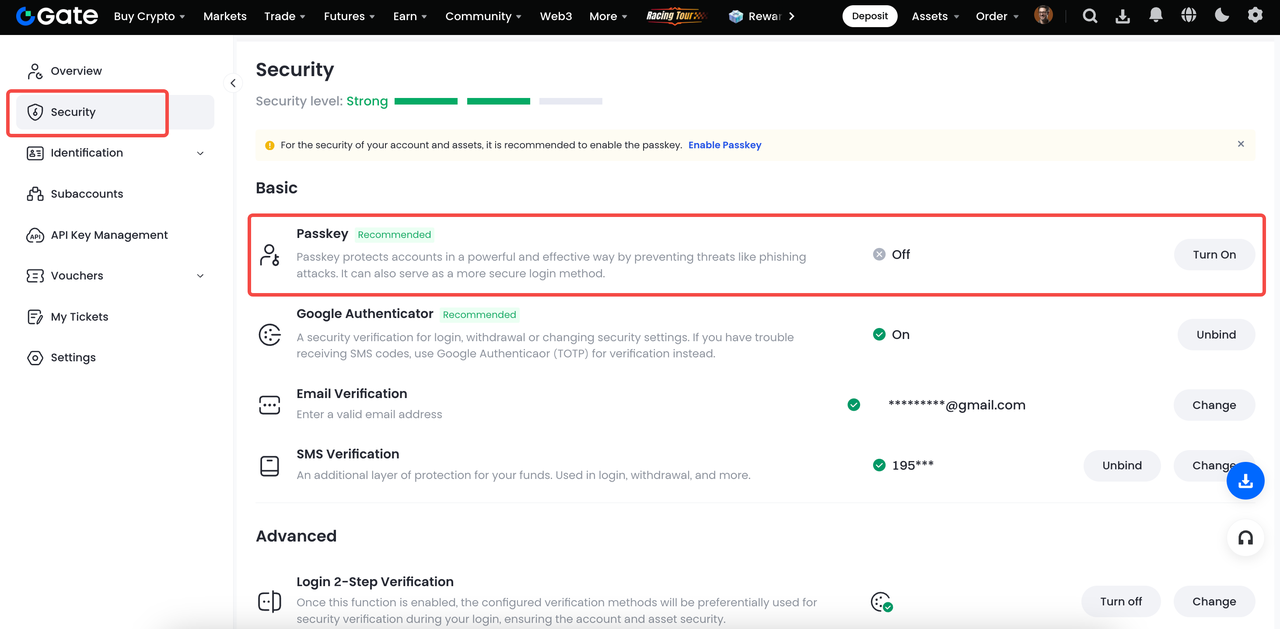
2.3 Click [Add a Passkey].
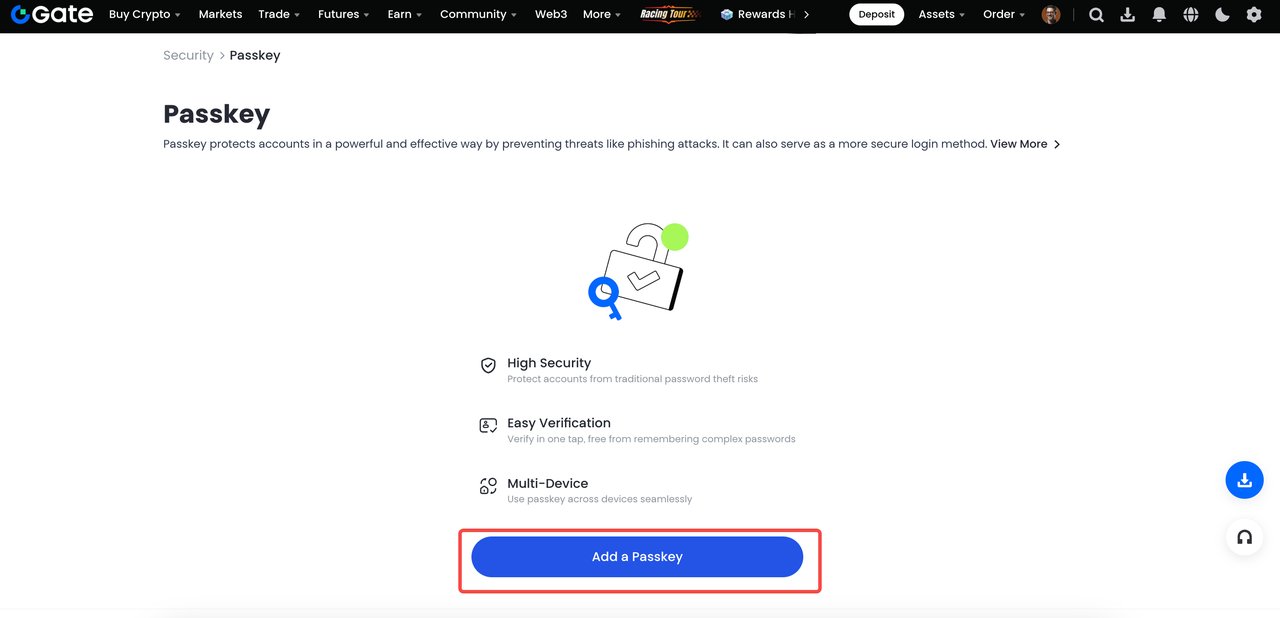
2.4 Before creating a passkey, please authenticate your identity first. You can complete identity authentication using security verification methods.
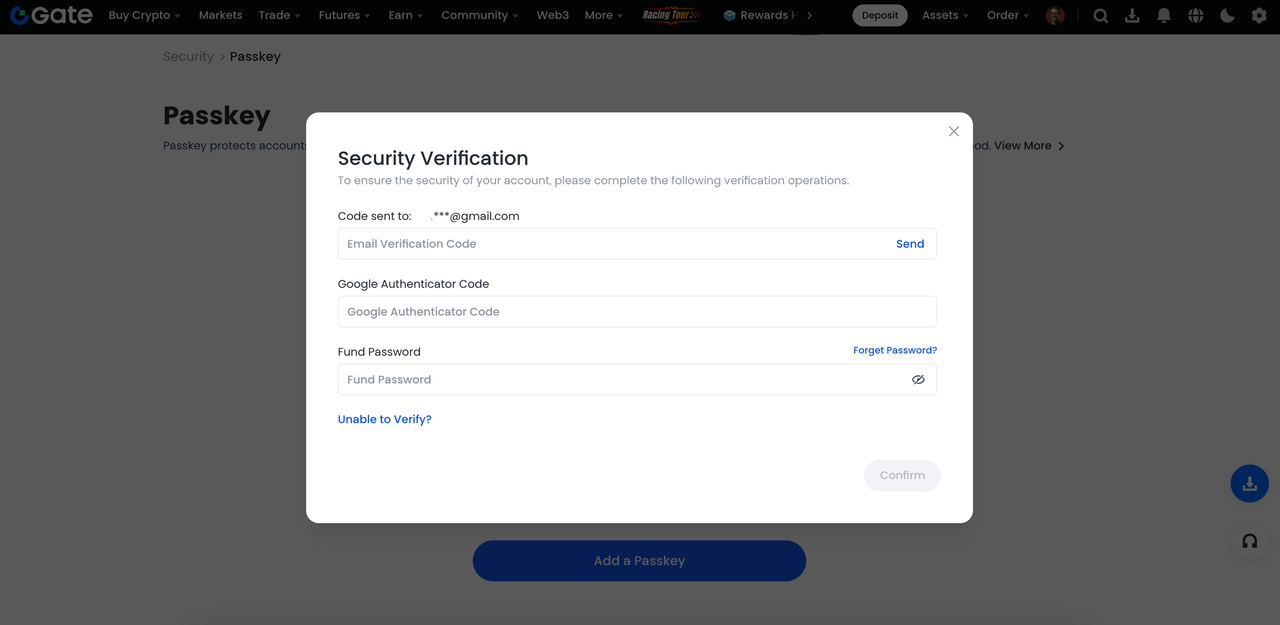
3. Create a Passkey
3.1 iCloud Keychain (iOS only)
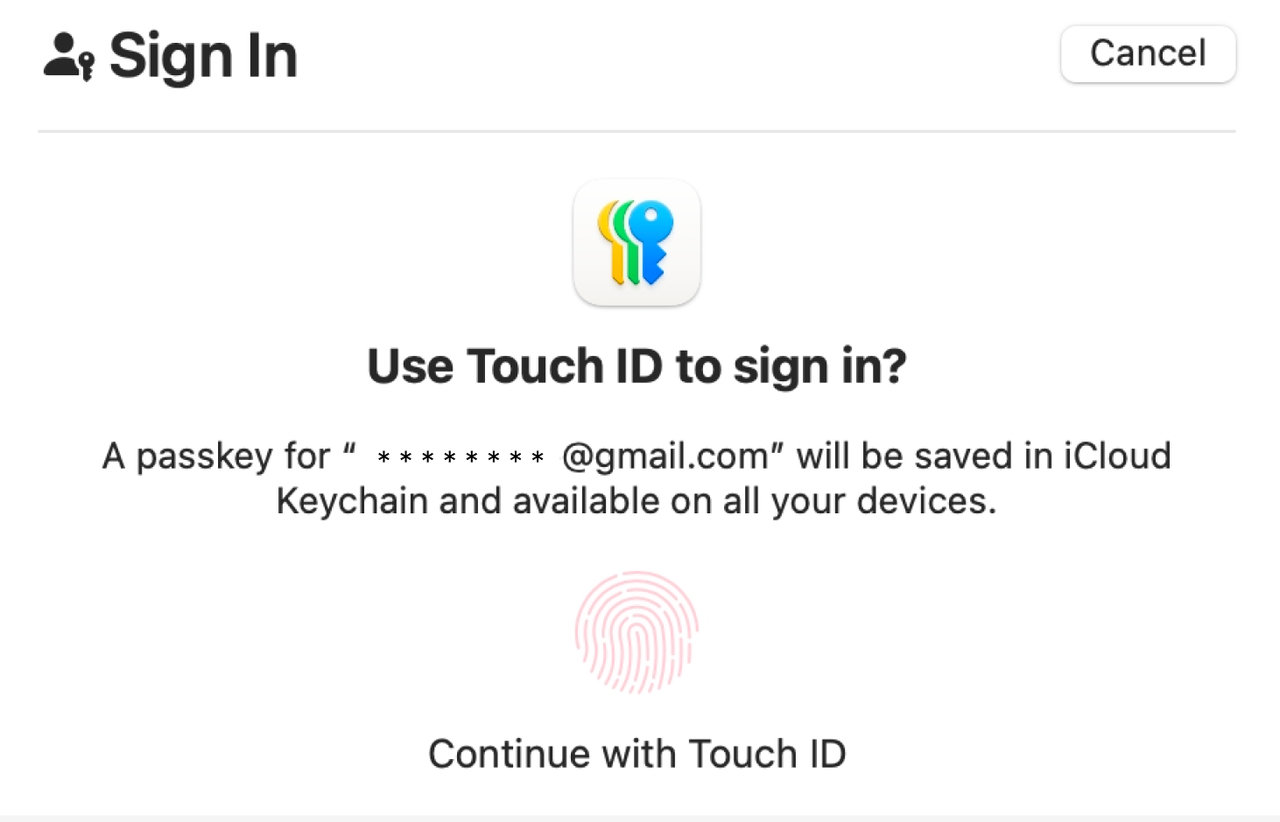
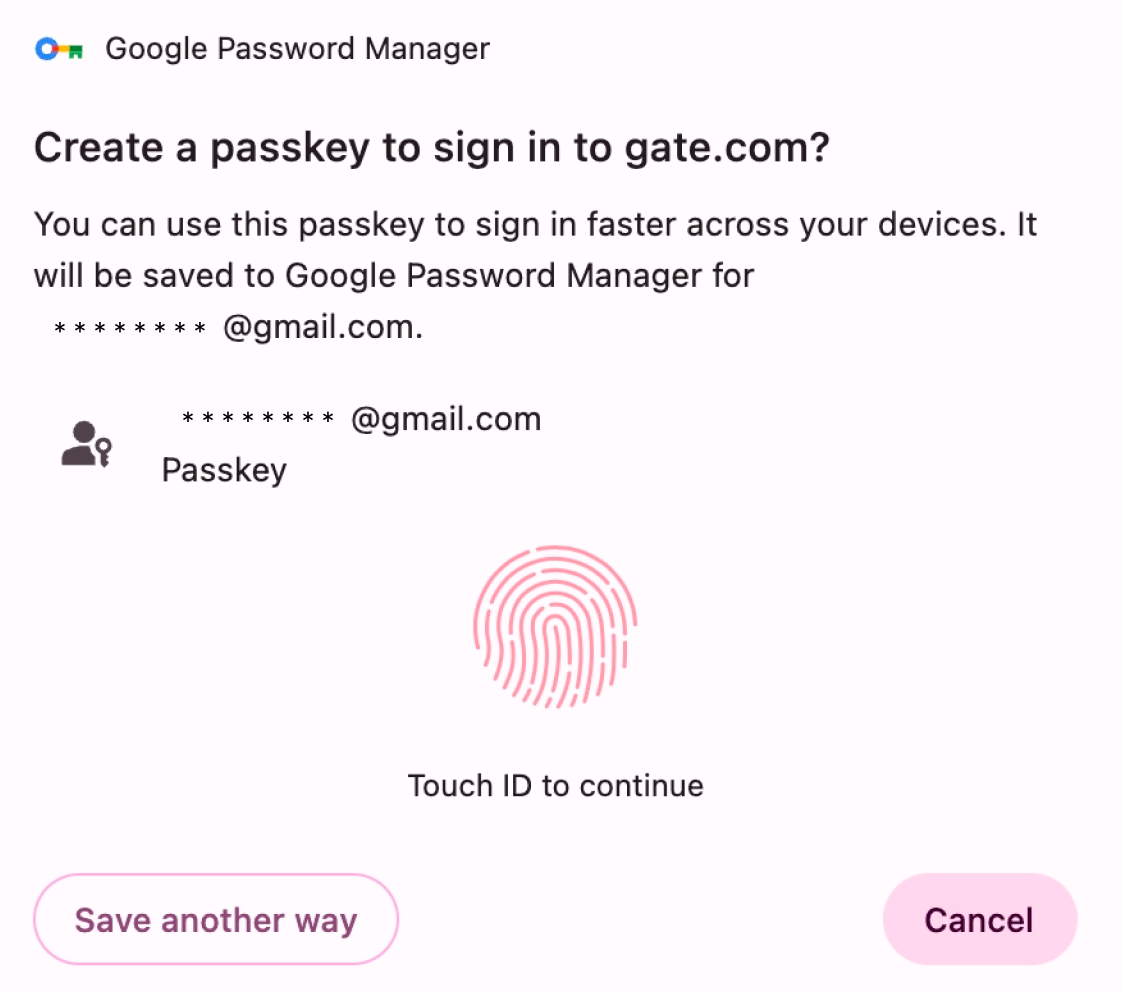
3.2 Google Password Manager
- Select Google Password Manager.
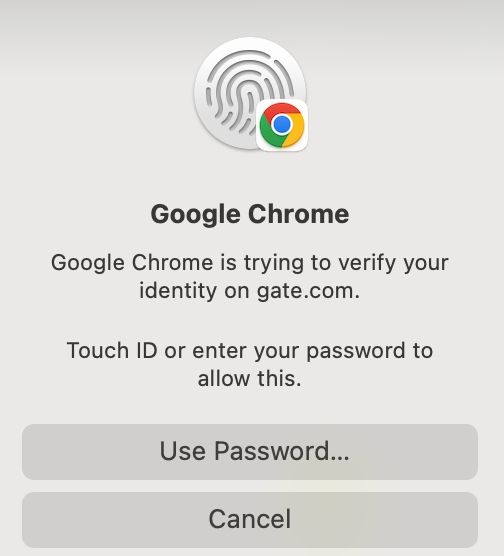
- You may need to verify your request using a password or biometrics to create a passkey on Google Password Manager. For example, you can use Fingerprint ID on a Mac. Please note that the created passkey will be automatically synced with your Google account.
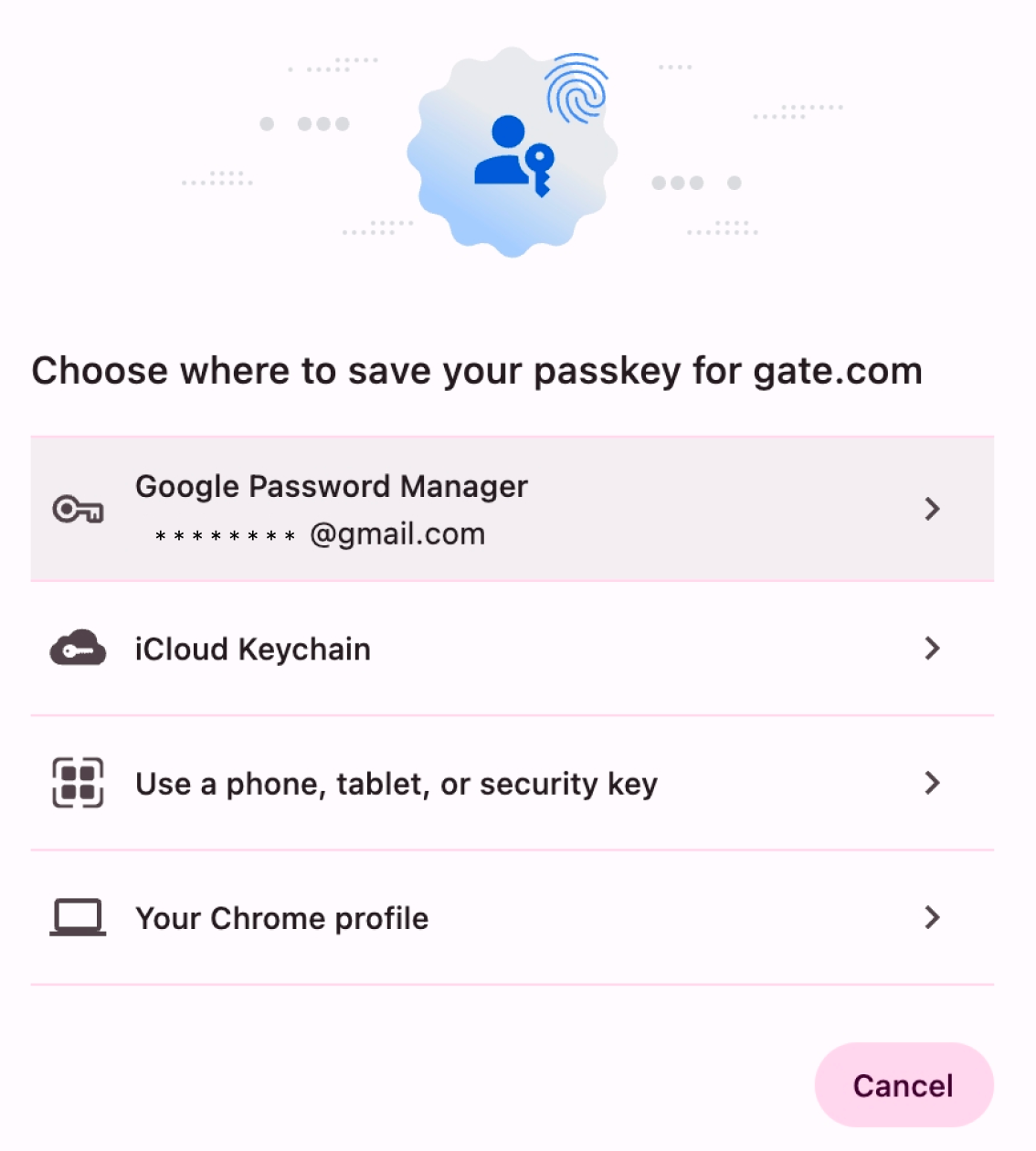
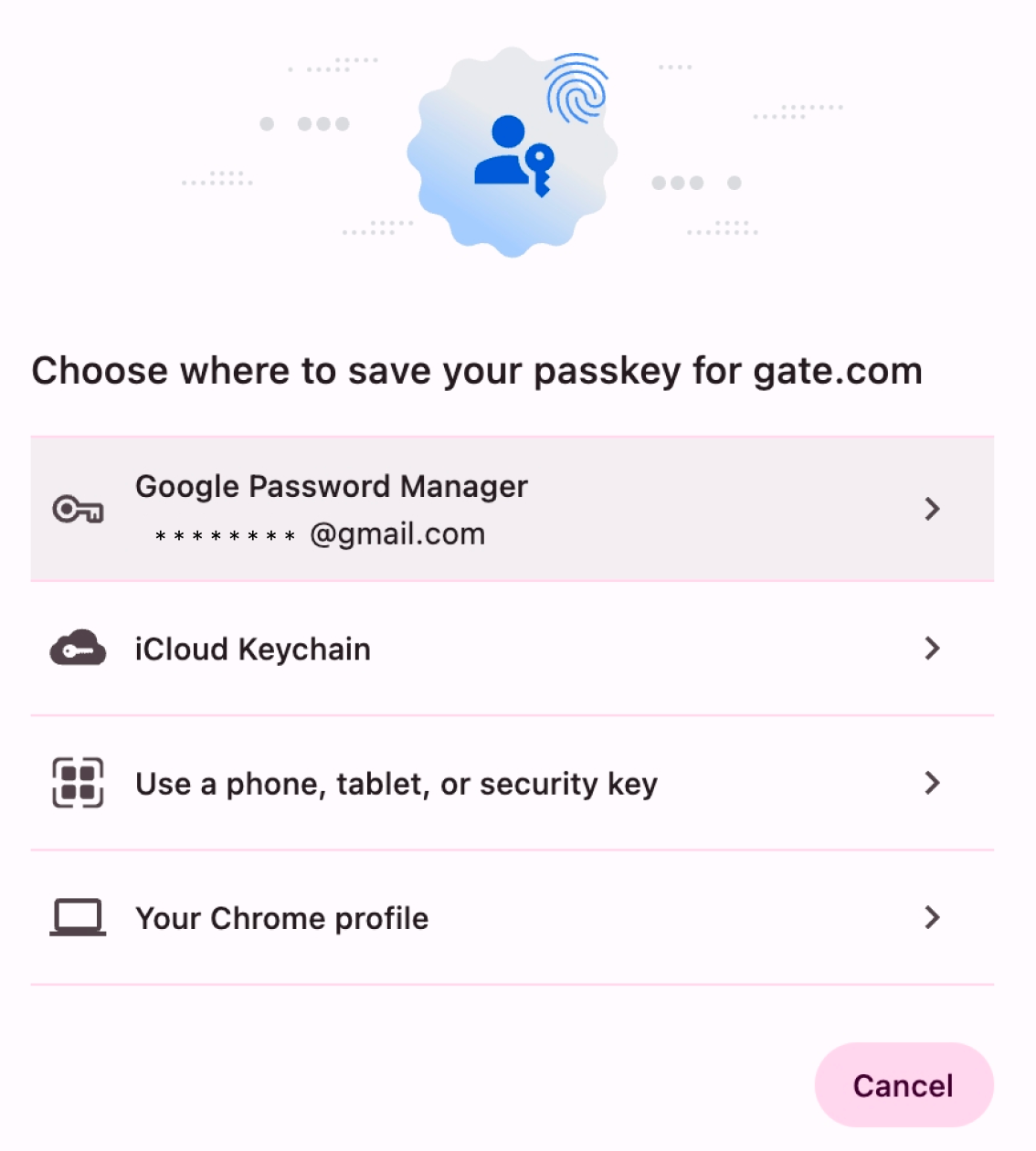
3.3 USB security key
- Select [Use a phone, tablet, or security key].
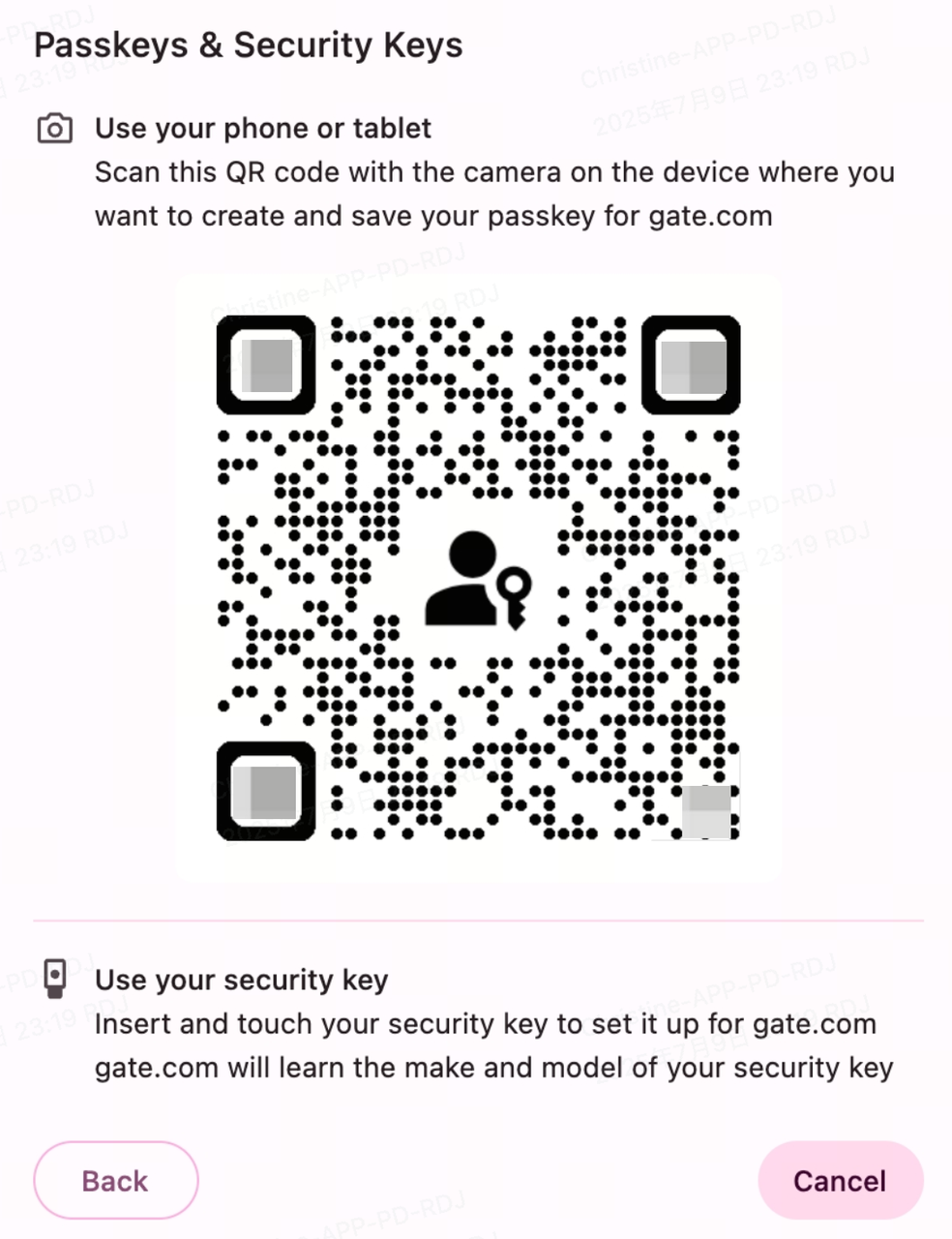
- You can use either of the following two methods:
- Plug the security key into your computer and tap it to complete the verification.
- Use a mobile phone or other device to scan this QR code, save the key to the phone, and follow the prompts to set it up.
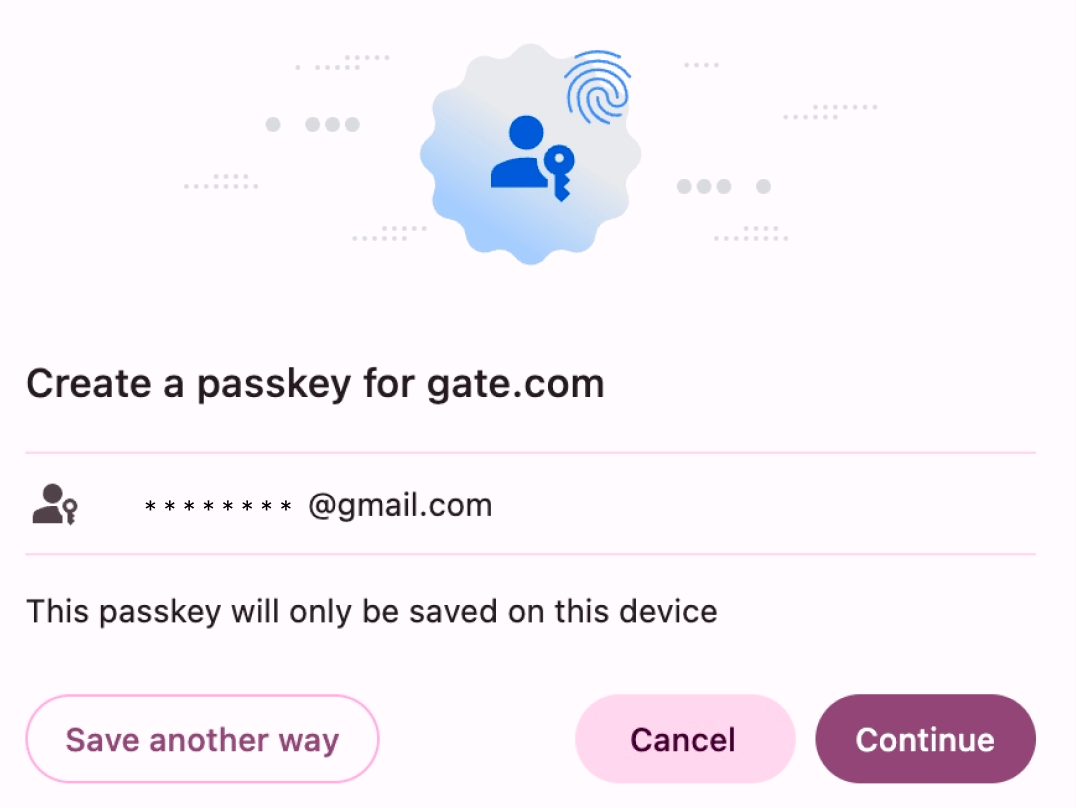
3.4 Your Chrome profile
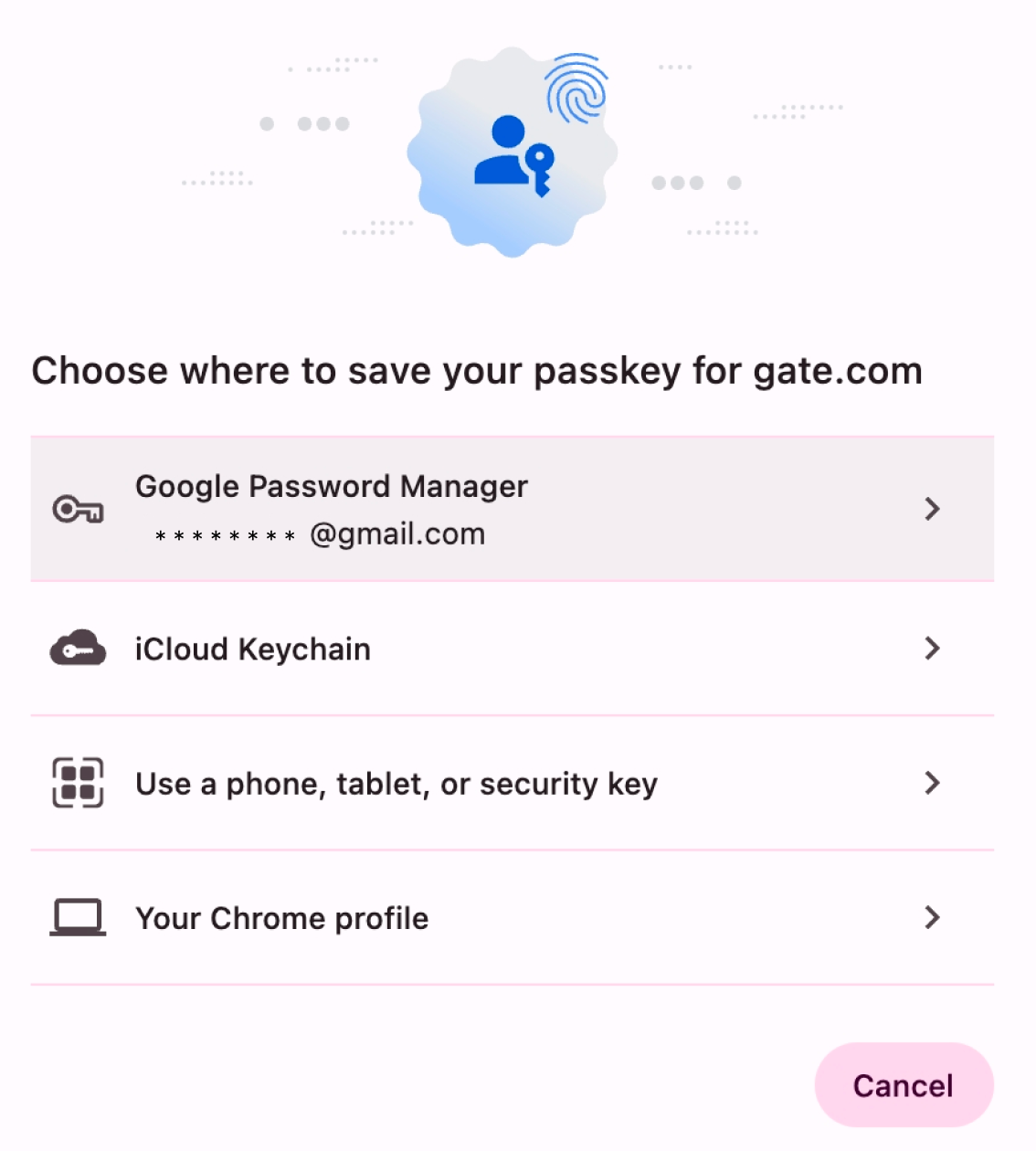
- Select [Your Chrome profile].
- Click [Continue].
- You may need to verify your request using a password or biometrics. For example, you can use Fingerprint ID on a Mac. Please note that the passkey you create is saved only on this device.
III. Log In with Passkey
The passkey can currently be used during the login process. The steps for verifying the passkey during login are as follows:
1. Log in using Passkey on the same device
1.1 Access and log into your account.
1.2 You will be guided to log in using the Passkey. For example, you can confirm your identity via facial recognition or fingerprint on your phone.
1.3 If you do not wish to log in with Passkey, close the prompt and go back to the password login page.
2. Log in using another device
2.1 Access and log into your account.
2.2 You will be guided to log in using another device.
2.3 You can use another phone or tablet to scan the QR code displayed on the screen and log in to Gate.
2.4 Alternatively, use a USB security key hardware to log in.
IV. Edit Passkey Name
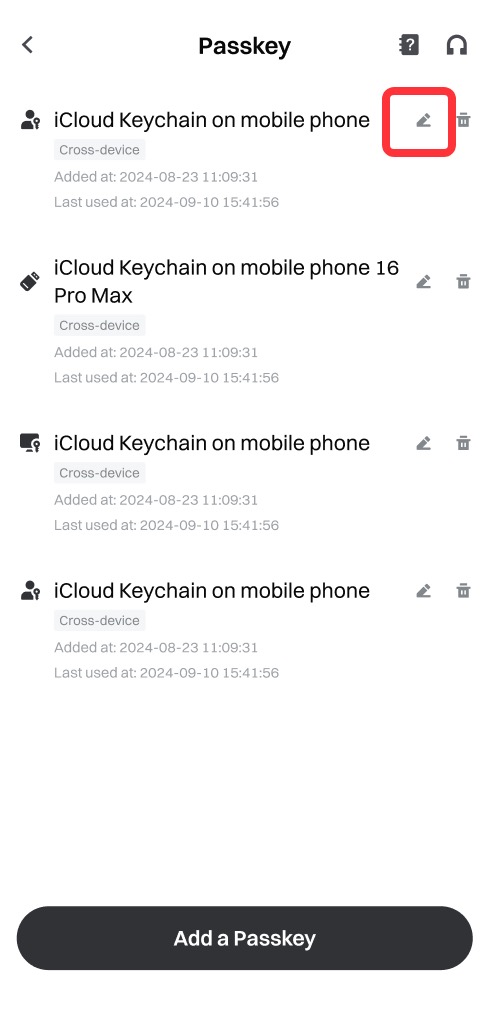
You can change the Passkey name by tapping the edit icon next to it.
V. Delete a Passkey
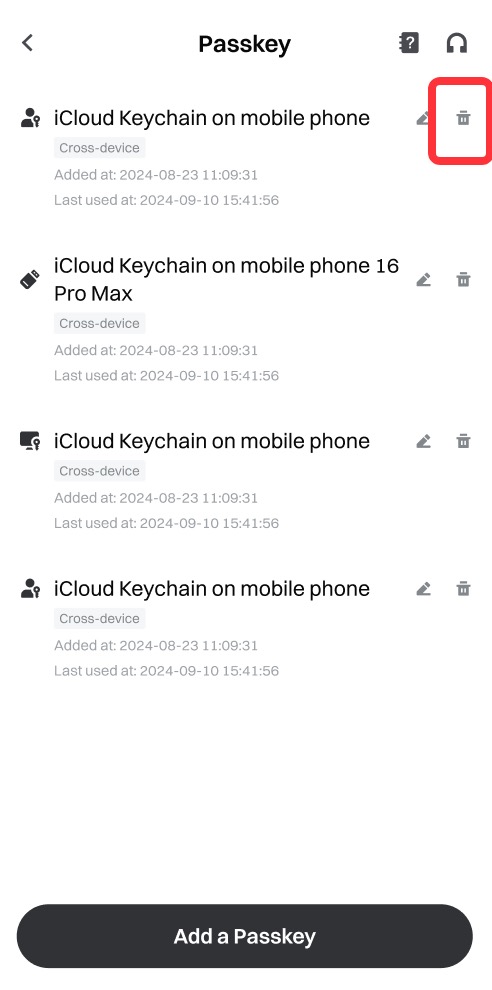
If you wish to remove a passkey, follow these steps:
- Tap the delete icon next to the Passkey.
- Verify your request using the passkey or two-factor authentication.
Reminder:
Please keep your passkey safe and secure. If your passkey is lost, stolen, or at risk of being compromised, contact us immediately. To protect your account and assets, do not share your passkey or any login credentials with third parties or platforms to avoid unnecessary losses. We are always here to assist you.
The content provided herein is for reference and educational purposes only and does not constitute any financial, investment, trading, or legal advice, nor does it constitute an offer or solicitation to buy or sell any digital assets. Gate makes no express or implied representations or warranties regarding the accuracy, completeness, or timeliness of the information contained herein. Product features, interfaces, rules, and fee structures may be updated or adjusted at any time. Please refer to the latest announcements and the actual information displayed on the Gate platform for the most accurate details.
Digital asset investments involve significant risk, and prices may fluctuate substantially. You may lose the entire amount of your investment. Please make decisions cautiously based on your own financial situation and risk tolerance after fully understanding the associated risks. If necessary, you are advised to consult an independent professional financial or legal advisor.
For more information about potential risks, please refer to Gate's Risk Disclosure and User Agreement.
