


Cách nạp tiền qua Blockchain
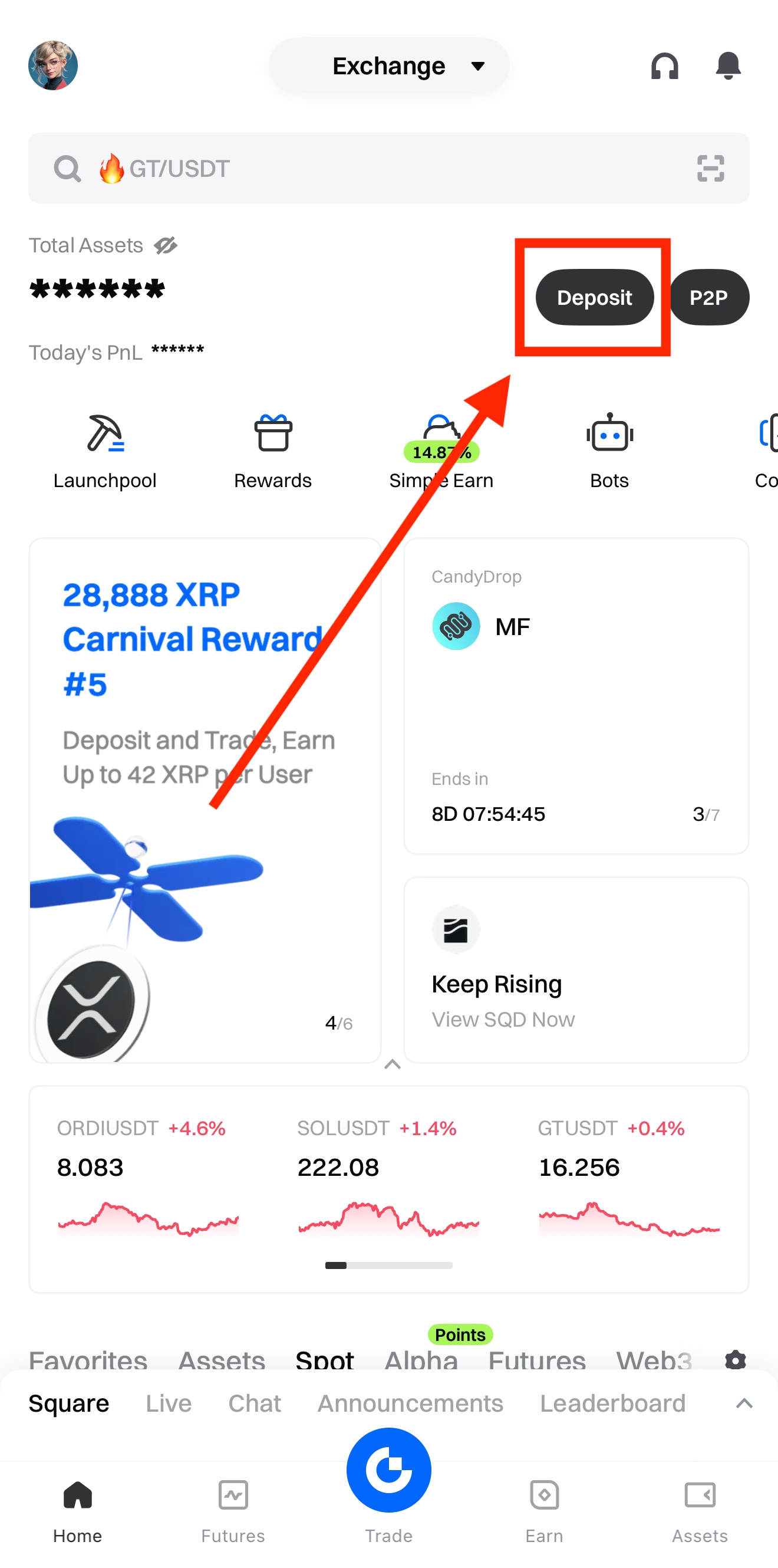
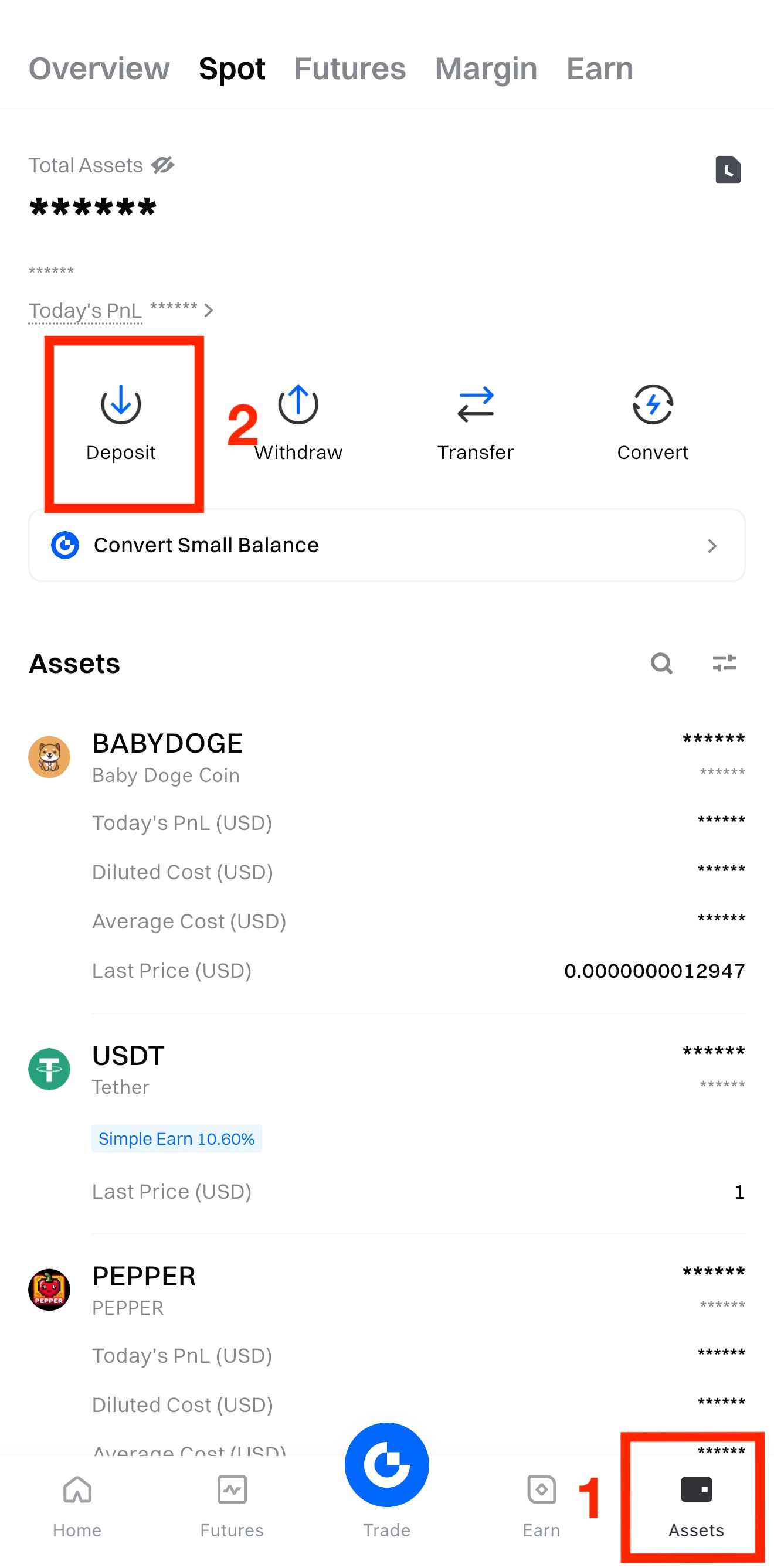
Bước 1: Đăng nhập vào tài khoản của bạn trên ứng dụng Gate. Nhấn 【Nạp tiền】 ở góc trên bên phải của trang chủ, hoặc vào 【Tài sản】 - 【Nạp tiền】.
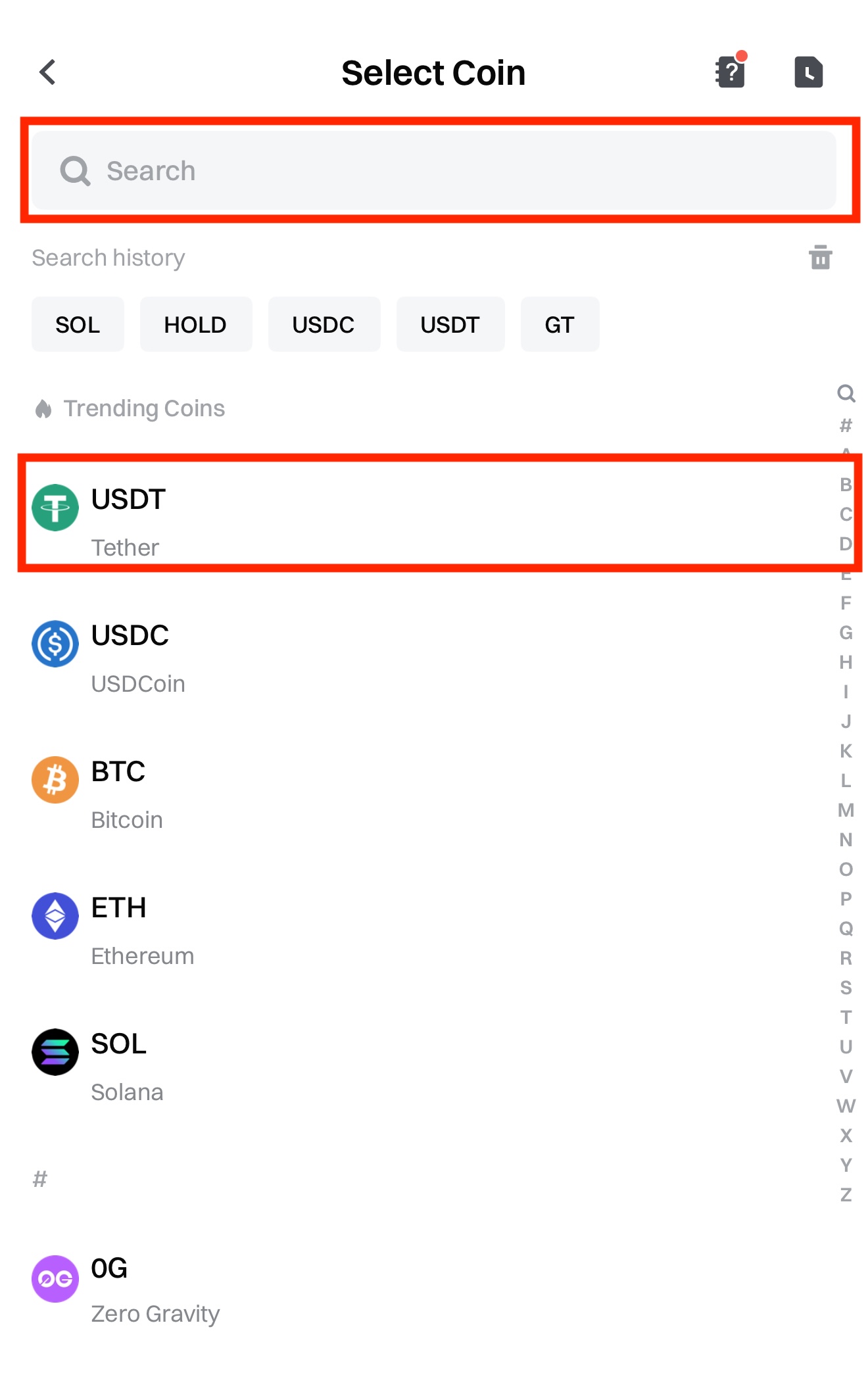
Bước 2: Chọn 【Nạp tiền trên chuỗi】 và nhập loại tiền điện tử bạn muốn nạp.
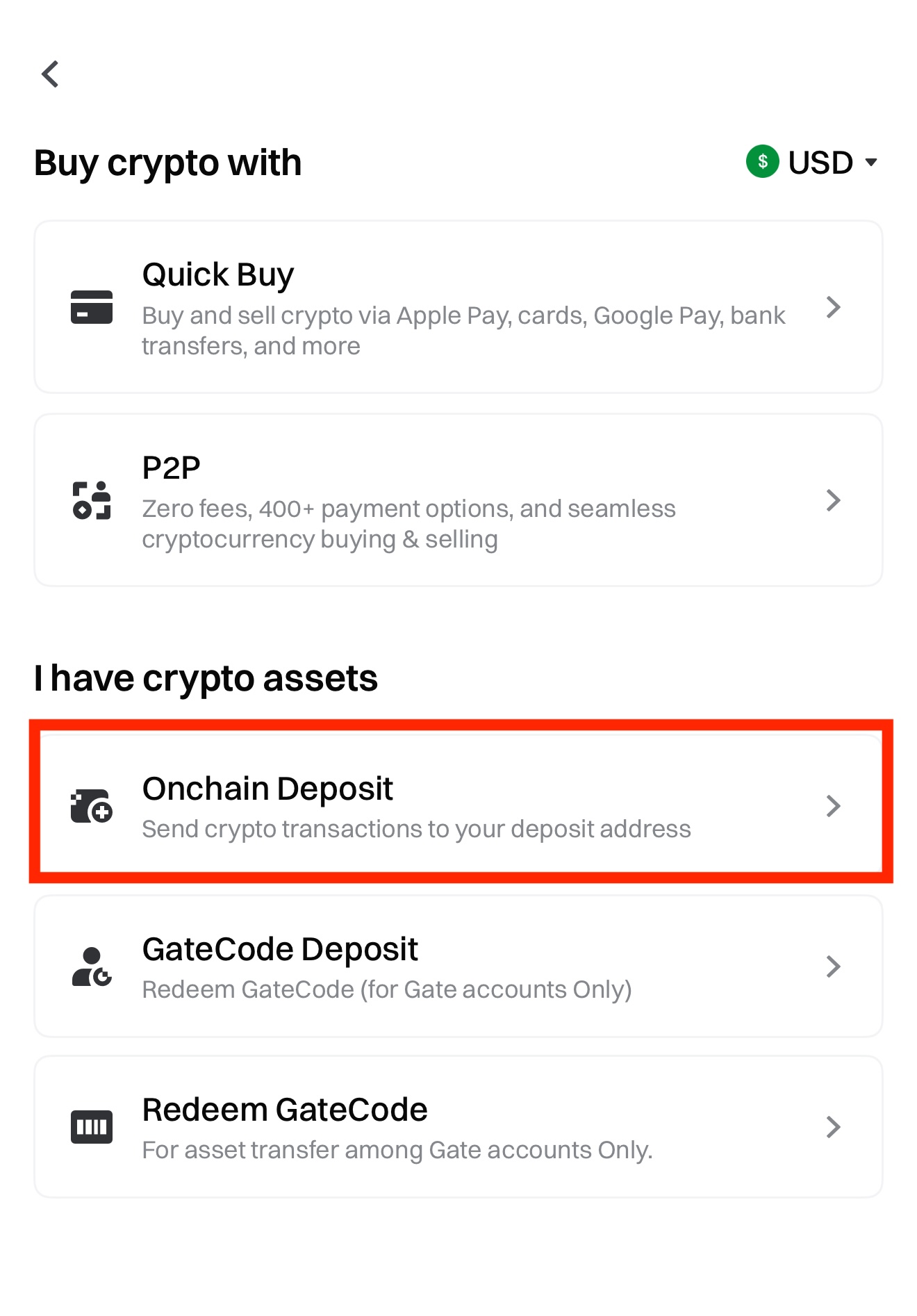
Ví dụ ở đây là nạp 【USDT】:
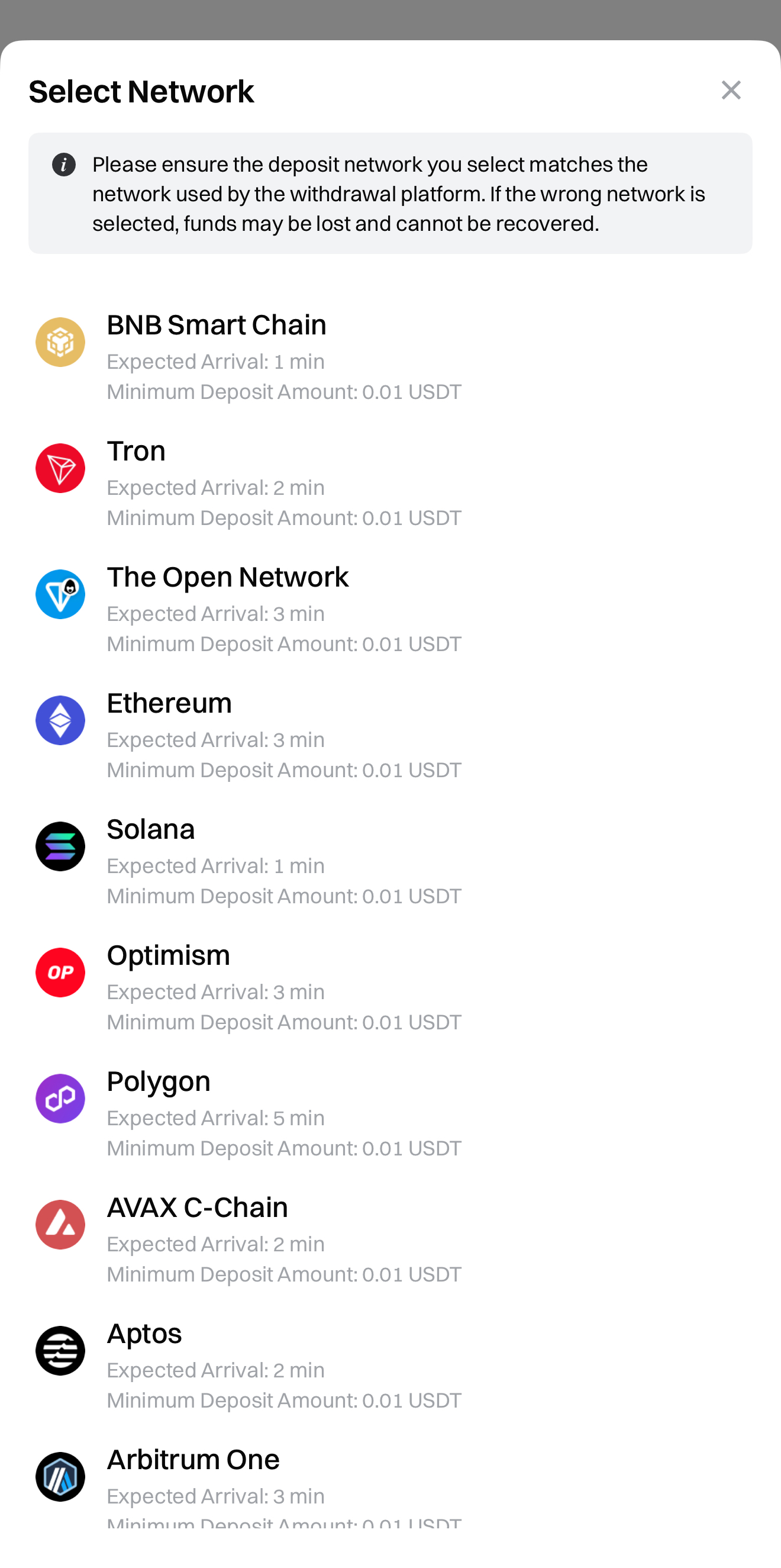
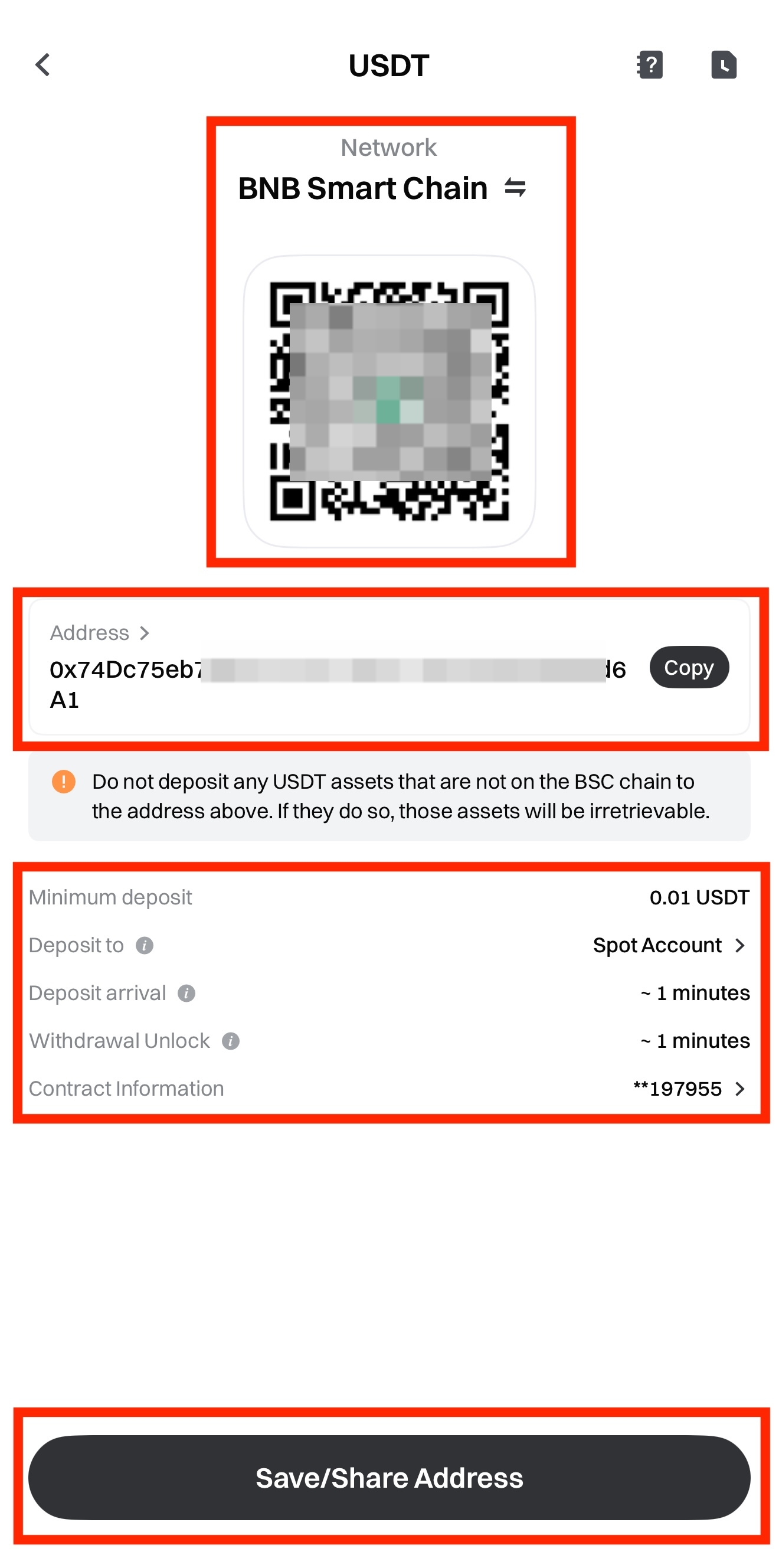
Bước 3: Chọn mạng lưới nạp tiền, sau đó sao chép 【Địa chỉ】 hoặc lưu mã QR nạp tiền.
Lưu ý:
- Mạng lưới nạp tiền đã chọn phải trùng với mạng lưới rút tiền từ ví hoặc nền tảng khác, và địa chỉ hợp đồng phải giống nhau. Nếu không, tiền sẽ không được ghi có.
- Đảm bảo số tiền nạp không thấp hơn mức nạp tối thiểu hiển thị trên trang; nếu thấp hơn, giao dịch sẽ không được ghi nhận và không thể hoàn lại.
- Nếu gặp bất kỳ vấn đề nào trong quá trình nạp, vui lòng liên hệ 【Hỗ trợ trực tuyến】 để được trợ giúp.
Bước 4: Dán hoặc quét mã QR địa chỉ trên nền tảng rút tiền để hoàn tất nạp.
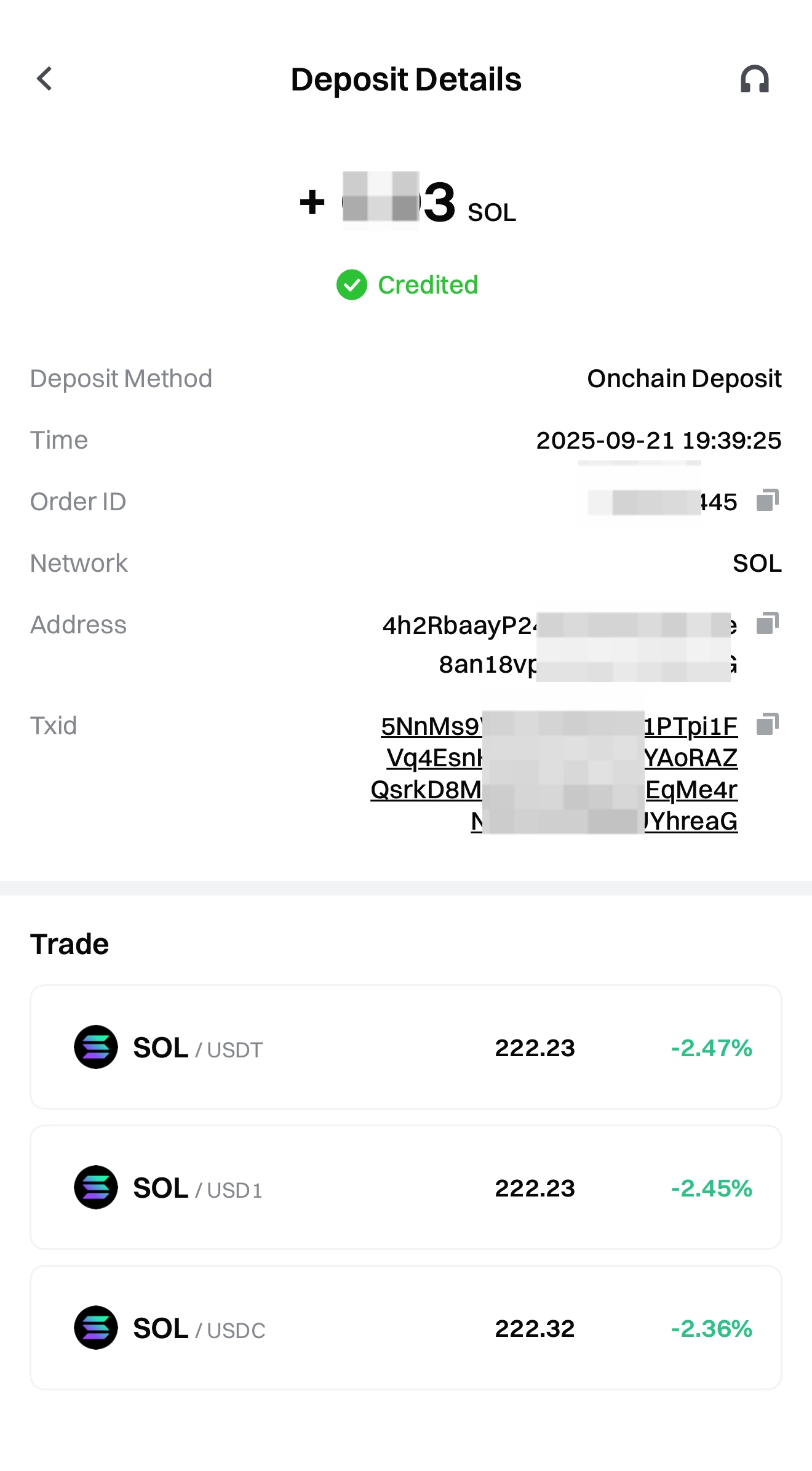
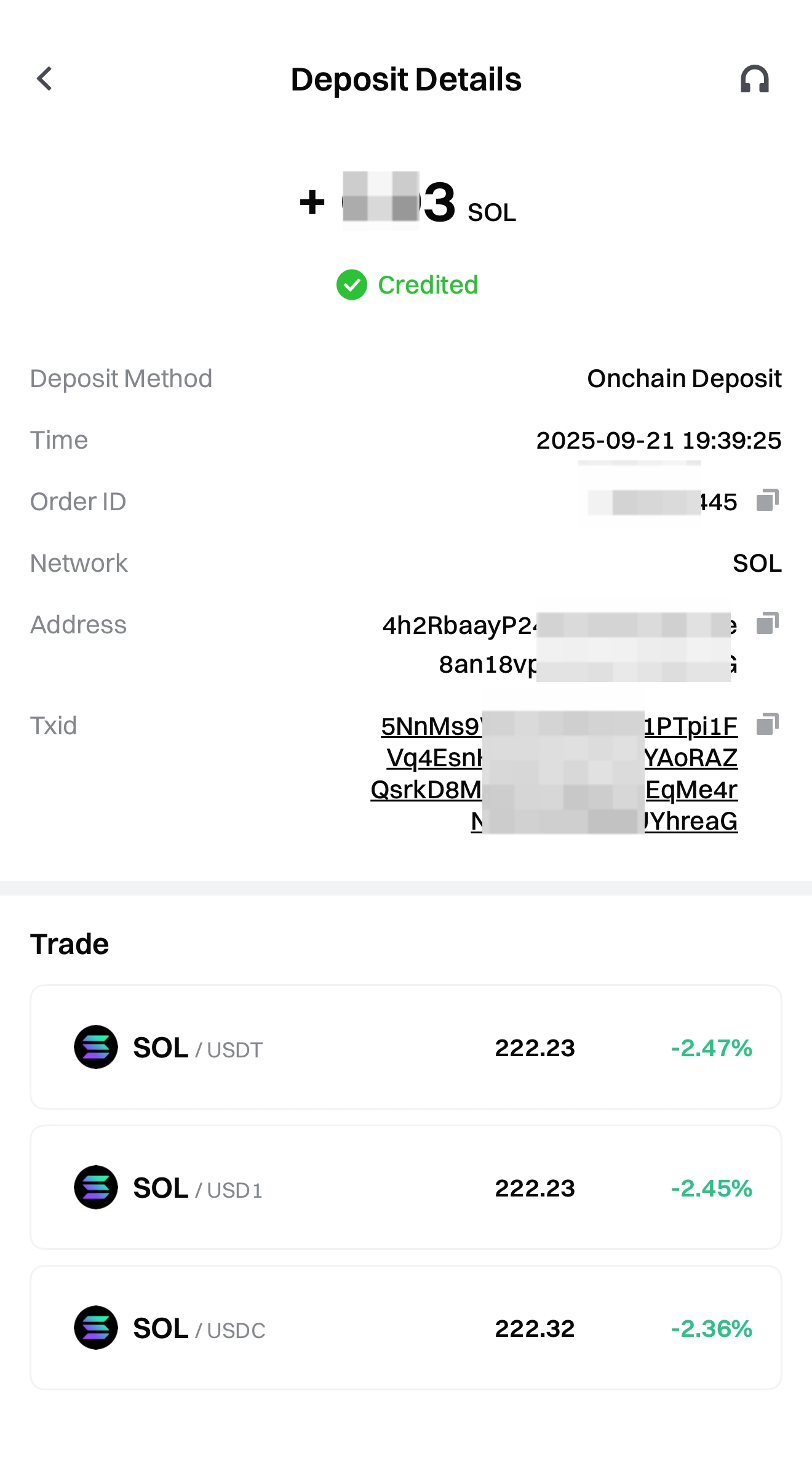
Sau khi nạp xong, nhấn biểu tượng 【Sổ ghi chép】 ở góc trên bên phải trang nạp tiền để vào mục 【Giao dịch gần đây】.
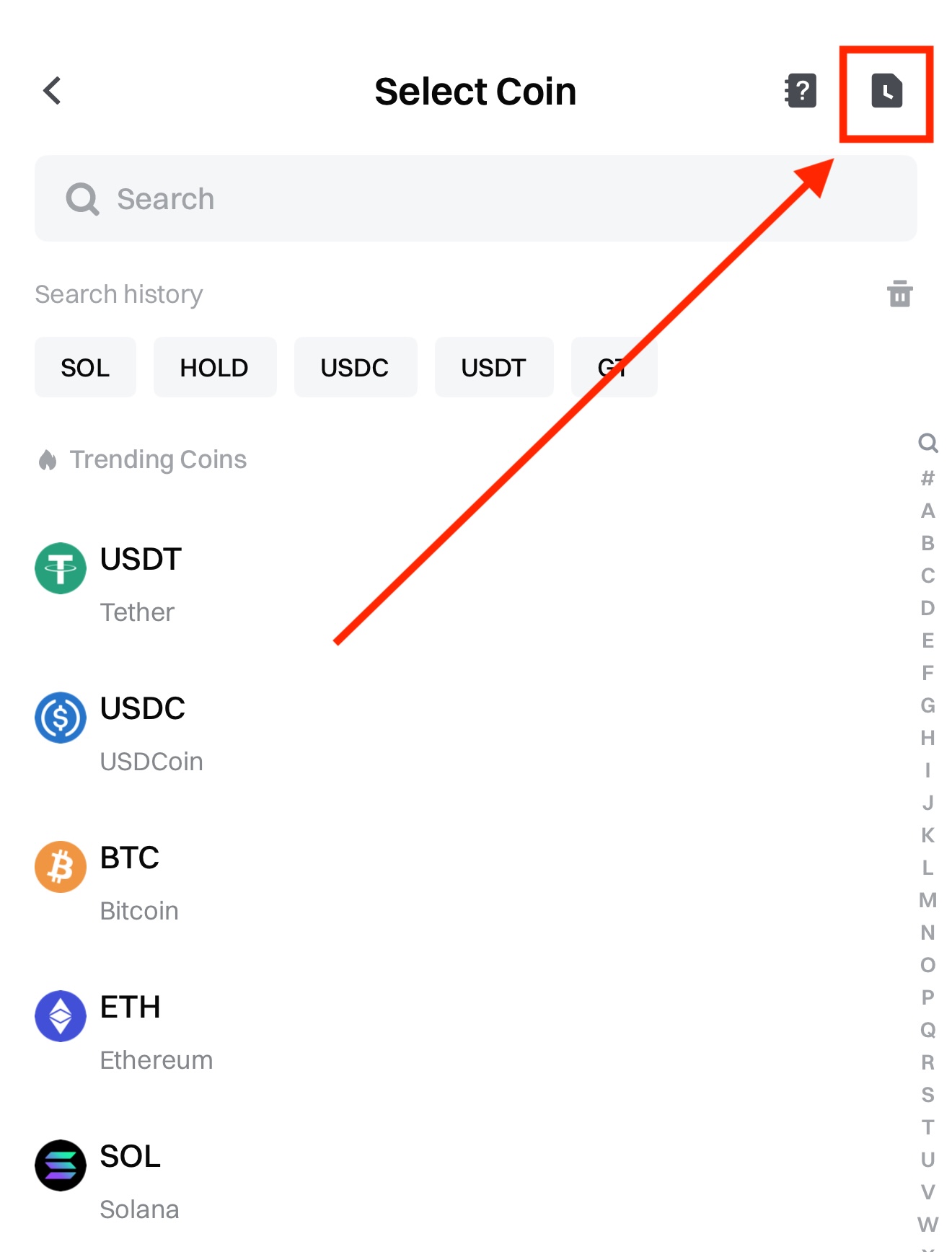
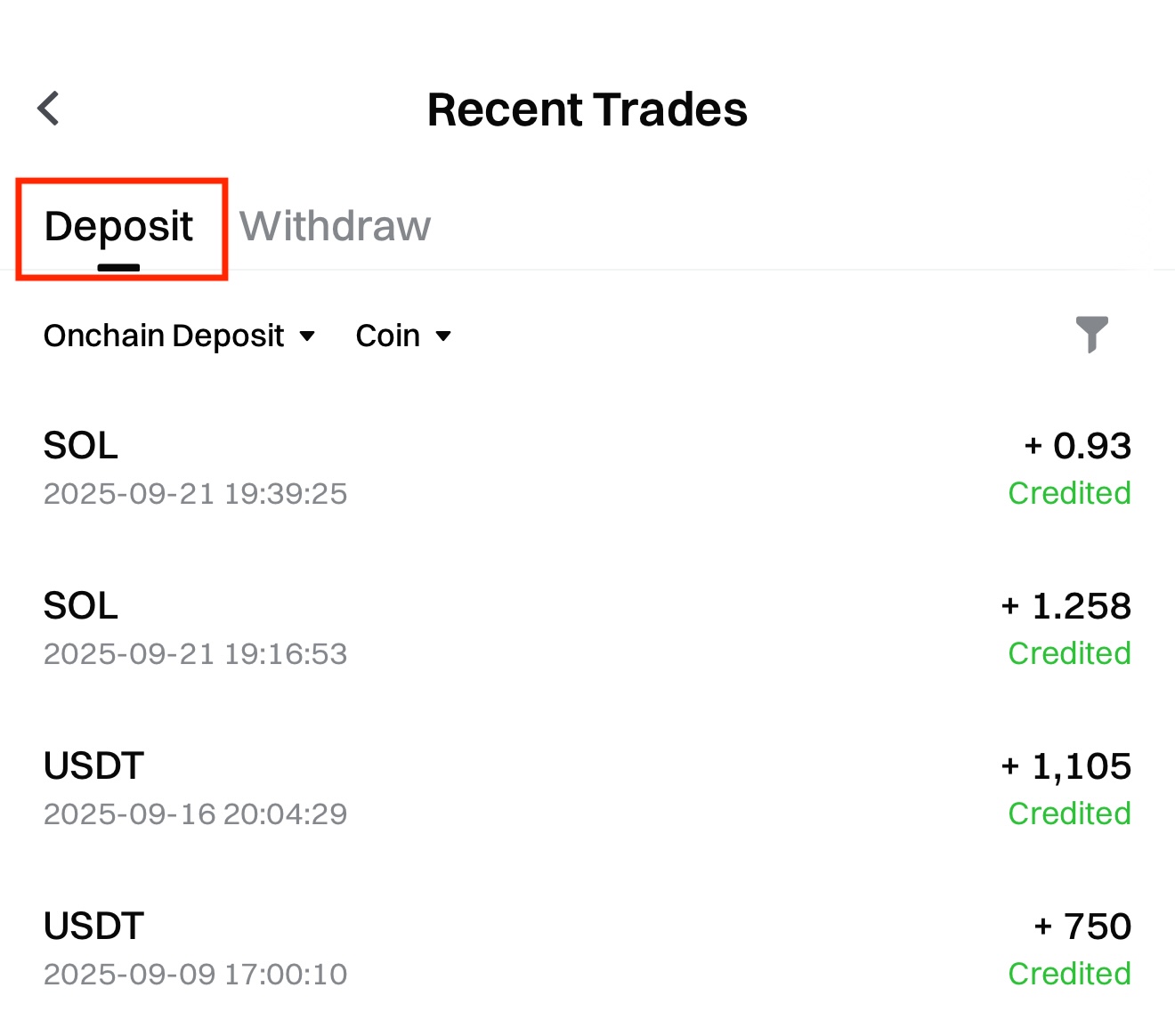
Tại đây, bạn có thể nhấn vào từng giao dịch để xem 【Chi tiết nạp tiền】 tương ứng.
Cách rút tiền qua Blockchain
Bước 1: Đăng nhập vào tài khoản của bạn trên ứng dụng Gate. Nhấn 【Tài sản】 - 【Rút tiền】.
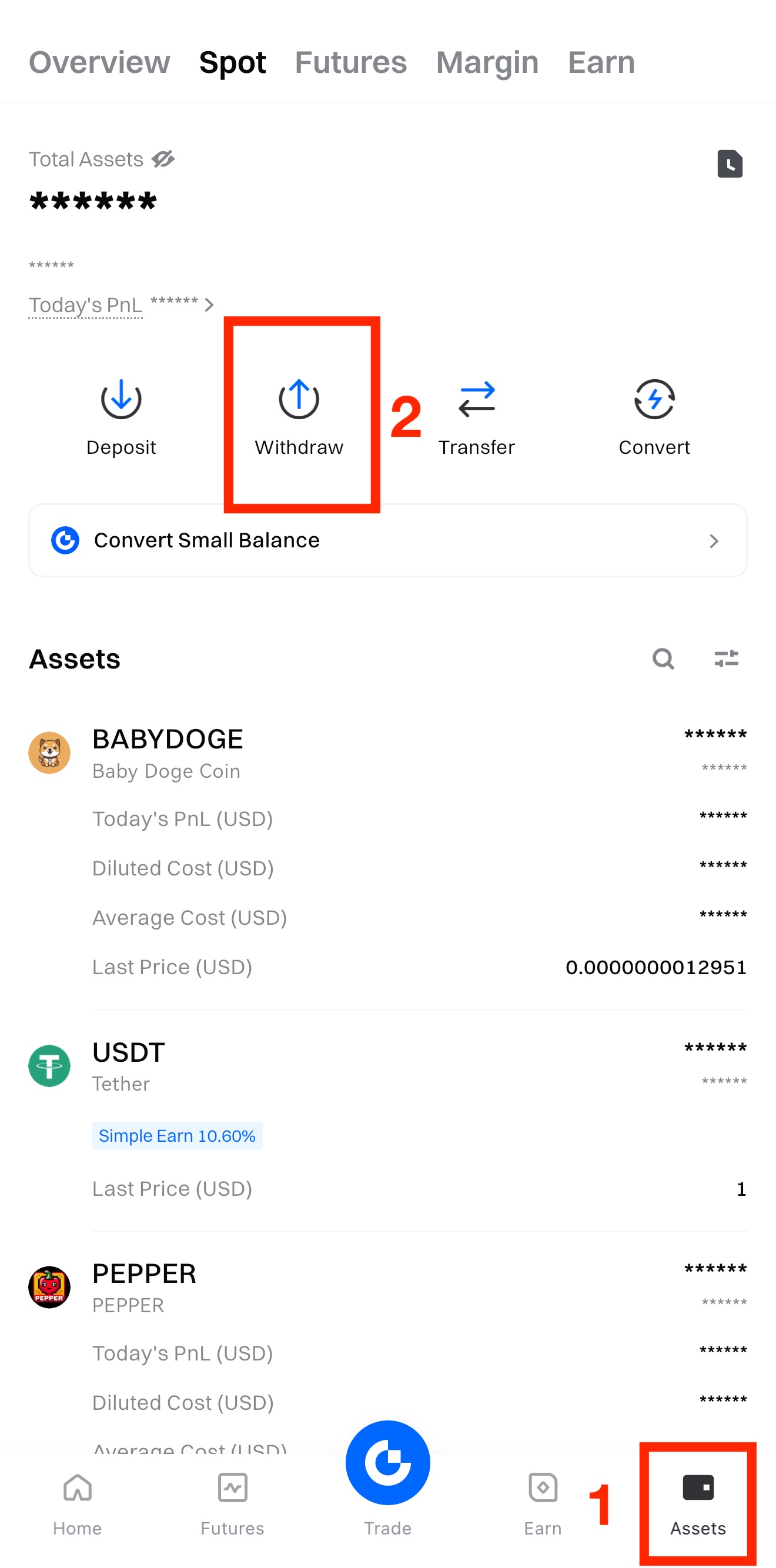
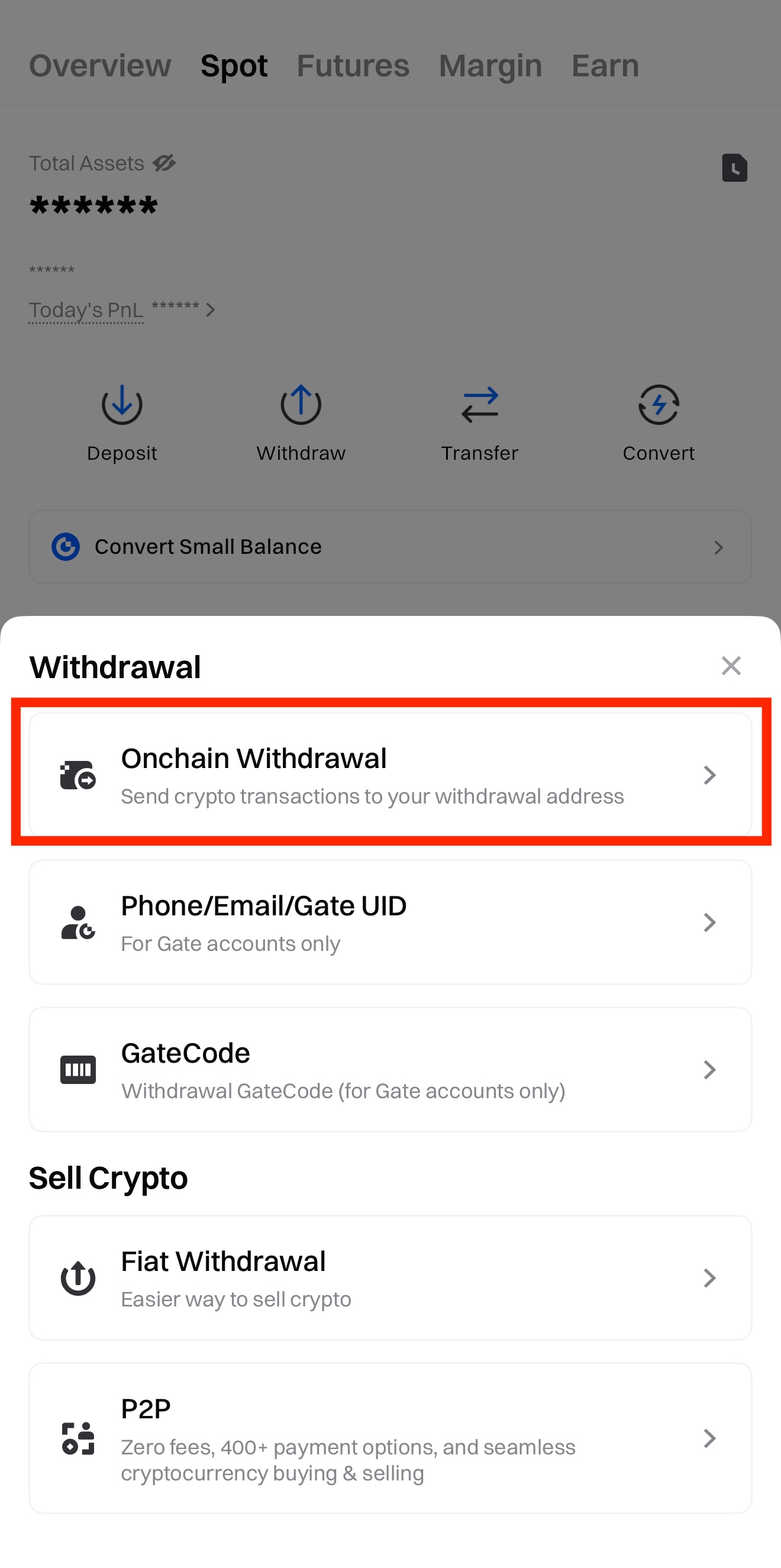
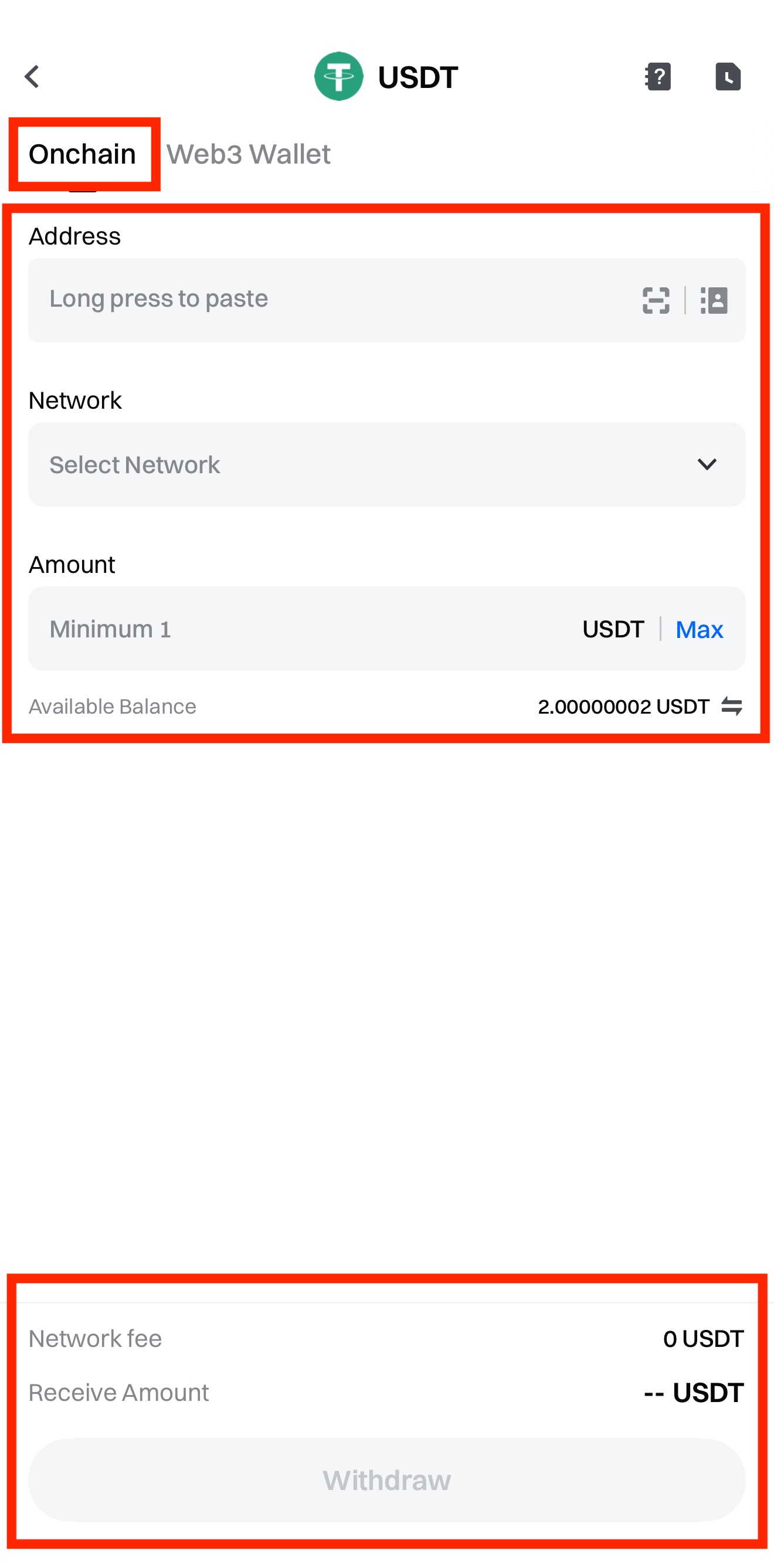
Bước 2: Chọn 【Rút tiền trên chuỗi】 và nhập loại tiền điện tử bạn muốn rút.
Ví dụ ở đây là rút 【USDT】.
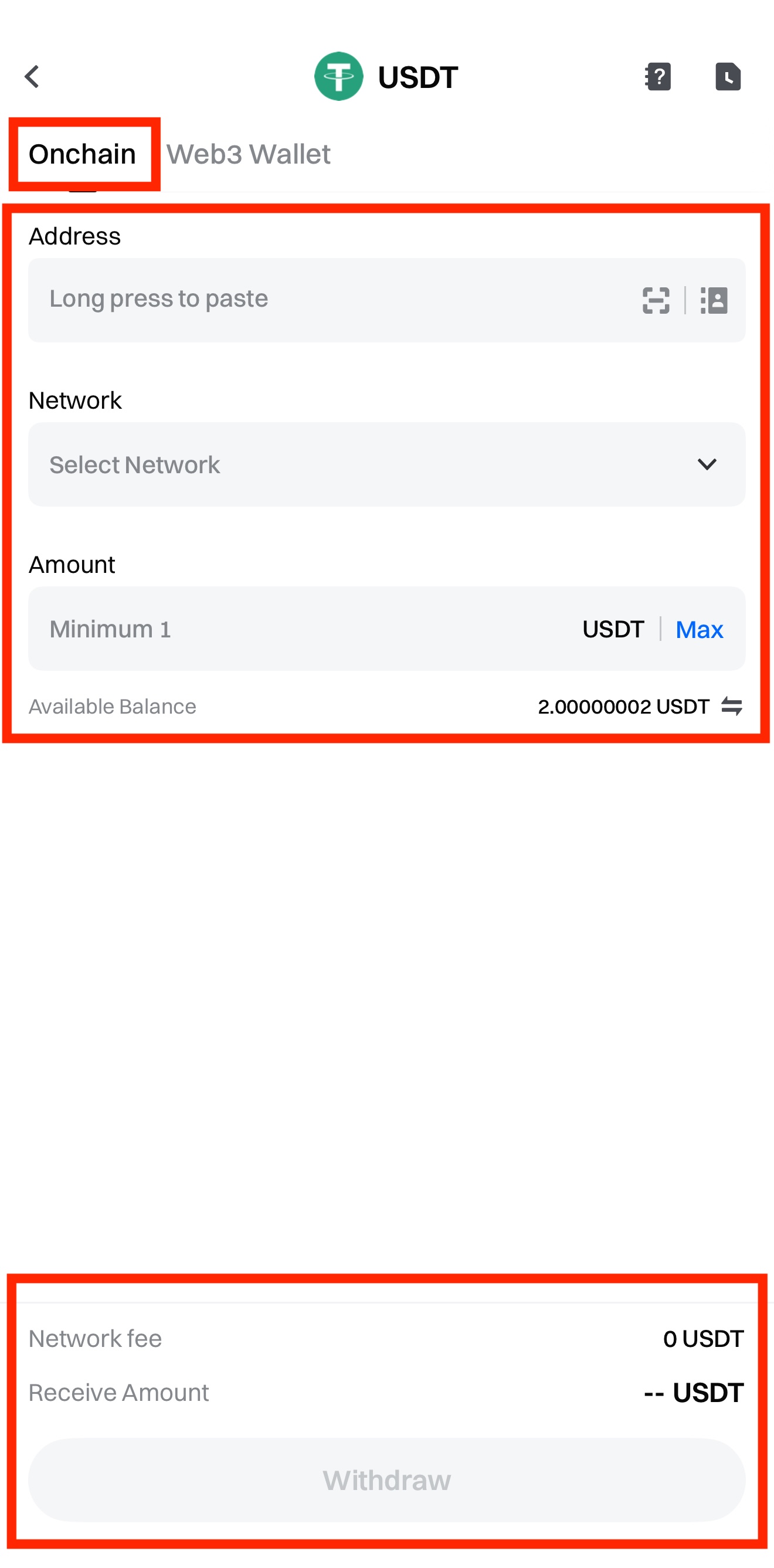
Bước 3: Chọn 【Mạng lưới】 rút tiền, nhập 【Địa chỉ nhận】 và 【Số tiền】, sau đó nhấn 【Rút tiền】.
Lưu ý:
- Mạng lưới rút tiền phải trùng với mạng lưới nạp tiền của địa chỉ nhận, nếu không giao dịch sẽ thất bại và tiền sẽ bị mất.
- Phí rút tiền khác nhau tùy theo loại tiền và mạng lưới, vui lòng tham khảo số tiền hiển thị thực tế trên trang rút tiền.
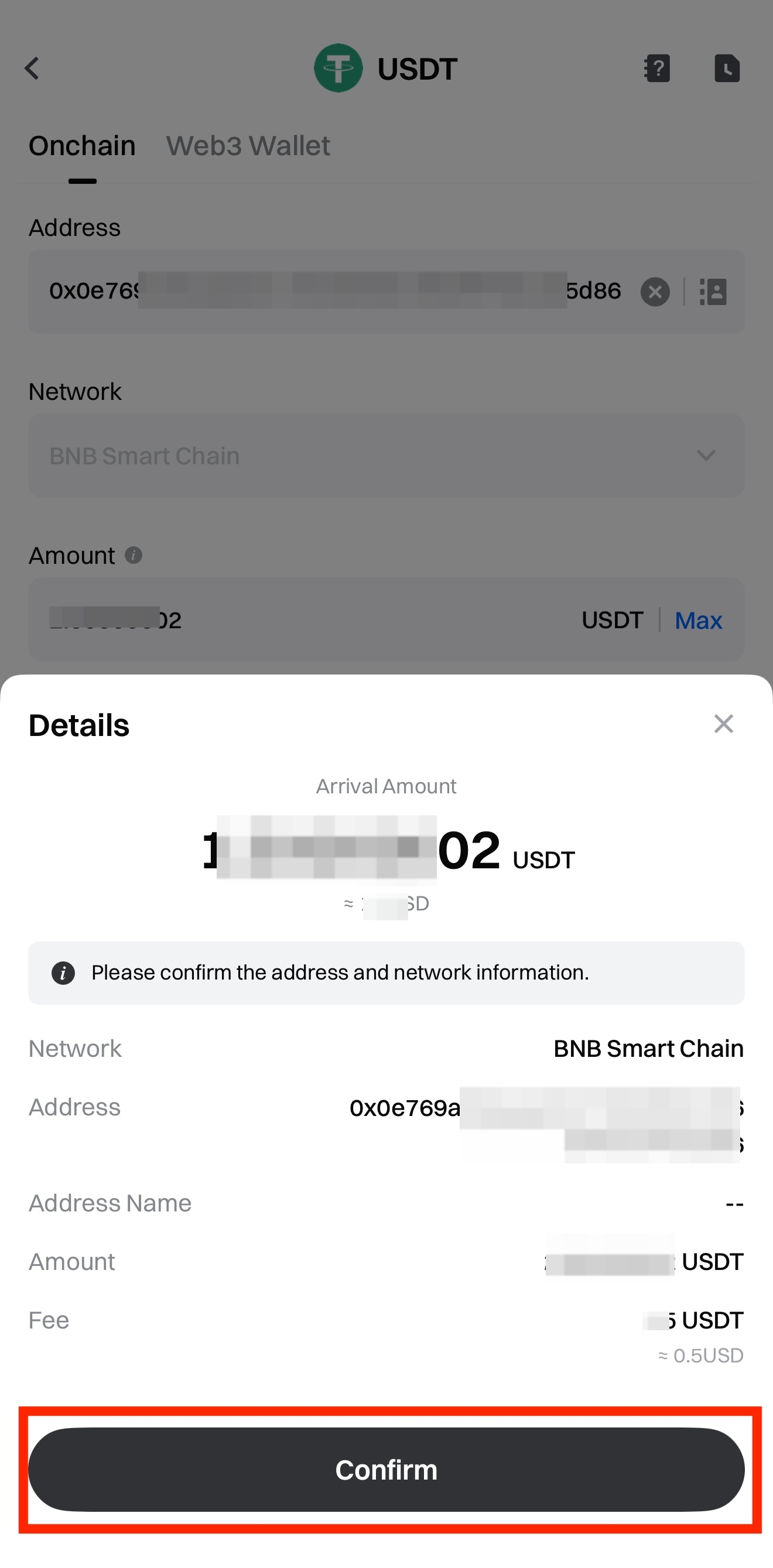
Bước 4: Kiểm tra lại thông tin rút tiền và nhấn 【Xác nhận】.
Sau đó hoàn tất 【Xác minh bảo mật】 bằng cách nhập 【Mật khẩu quỹ】, 【Mã xác minh email】, 【Mã xác minh SMS】 và 【Mã Google Authenticator】, rồi nhấn 【Xác nhận】 lần nữa.
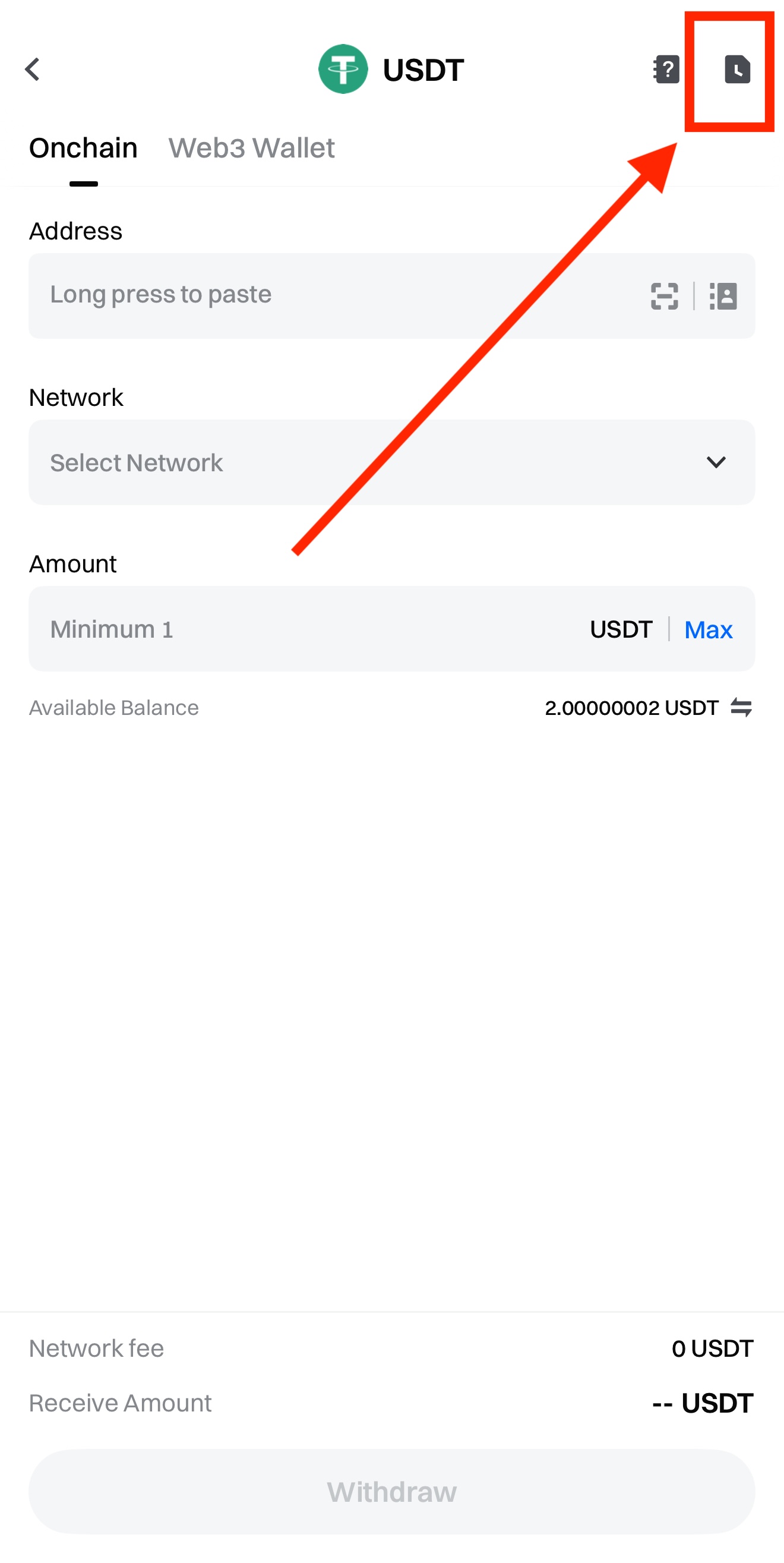
Sau khi rút tiền xong, nhấn biểu tượng 【Sổ ghi chép】 ở góc trên bên phải trang rút tiền để vào mục 【Giao dịch gần đây】.
Tại đây, bạn có thể xem lịch sử rút tiền của mình.
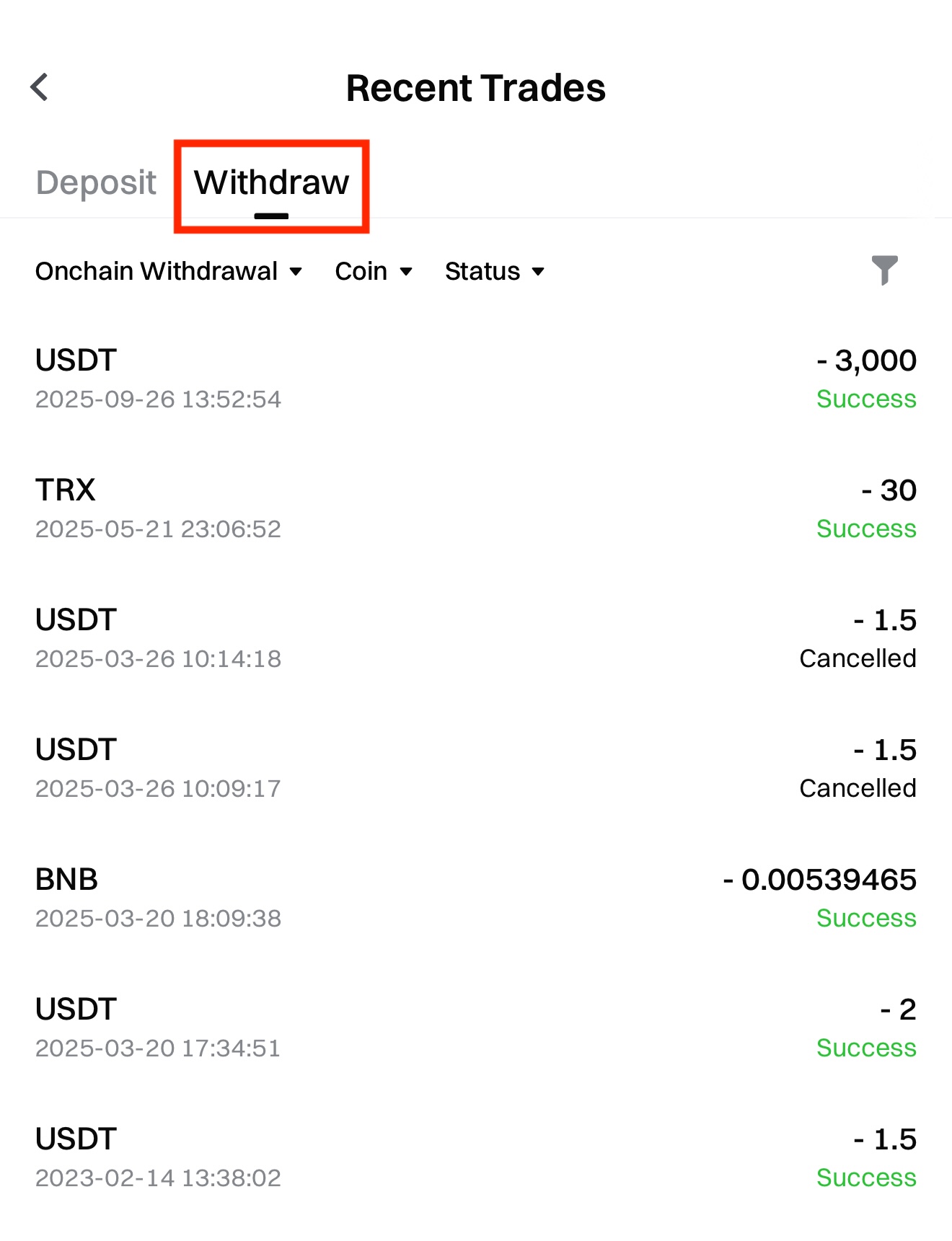
Bạn có thể nhấn vào từng giao dịch để xem 【Chi tiết rút tiền】 tương ứng.
Nội dung được cung cấp ở đây chỉ mang tính chất tham khảo và cung cấp kiến thức, không cấu thành bất kỳ lời khuyên tài chính, đầu tư, giao dịch hoặc pháp lý nào, cũng như không phải là lời đề nghị hoặc lời mời mua hoặc bán bất kỳ tài sản kỹ thuật số nào. Gate không đưa ra bất kỳ tuyên bố hoặc bảo đảm nào, dù rõ ràng hay ngụ ý, về tính chính xác, đầy đủ hoặc kịp thời của thông tin được cung cấp ở đây. Các tính năng sản phẩm, giao diện, quy tắc và cấu trúc phí có thể được cập nhật hoặc điều chỉnh bất cứ lúc nào. Vui lòng tham khảo các thông báo mới nhất và thông tin thực tế được hiển thị trên nền tảng Gate để biết chi tiết chính xác nhất.
Đầu tư vào tài sản kỹ thuật số tiềm ẩn rủi ro đáng kể và giá cả có thể biến động mạnh. Bạn có thể mất toàn bộ số tiền đầu tư. Vui lòng đưa ra quyết định thận trọng dựa trên tình hình tài chính và khả năng chấp nhận rủi ro của riêng bạn sau khi hiểu đầy đủ các rủi ro liên quan. Nếu cần, bạn nên tham khảo ý kiến của cố vấn tài chính hoặc pháp lý chuyên nghiệp độc lập.
Để biết thêm thông tin về các rủi ro tiềm ẩn, vui lòng tham khảo Tuyên bố về Rủi ro và Thỏa thuận Người dùng của Gate.
