


Gate propose trois principales façons de déposer des crypto-monnaies :
- Trading P2P (Trading Fiat)
- Dépôt On-Chain
- Carte de débit/crédit
De plus, Gate prend également en charge le dépôt de crypto via le transfert GateCode. Choisissez la méthode qui vous convient le mieux. Voici les instructions pour les trois principales options :
1. P2P (Trading Fiat)
Le P2P vous permet d'acheter des crypto directement auprès d'autres utilisateurs avec la protection du système de séquestre de Gate.
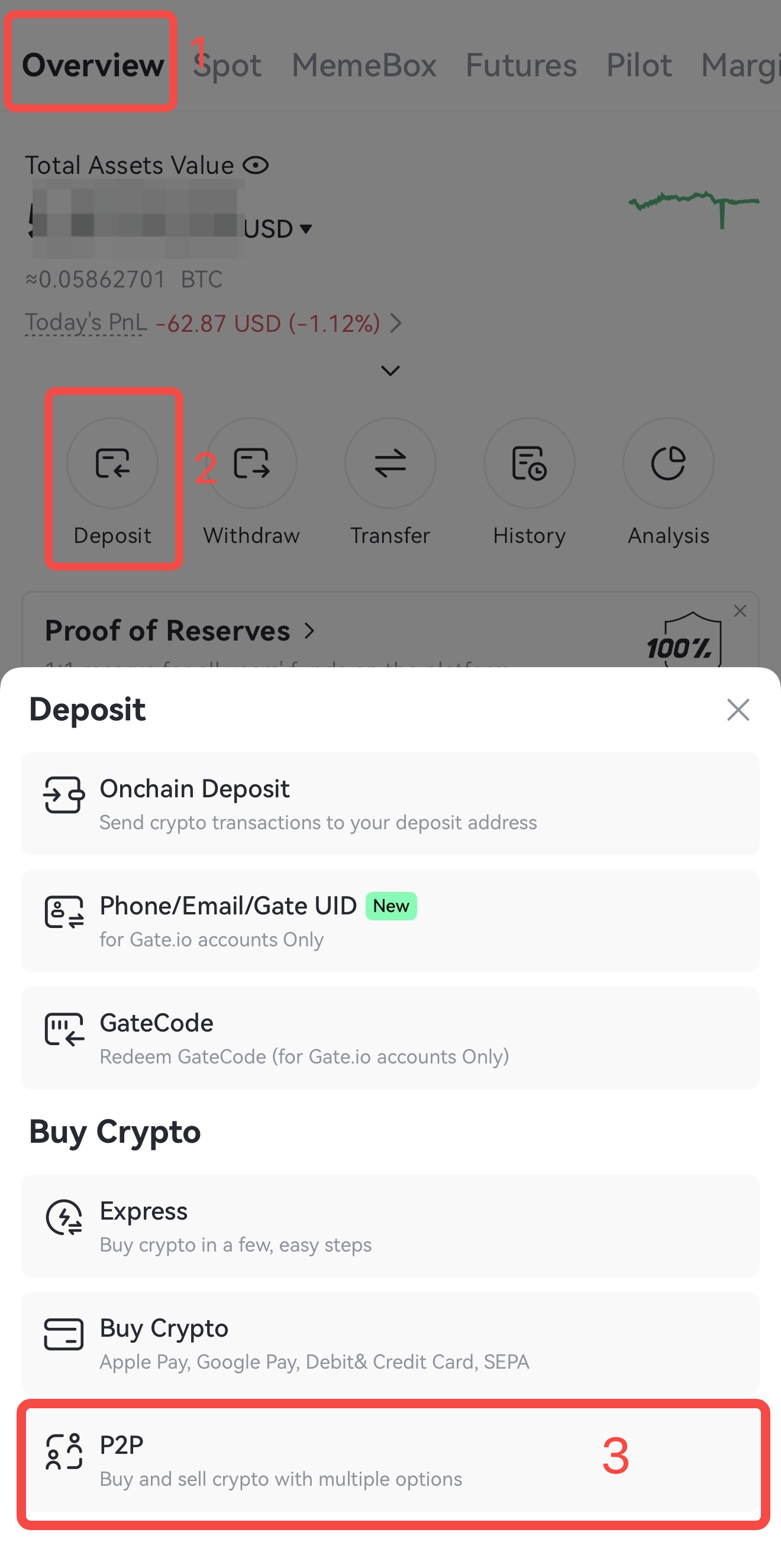
Étape 1 : Ouvrez l'application Gate, connectez-vous, appuyez sur [Actifs] dans le coin inférieur droit. Ensuite, allez à [Aperçu] - [Dépôt] - [P2P].
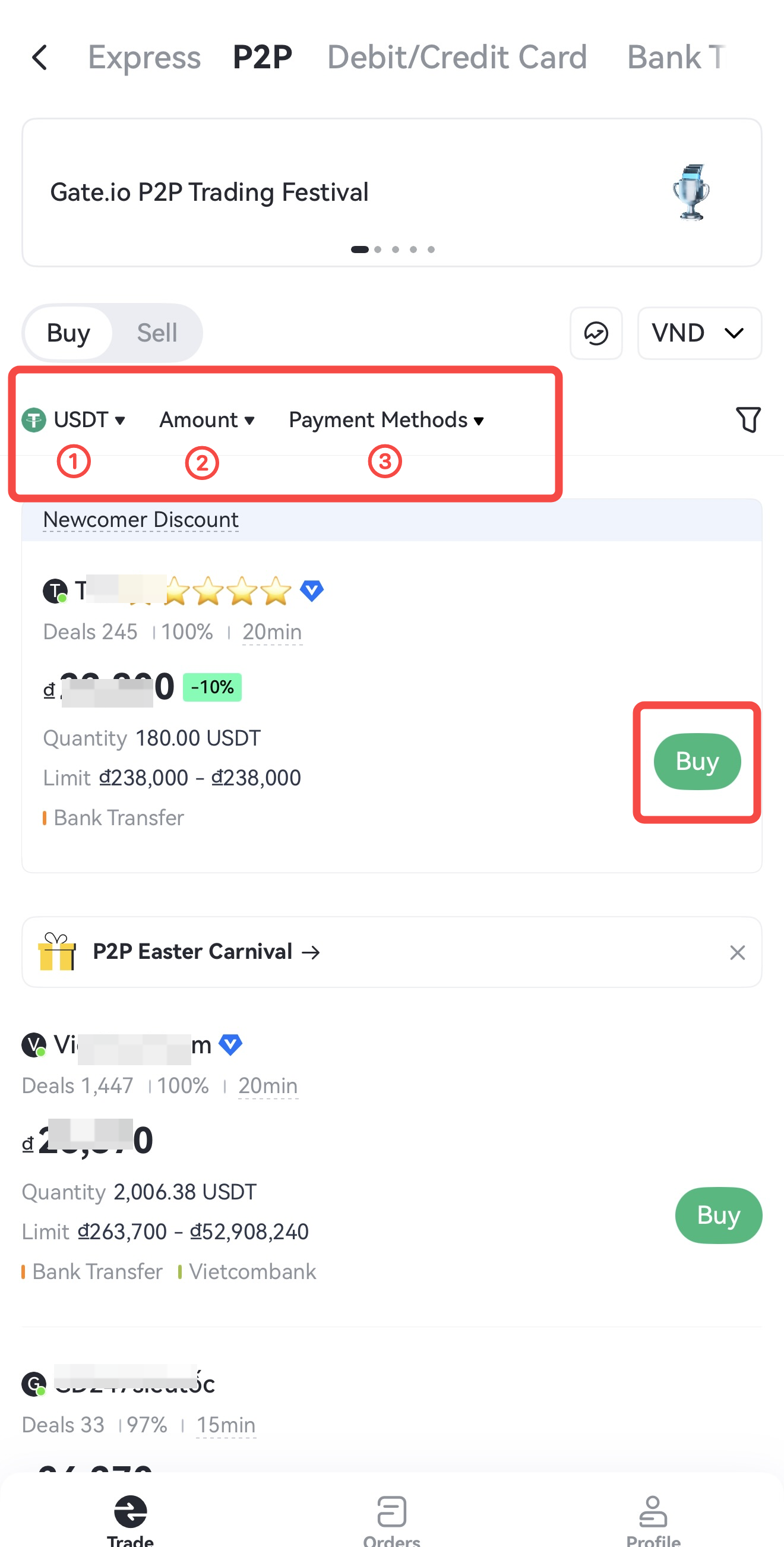
Étape 2 : Sur la page de trading P2P, appuyez sur [Acheter] et choisissez un marchand approprié.
① Sélectionnez la crypto (USDT/BTC/ETH/DOGE) que vous souhaitez acheter
② Appuyez sur le champ [Montant] puis entrez le montant que vous souhaitez acheter
③ Choisissez votre [Méthode de Paiement] préférée
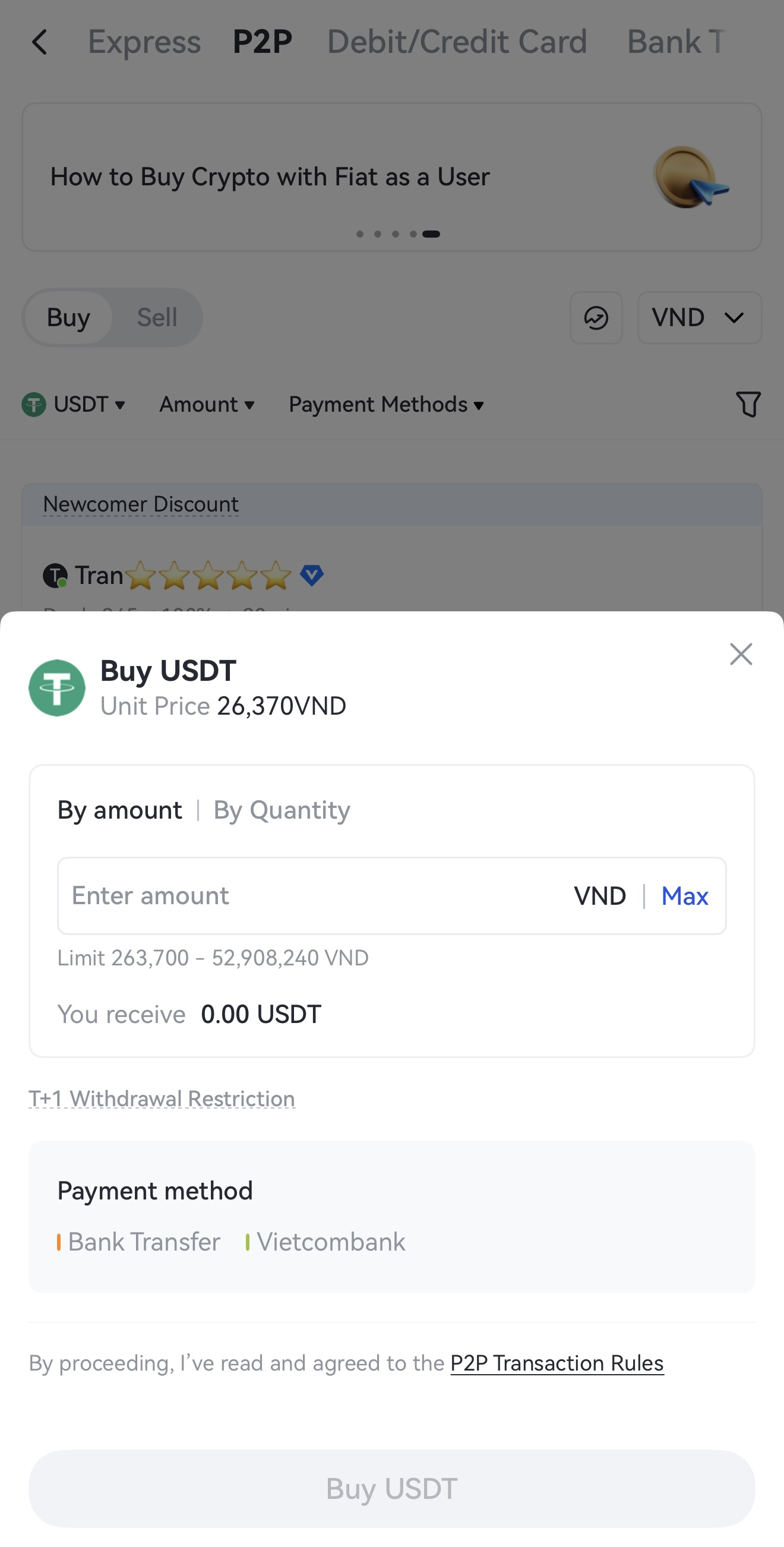
Étape 3 : Appuyez sur [Acheter], entrez le montant/la quantité, puis appuyez à nouveau sur [Acheter USDT]. Un message « Succès » s'affichera une fois votre ordre passé.
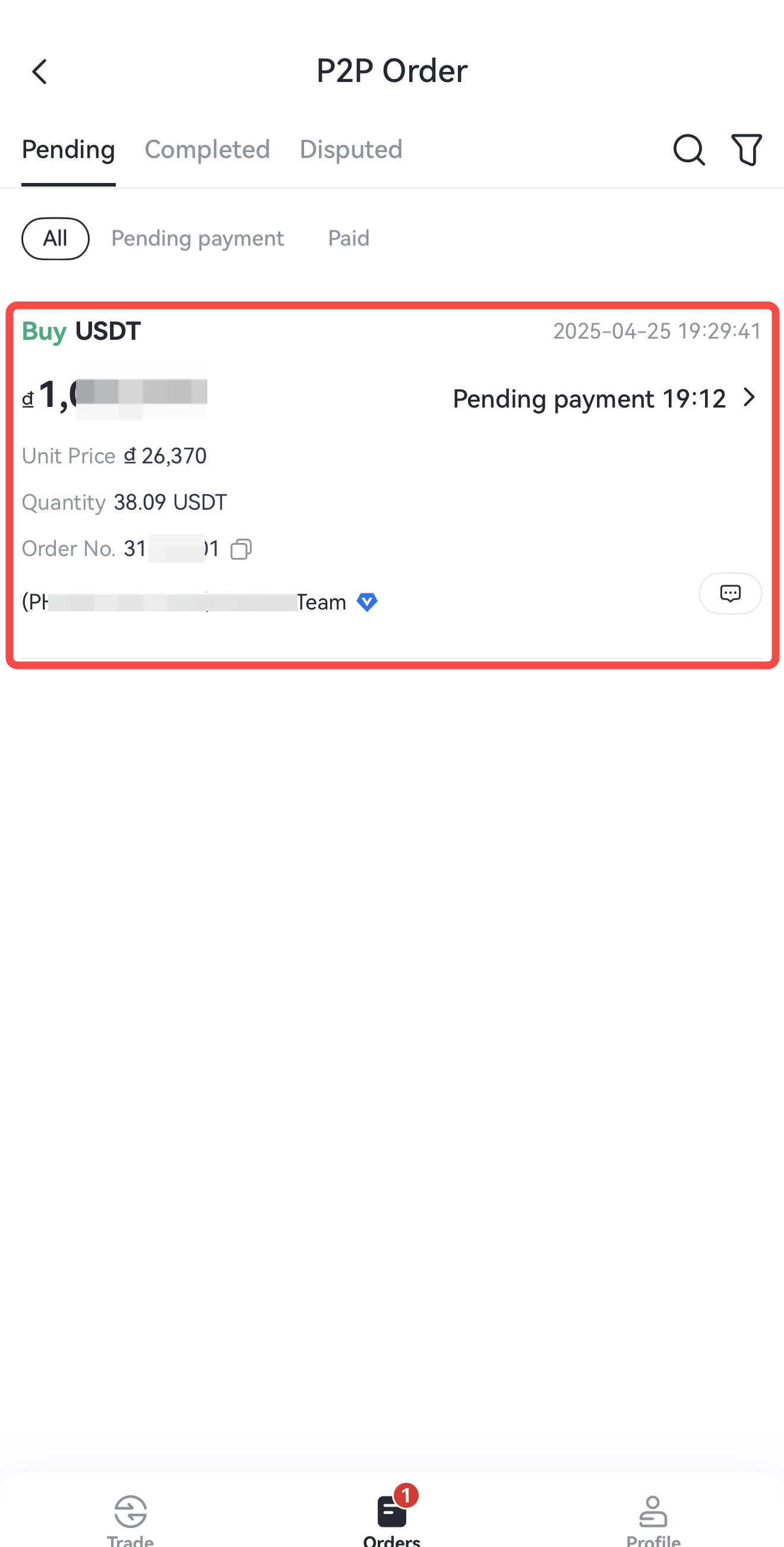
Étape 4: Une fois que votre ordre est assorti, vous verrez une bannière [Paiement en attente] sur le côté droit de l'écran. Les utilisateurs réguliers peuvent vérifier le statut de l'ordre en appuyant sur l'icône de carnet en haut à droite. Si vous êtes un marchand, rendez-vous dans l'onglet [Ordres] en bas de l'écran pour voir vos ordres sous [En attente] ou [Complété].
Étape 5: Appuyez sur [Payer maintenant] pour voir les détails du compte du vendeur. Transférez des fonds vers le compte fourni par le vendeur, puis appuyez sur [J'ai payé] dans les 20 minutes suivant la réalisation du paiement.
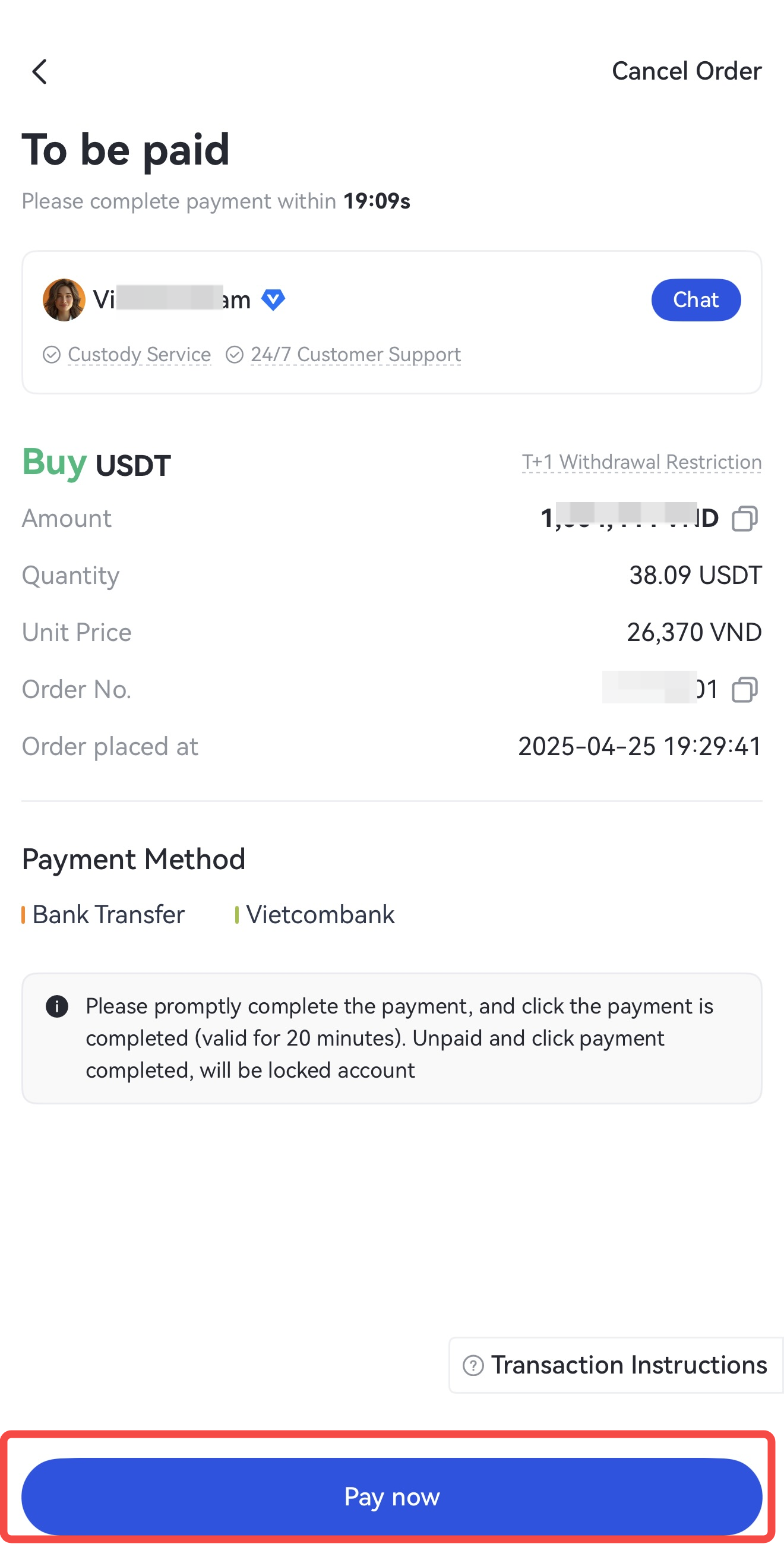
Remarque : Assurez-vous de compléter le paiement et de cliquer sur [J'ai payé] dans les 20 minutes suivant la finalisation du paiement (Gate ne prend pas en charge les paiements automatiques). Sinon, la commande sera automatiquement annulée et la crypto sera retournée au vendeur. Ne pas suivre les étapes peut entraîner une perte à la fois des fonds et de la crypto.
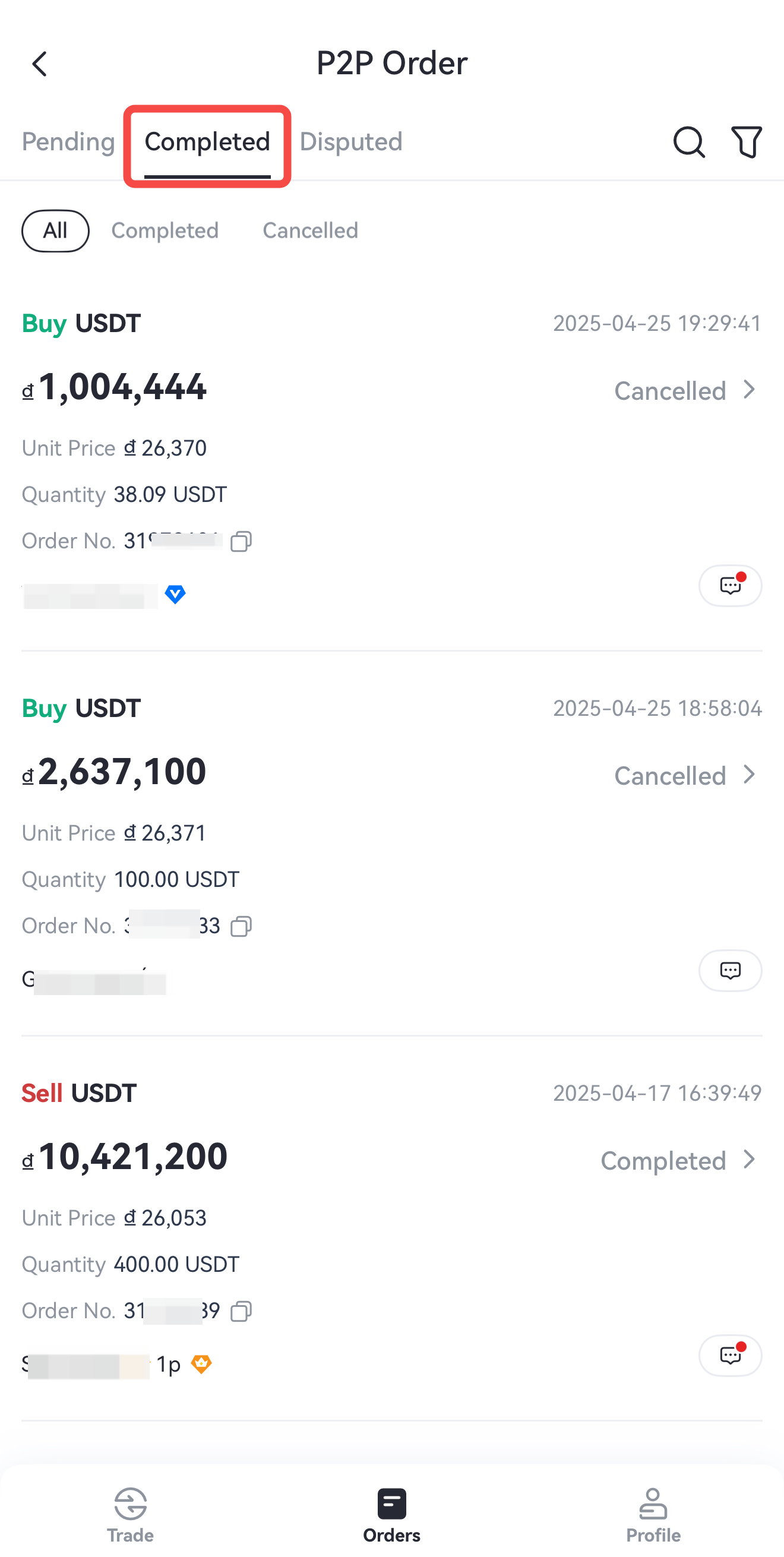
Étape 6: Une fois l'ordre terminé, allez dans [Ordre] - [Terminé] pour voir les détails de votre ordre.
2. Dépôt On-Chain
Cette méthode vous permet de transférer des crypto-monnaies d'un autre portefeuille ou d'une autre plateforme d'échange vers votre compte Gate via la blockchain.
Étape 1: Connectez-vous à votre compte sur l'application Gate, appuyez sur [Actifs] en bas à droite, puis allez à [Aperçu] - [Dépôt] - [Dépôt en chaîne].
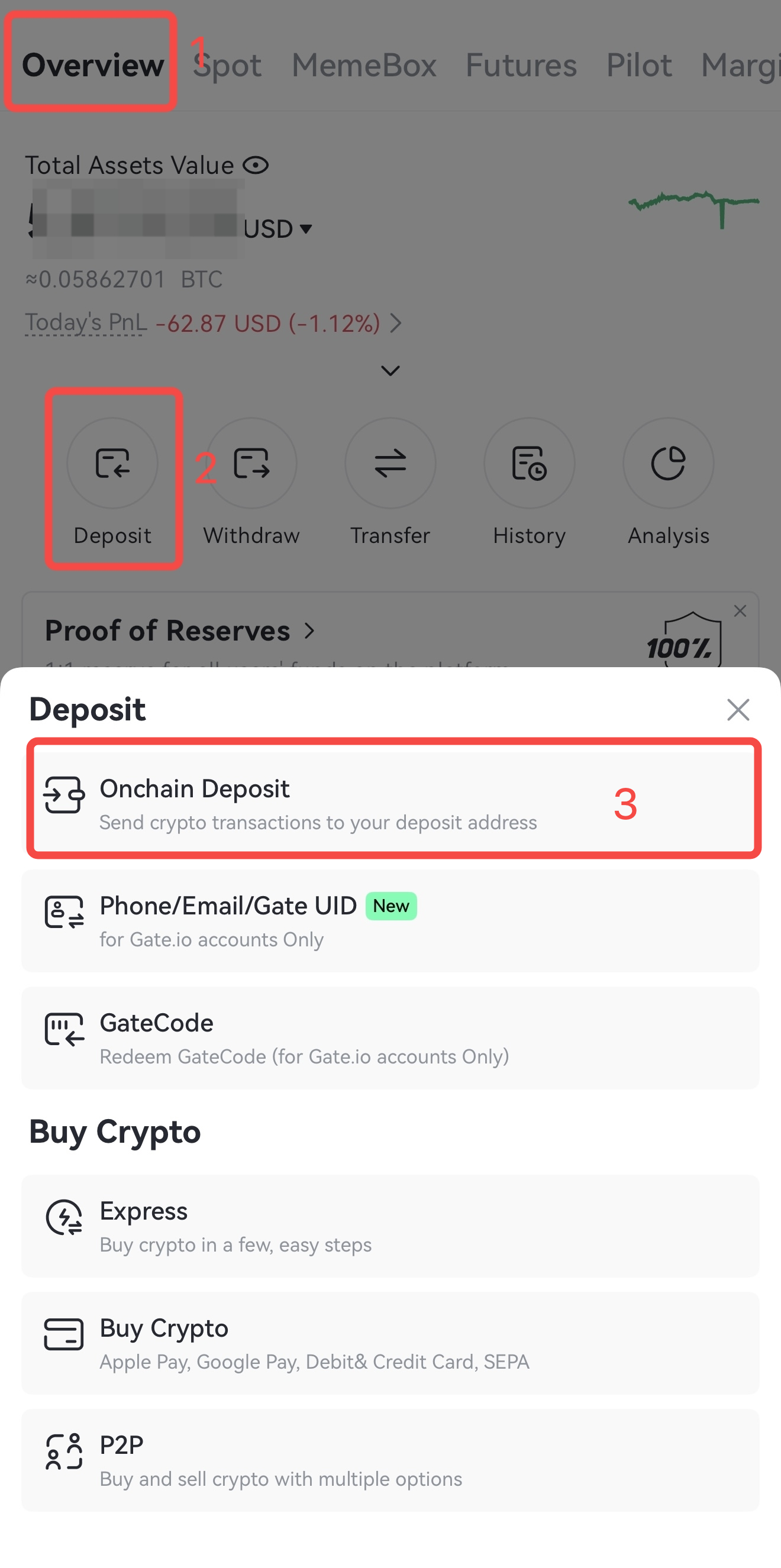
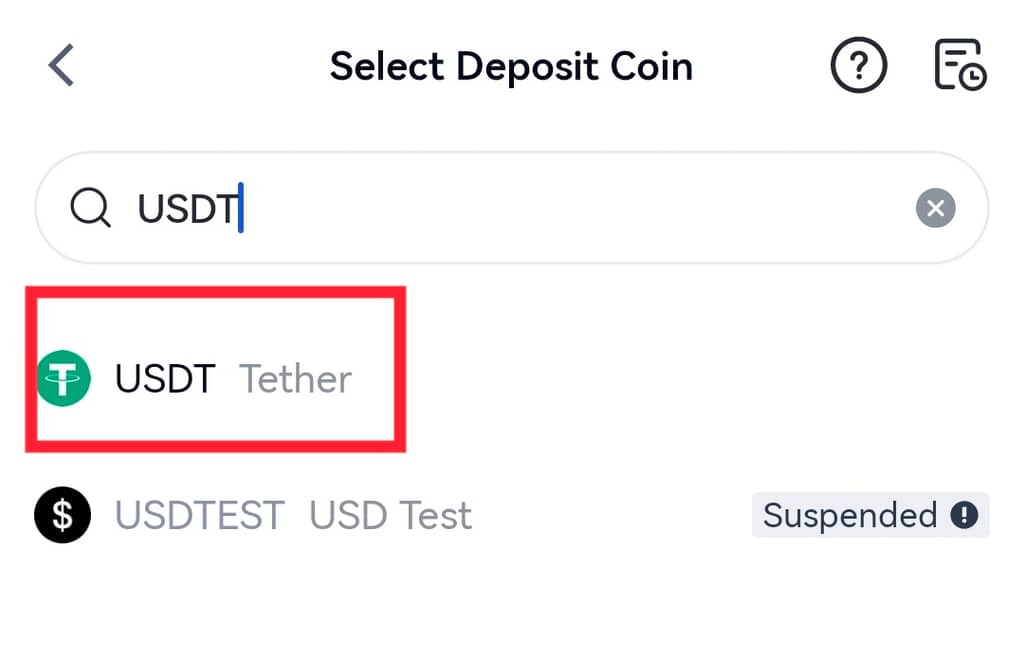
Étape 2: Sélectionnez [On-chain Deposit], entrez le token que vous souhaitez déposer.
Étape 3: Choisissez le réseau pour le dépôt. Ensuite, copiez l'adresse de dépôt ou enregistrez le code QR de l'adresse.
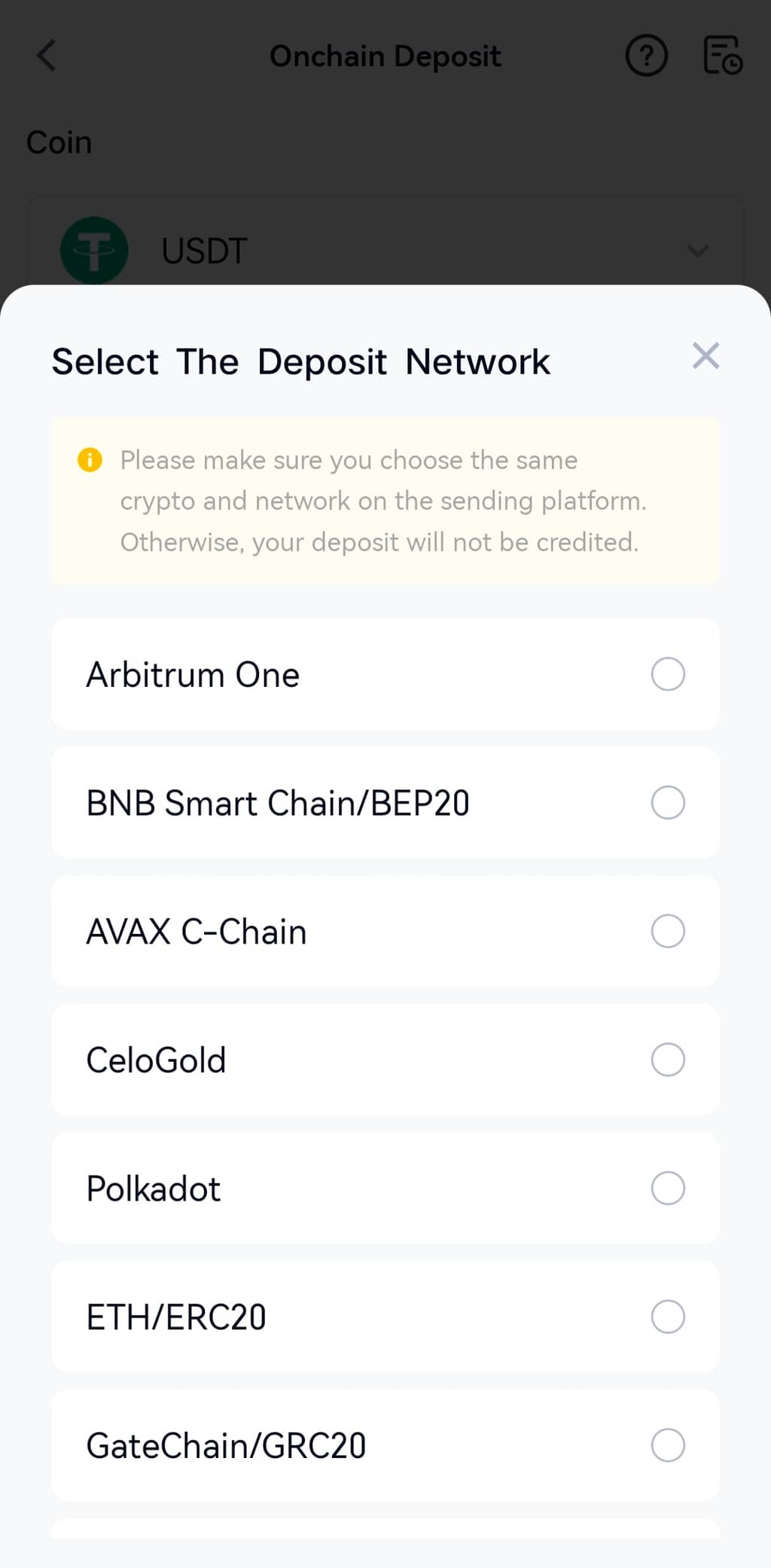
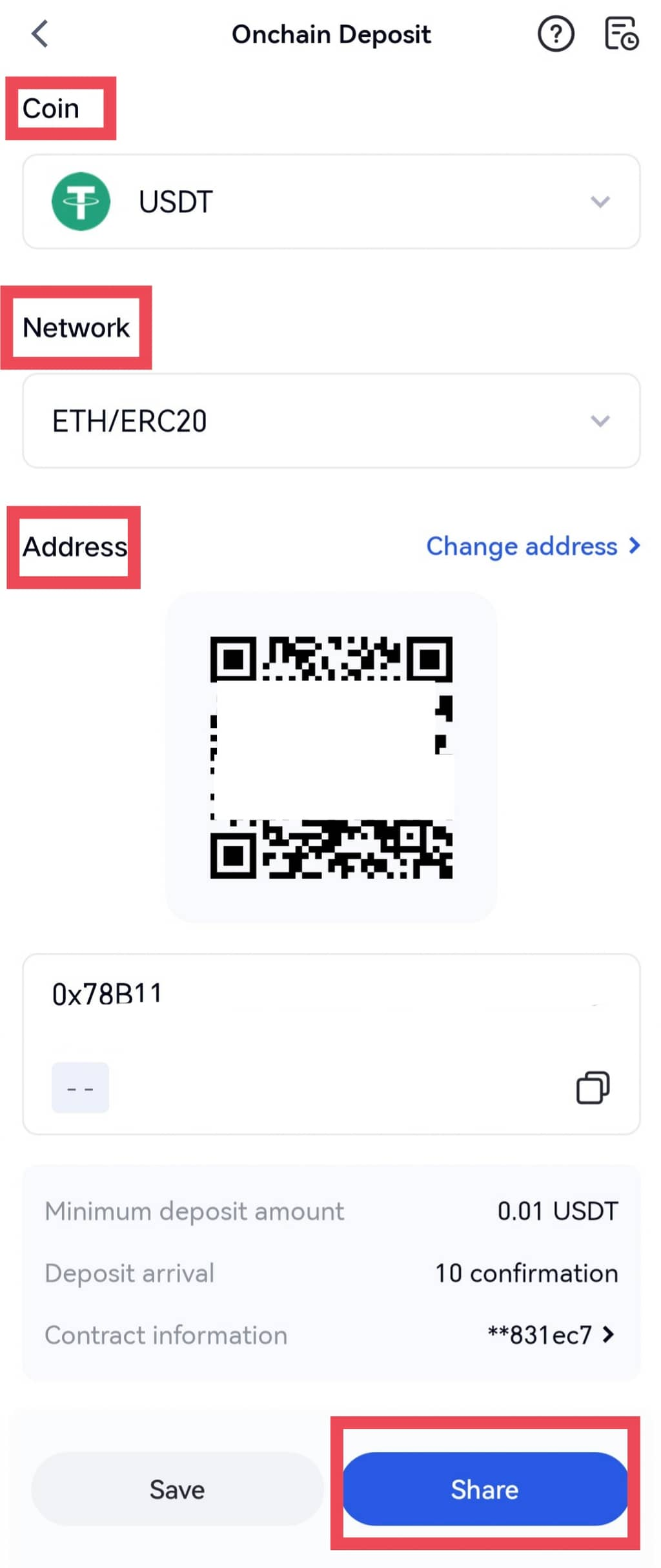
Remarque : Assurez-vous que le réseau de dépôt correspond au réseau de retrait. Vérifiez également que l'adresse de dépôt et les informations de contrat sont exactes : toute erreur peut entraîner des dépôts échoués.
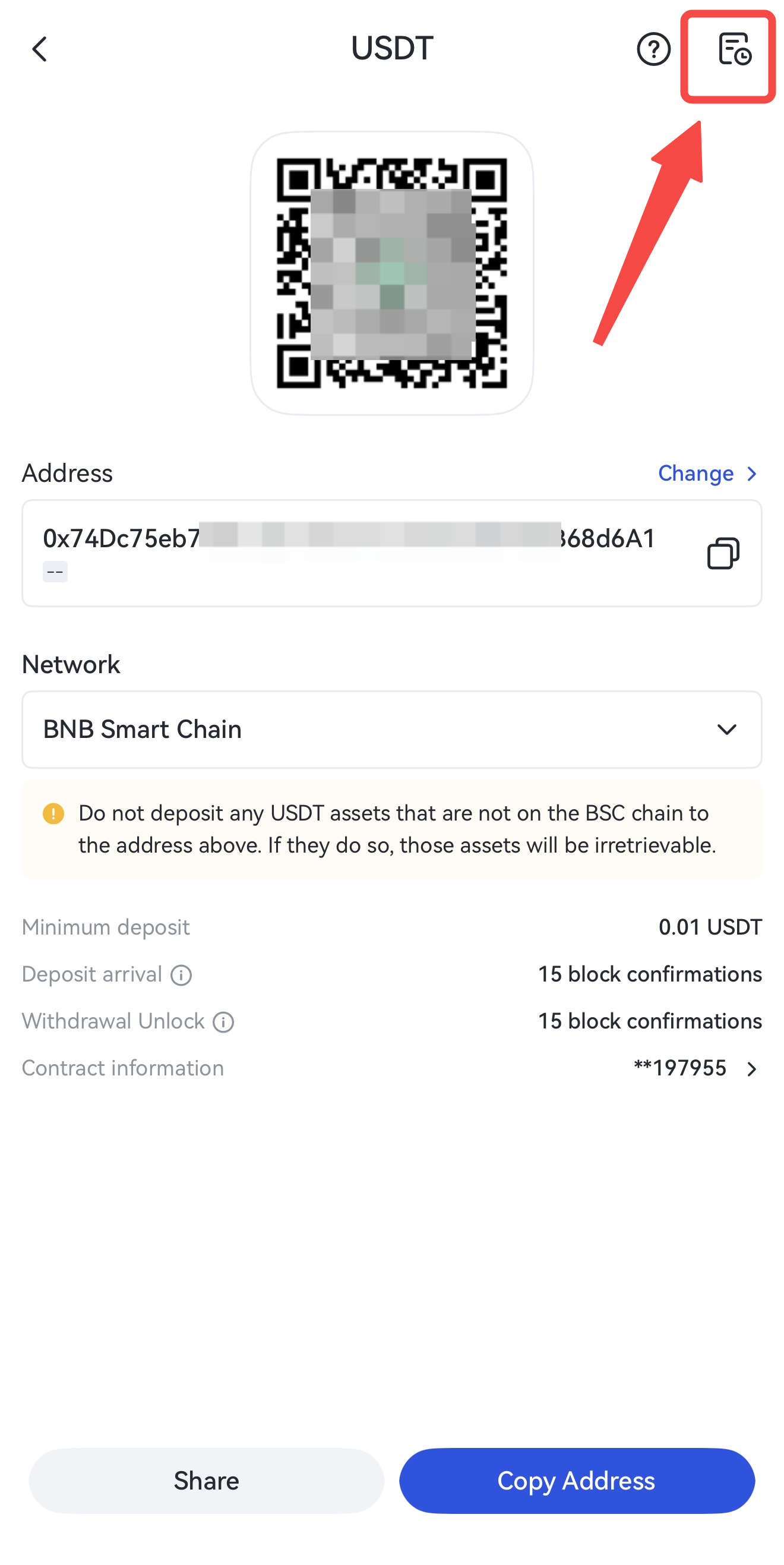
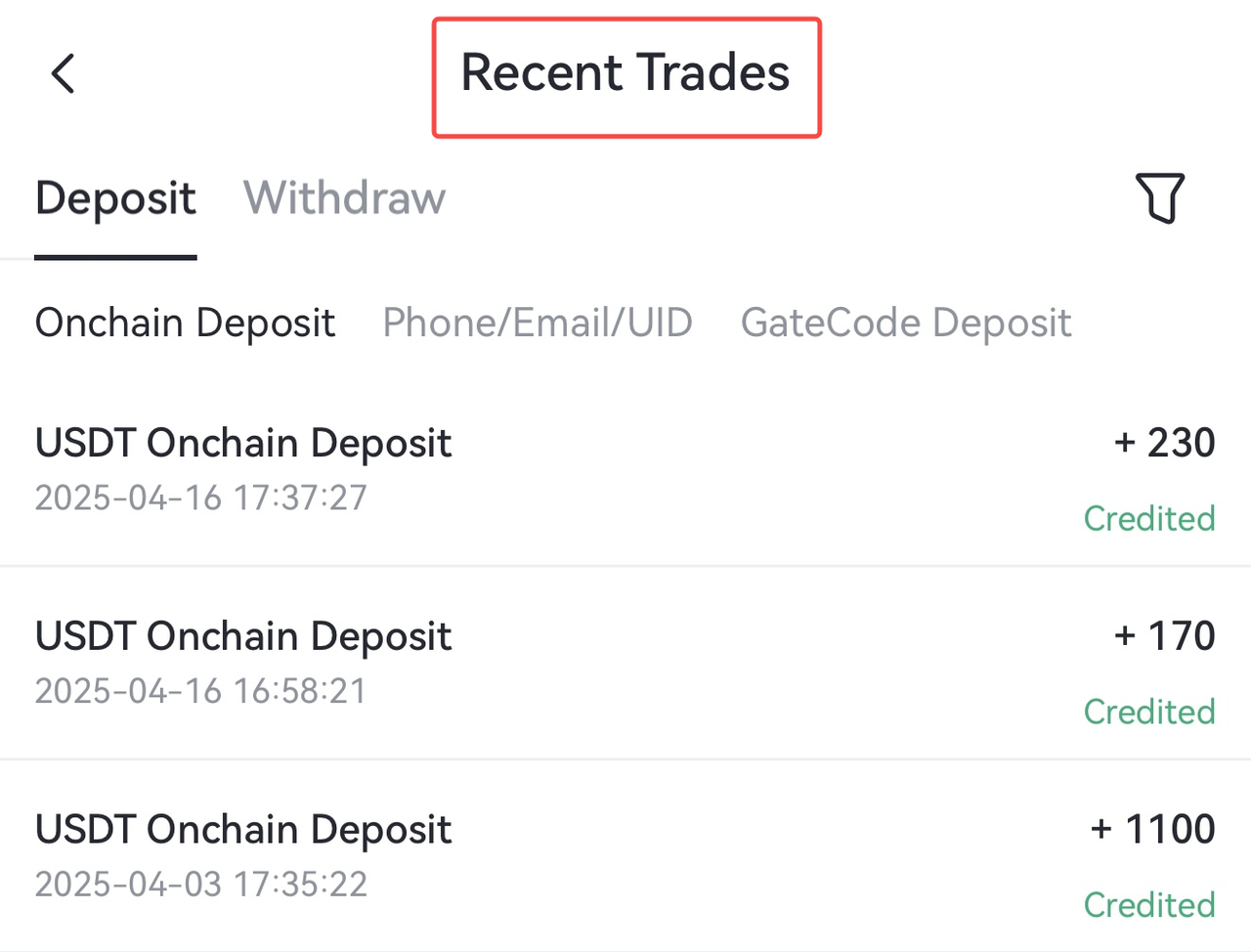
Étape 4: Collez l'adresse copiée ou scannez le code QR sur la plateforme de retrait pour compléter le transfert. Une fois terminé, appuyez sur l'icône du carnet en haut à droite de la page de dépôt pour accéder à la section [Transactions récentes] et consulter les détails de votre dépôt.
3. Dépôt par carte de débit/crédit
Vous pouvez facilement acheter des cryptomonnaies sur l'application Gate en utilisant votre carte de débit ou de crédit. Veuillez suivre les étapes ci-dessous :
Étape 1: Se connecter à votre compte sur l'application Gate, appuyez sur [Actifs] en bas à droite, puis allez à [Vue d'ensemble] - [Dépôt] - [Acheter Crypto].
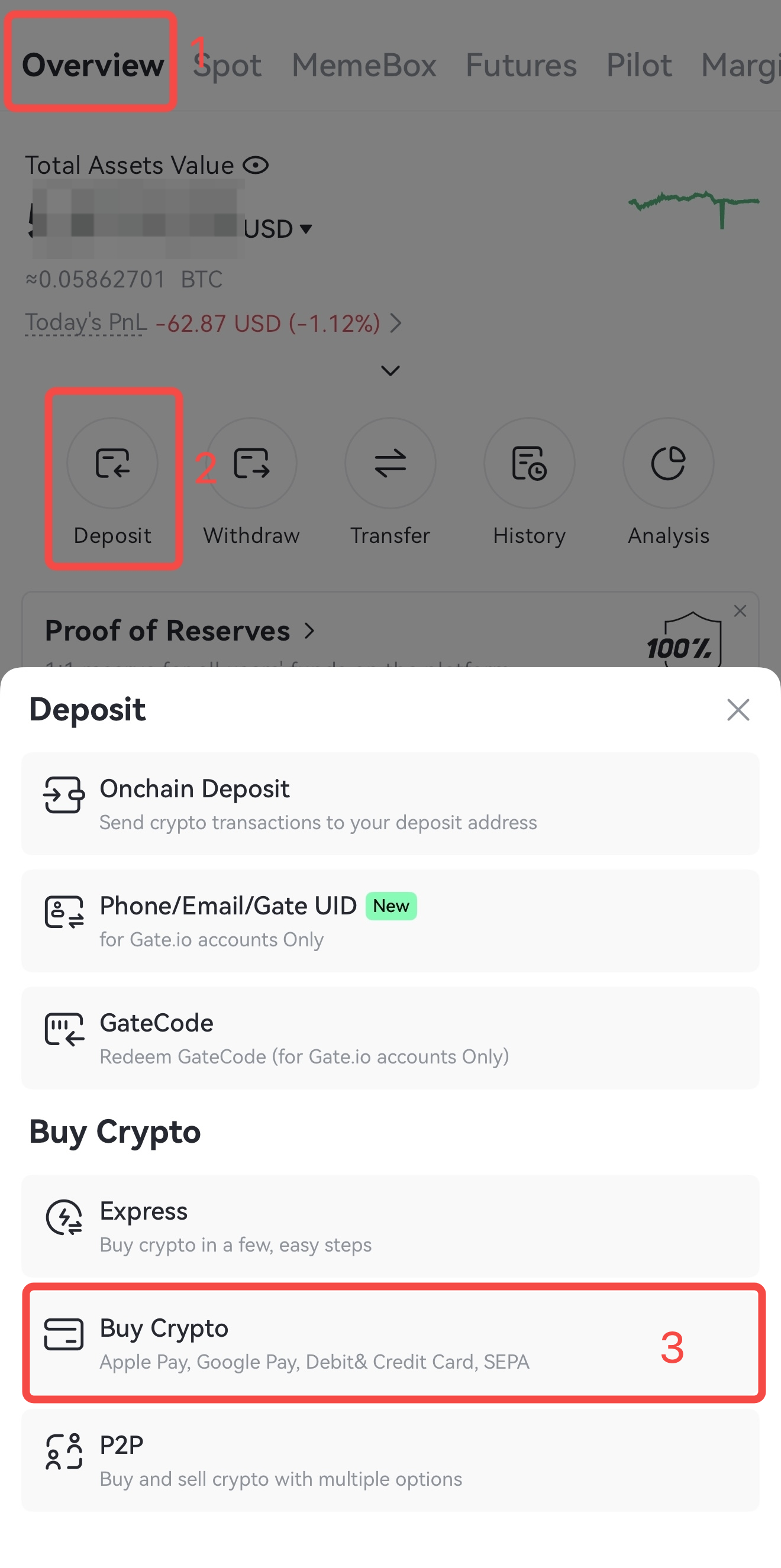
Étape 2 : Sur la page d'achat par carte de débit/crédit, saisissez le montant sous [Dépenses] dans votre fiat préféré (par exemple, USD). Le système calculera automatiquement le montant de crypto que vous recevrez.
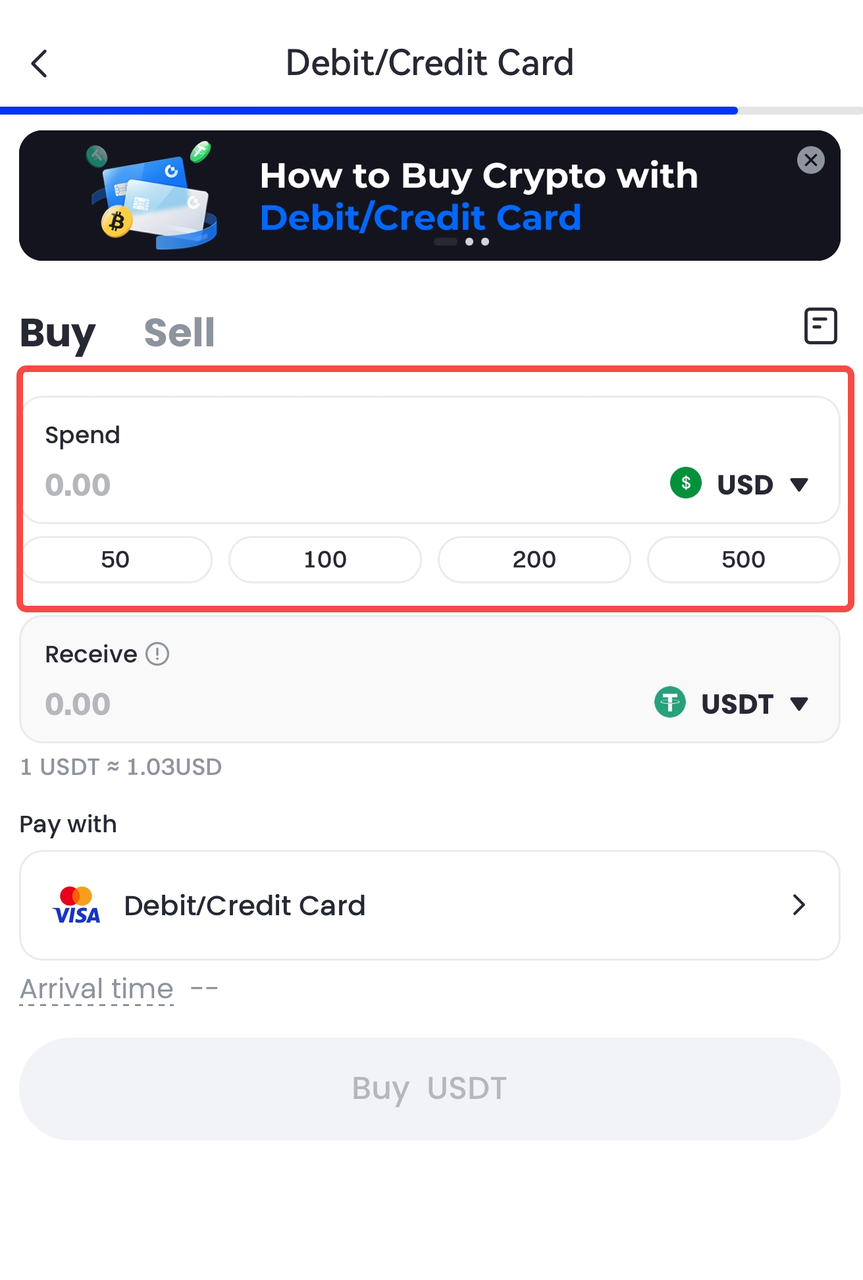
Étape 3: Sélectionnez la crypto-monnaie que vous souhaitez acheter : appuyez sur le menu déroulant à côté de [Receive] et choisissez votre crypto souhaitée (par exemple, USDT).
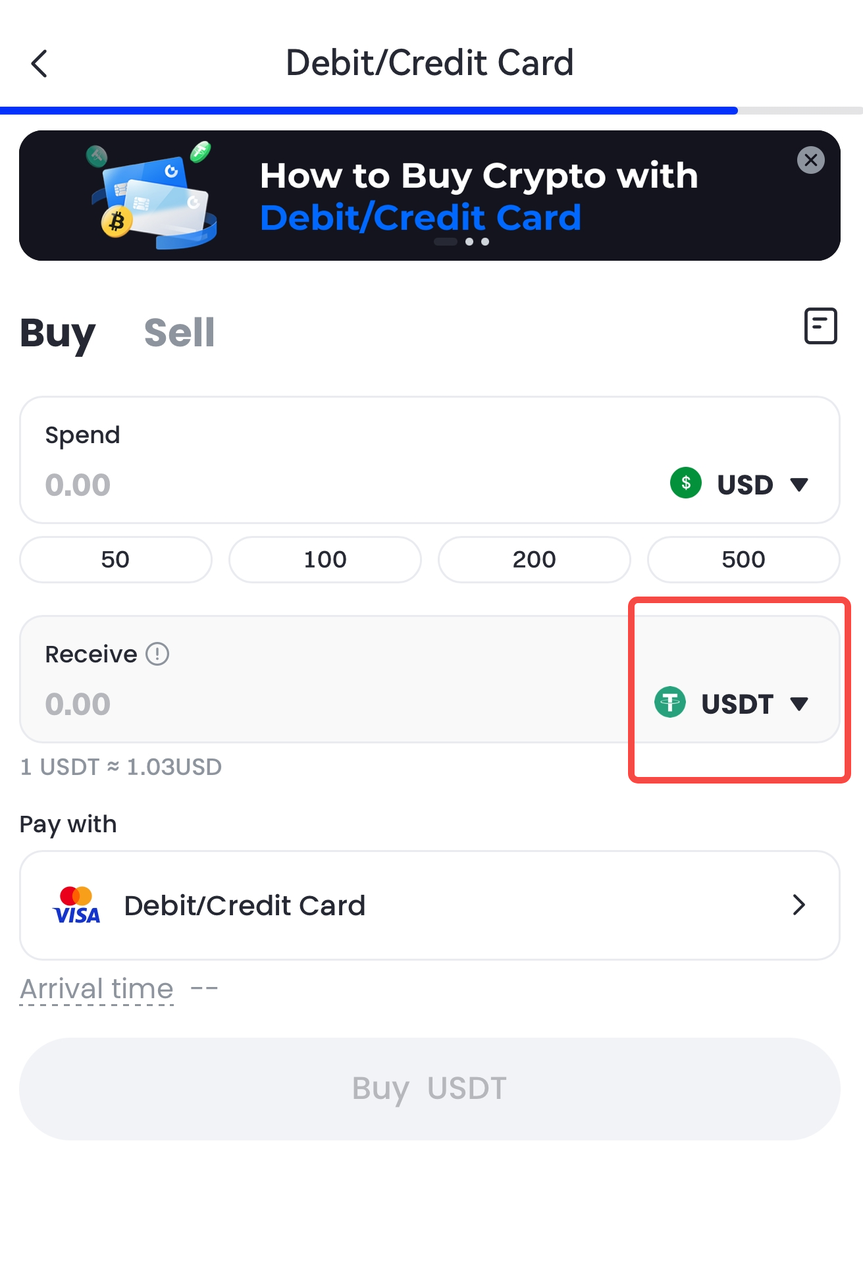
Étape 4: Sélectionnez un moyen de paiement, puis cliquez sur [Acheter].
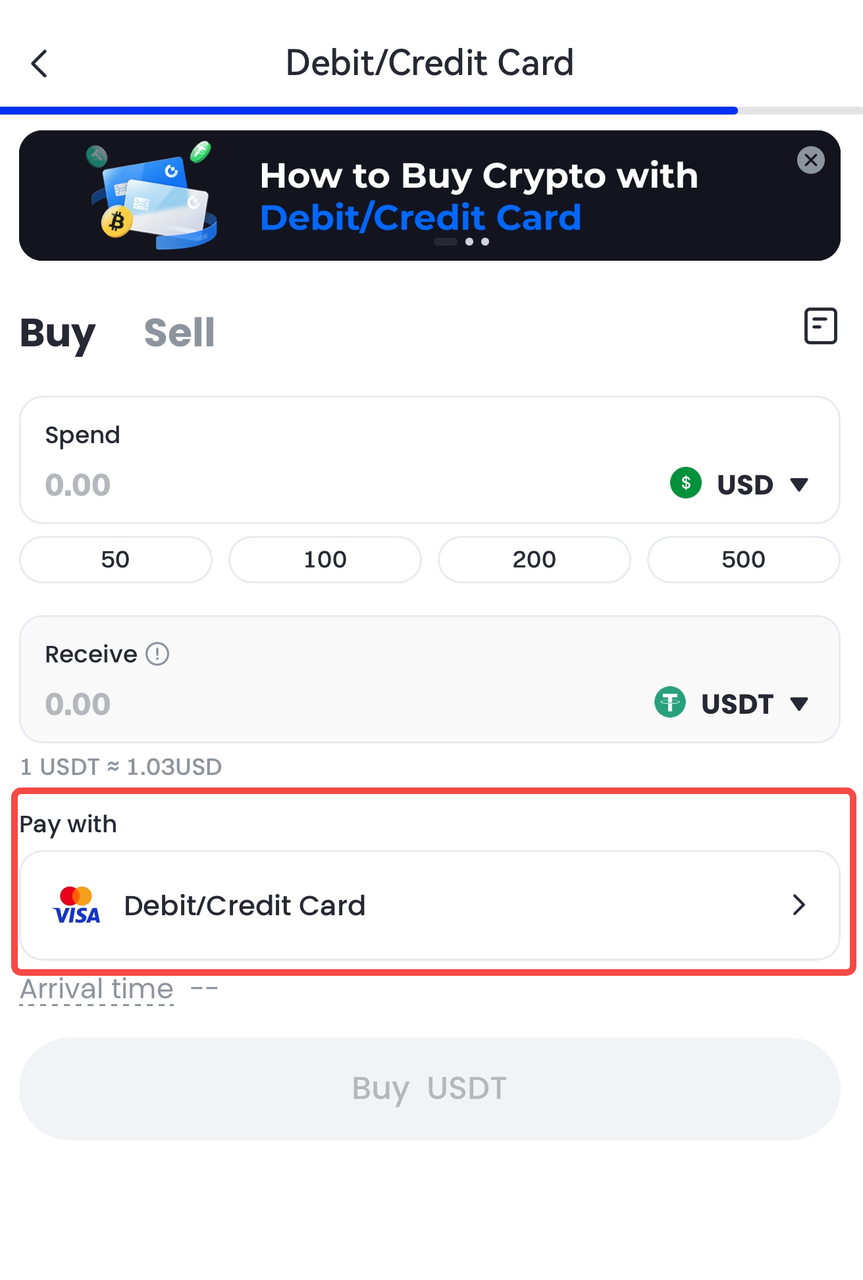
Étape 5 : Veuillez vérifier attentivement les détails de votre ordre avant d'appuyer sur [Acheter] pour finaliser le paiement.
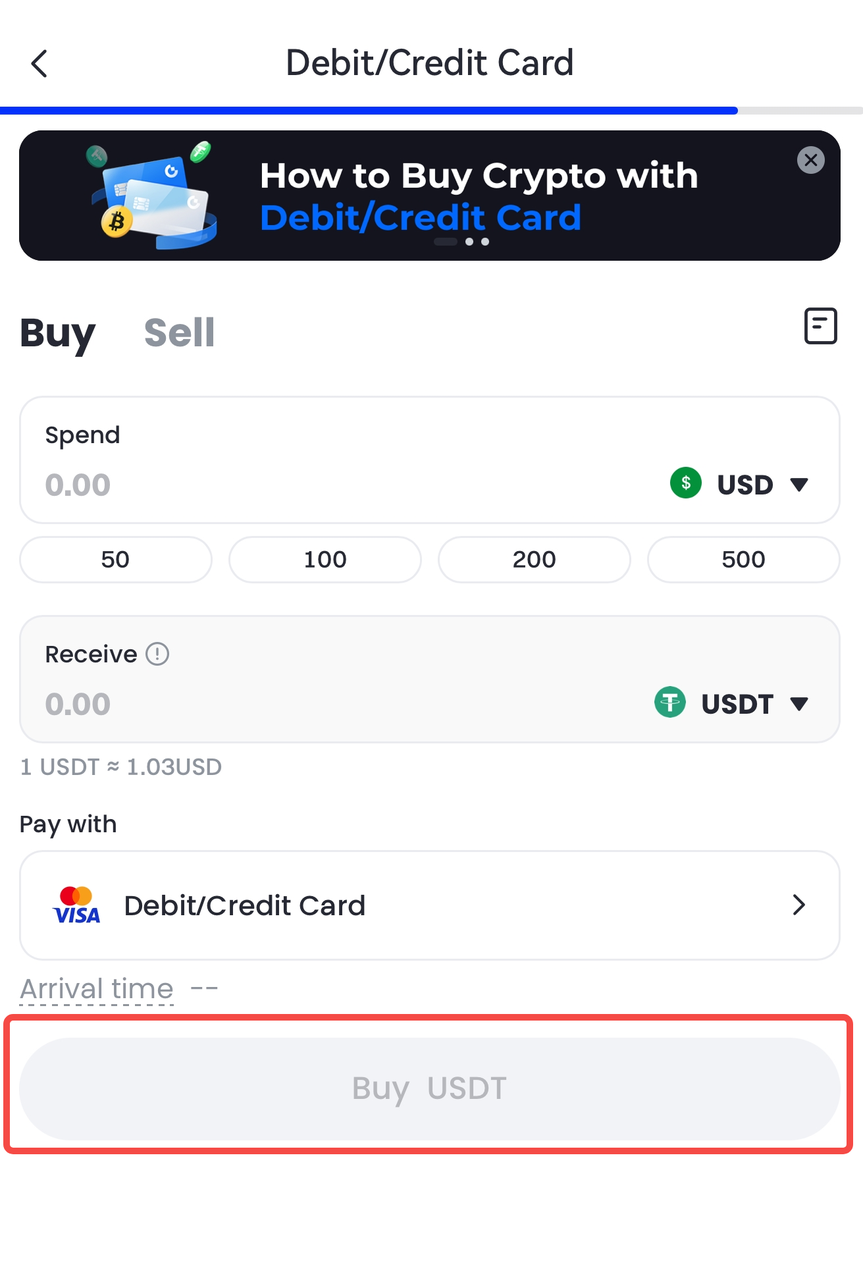
Attention : Si vous n'avez pas lié de méthode de paiement, le système vous invitera à lier une méthode de paiement après avoir cliqué sur [Acheter]. Suivez les instructions à l'écran pour compléter le processus de liaison de paiement.
Clause de non-responsabilité
Le contenu présenté ici est fourni à titre informatif et éducatif uniquement et ne constitue en aucun cas un conseil financier, d'investissement, de trading ou juridique, ni une offre ou une sollicitation d'achat ou de vente de tout actif numérique. Gate ne donne aucune garantie expresse ou implicite quant à l'exactitude, l'exhaustivité ou l'actualité des informations contenues dans ce Les fonctions des produits, les interfaces, les règles et les structures tarifaires peuvent être modifiées ou ajustées à tout moment. Veuillez vous référer aux dernières annonces ainsi qu'aux informations affichées sur la plateforme Gate pour obtenir les détails les plus précis.
Les investissements en actifs numériques comportent des risques importants, et les prix peuvent connaître d'importantes fluctuations. Vous pouvez perdre la totalité de votre investissement. Veillez à prendre vos décisions avec prudence, en fonction de votre situation financière et de votre tolérance au risque, après avoir pleinement compris les risques associés. Si nécessaire, il est recommandé de consulter un conseiller financier ou juridique indépendant.
Pour plus d'informations sur les risques potentiels, veuillez consulter la déclaration des risques et les conditions d'utilisation de Gate.
