


الجبل الجليدي
ما هو طلب الجبل الجليدي؟
طلبات جبل الجليدي هي طلبات فردية كبيرة تم تقسيمها إلى طلبات حدية أصغر، بغرض إخفاء مبلغ الطلب الفعلي. يأتي مصطلح "جبل الجليدي" من حقيقة أن الكميات المرئية هي مجرد [قبة جبل الجليدي] بالنظر إلى العدد الأكبر من الطلبات المحددة الجاهزة للتنفيذ. يتم وضع طلبات جبل الجليدي عادةً لتجنب تعطيل أسواق التداول بطلب واحد كبير وزيادة التكاليف.
دليل مستخدم أمر جبل الجليدي
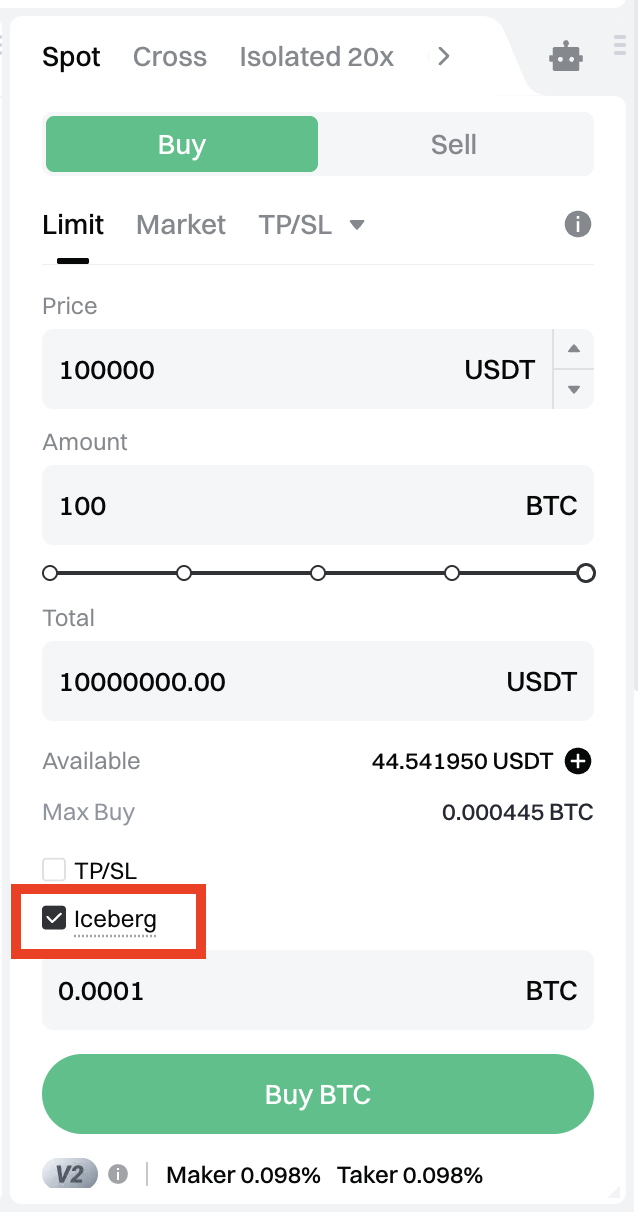
إذا كنت ترغب في شراء 100 BTC عندما ينخفض سعره إلى 100,000 USDT ولا تريد تعطيل سوق التداول وزيادة التكاليف بمثل هذا الطلب الفردي والكبير، يمكنك تحديد مربع [الجبل الجليدي] عند وضع طلب محدد ويمكنك تخصيص الكمية المرئية، أي الكمية المعروضة من طلبات الشراء في دفتر الطلبات. بعد ذلك يمكنك النقر فوق [شراء BTC] لوضع الطلبات. سيتم تنفيذ جميع الطلبات تدريجياً بعد ملء الطلب الأول.
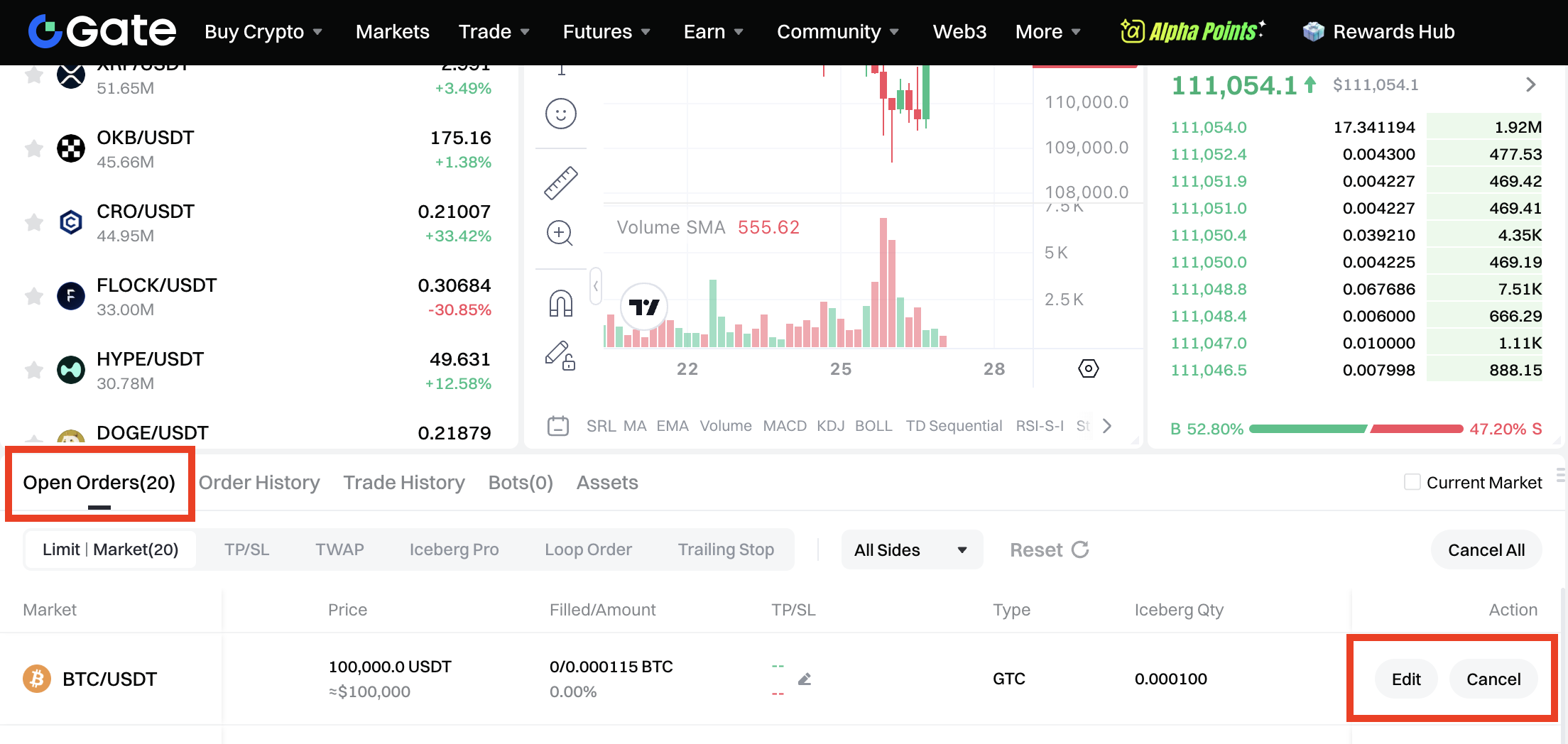
كيف يتم عرض تفاصيل طلب جبل الجليدي؟
انقر فوق [الطلبات المفتوحة] - [محدد]، يمكنك رؤية تفاصيل طلبات جبل الجليد الجارية.
IOC (فوري أو إلغاء)
ما هو IOC؟
تمكين IOC عند وضع طلب يعني أن أي جزء لا يتم تنفيذه فوراً سيتم إلغاؤه.
على سبيل المثال، تريد بيع نصف ما تملكه من BTC بسعر 20,000 USDT، ولكن تم تنفيذ 1/4 فقط من الطلبات فوراً. في هذه الحالة، إذا قمت بتمكين IOC عند وضع الطلب، فسيتم إلغاء الجزء الذي لم يتم تنفيذه فوراً.
عندما يضع المستثمر طلبًا كبيراً ولا يريد مواجهة فروق أسعار كبيرة، يمكنه تمكين IOC عند وضع الطلب. علاوة على ذلك، عندما يضع المستثمر طلبات لأزواج تداول متعددة، فإن تمكين IOC يمكن أن يتجنب أيضاً نسيان إلغاء الطلبات. يمكن أن يؤدي تمكين IOC عند وضع طلب محدد إلى تجنب تنفيذ الطلبات بسعر غير مرضٍ عندما يكون السوق متقلباً.
دليل مستخدم IOC
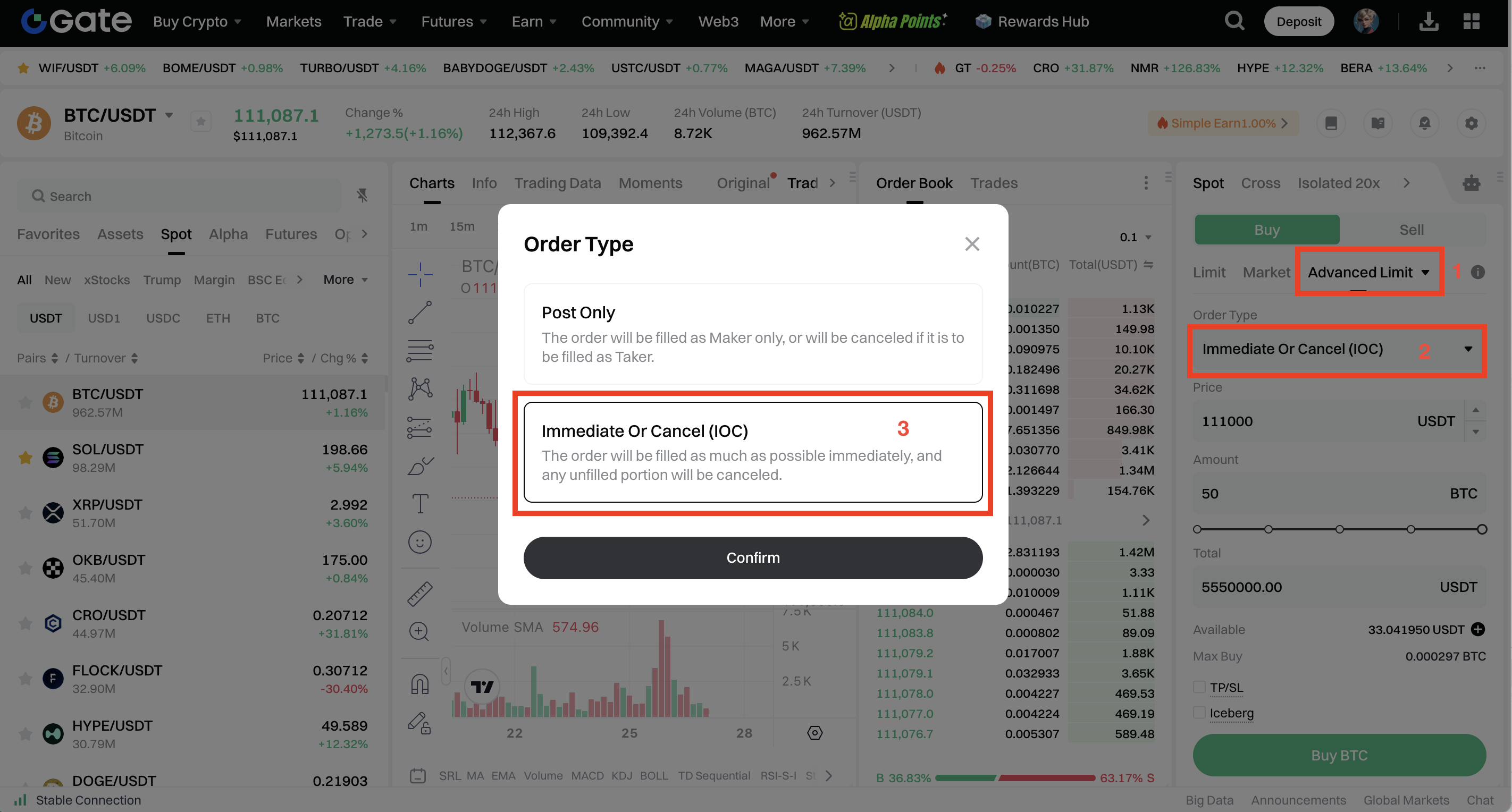
افترض أنك تريد شراء 50 BTC عندما يصل سعر BTC إلى 111,000 USDT. ما عليك سوى اختيار [حد متقدم] في منطقة وضع الطلبات، واختيار [فوري أو إلغاء (IOC)] تحت نوع الطلب، والتأكيد لاستخدام وظيفة IOC.
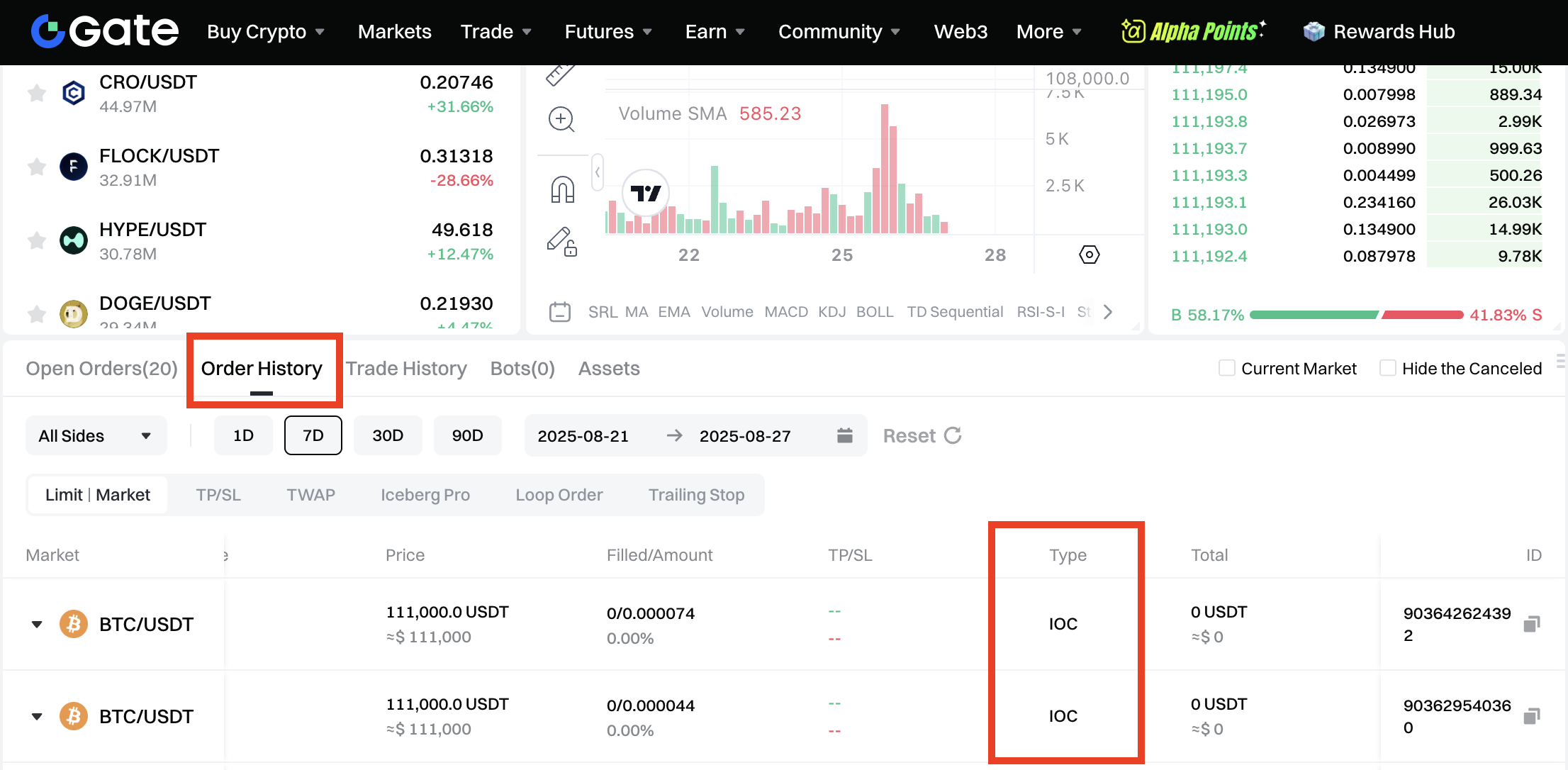
كيف يتم عرض تفاصيل طلب IOC
انقر فوق [سجل الطلبات] للتحقق من تفاصيل طلب IOC حيث سيتم إلغاء أي جزء من طلب IOC لا يتم ملؤه فوراً. من الممكن أيضاً أن يتم إلغاء طلب IOC بالكامل في حال عدم وجود سعر مطابق في دفتر الطلبات.
تحتفظ Gate بالحق في التفسير النهائي لهذا المنتج.
إخلاء مسؤولية
المحتوى الوارد هنا مُقدَّم لأغراض مرجعية وتعليمية فقط، ولا يشكّل أي نصيحة مالية أو استثمارية أو تداولية أو قانونية، كما لا يُعد عرضًا أو دعوة لشراء أو بيع أي أصول رقمية. لا تقدّم Gate أي تعهدات أو ضمانات صريحة أو ضمنية بشأن دقة المعلومات الواردة هنا أو اكتمالها أو توقيتها. قد يتم تحديث أو تعديل ميزات المنتجات والواجهات والقواعد وهياكل الرسوم في أي وقت. يرجى الرجوع إلى أحدث الإعلانات والمعلومات الفعلية المعروضة على منصة Gate للحصول على أدق التفاصيل.
تنطوي الاستثمارات في الأصول الرقمية على مخاطر كبيرة، وقد تتقلب الأسعار بشكل ملحوظ. وقد تفقد كامل مبلغ استثمارك. يرجى اتخاذ قراراتك بحذر بناءً على وضعك المالي وقدرتك على تحمّل المخاطر بعد الفهم الكامل للمخاطر المرتبطة بذلك. وإذا لزم الأمر، يُنصح باستشارة مستشار مالي أو قانوني مستقل.
لمزيد من المعلومات حول المخاطر المحتملة، يرجى الرجوع إلى إفصاح المخاطر واتفاقية المستخدم الخاصة بـGate.
